
Are you curious about how well you really sleep each night? Your Gear S2 can be the key to unlocking those answers.
Tracking your sleep isn’t just for experts—it’s something you can easily do yourself. Imagine waking up refreshed because you understand your sleep patterns better. You’ll discover simple steps to use your Gear S2 to monitor your sleep, helping you improve your rest and feel more energized every day.
Keep reading to find out how to turn your smartwatch into your personal sleep coach.

Credit: www.reddit.com
Setting Up Sleep Tracking On Gear S2
Tracking your sleep with the Gear S2 can transform how you understand your nightly rest. Setting up sleep tracking correctly ensures you get accurate data to improve your sleep habits. Let’s break down the essential steps to get your Gear S2 ready for sleep monitoring.
Installing The Samsung Health App
Start by downloading the Samsung Health app on your smartphone. This app is crucial because it collects and displays your sleep data from the Gear S2.
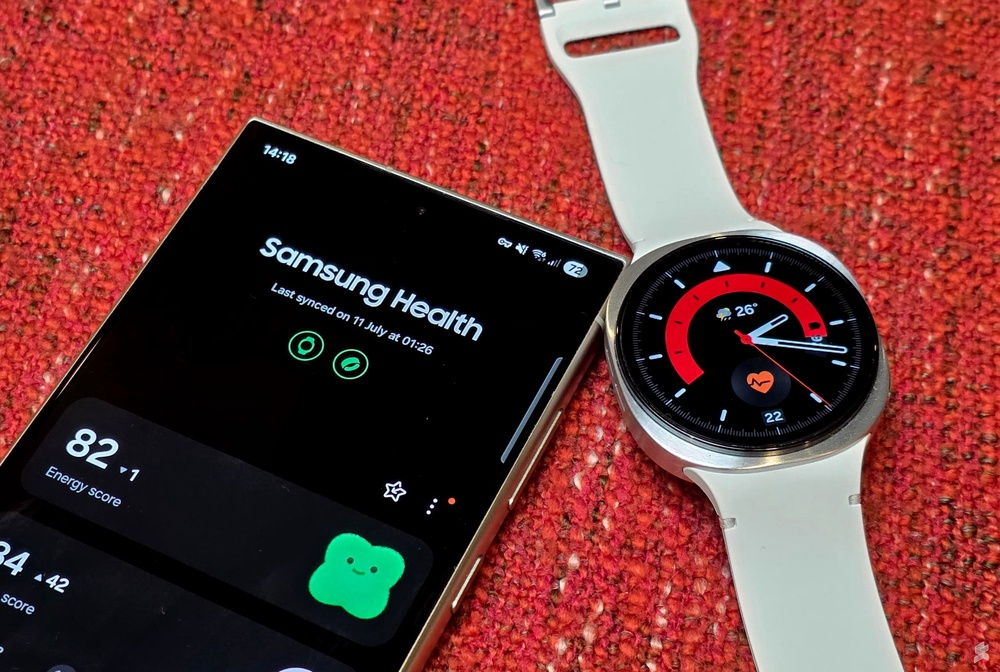
Once installed, open the app and sign in with your Samsung account. Sync your Gear S2 with the app via Bluetooth to enable seamless data transfer.
Configuring Sleep Tracking Settings
Within the Samsung Health app, navigate to the sleep tracking section. Here, you can set your preferred sleep and wake times to help the watch recognize your sleep schedule.
Adjust settings like sleep reminders or automatic sleep detection according to your preferences. This customization helps the Gear S2 capture your sleep patterns more precisely.
Wearing Your Gear S2 Correctly
For accurate sleep tracking, wear your Gear S2 snugly on your wrist but not too tight. The sensors must maintain contact with your skin to monitor heart rate and movement effectively.
Try to wear it on your non-dominant hand to reduce false readings caused by frequent movements. Have you noticed any difference in sleep data when you wear it loosely versus snugly?

Credit: www.reddit.com
Using Sleep Tracking Features
The Gear S2 offers simple and useful sleep tracking features. It helps you understand your sleep quality by monitoring different sleep stages. Using these features is easy and gives useful insights to improve your rest.
Starting And Stopping Sleep Tracking
To begin tracking your sleep, open the Samsung Health app on your Gear S2. Scroll to the sleep section and tap to start sleep tracking before you go to bed. The watch will automatically detect your sleep and monitor it throughout the night.
To stop tracking, simply wake up and open the app again. Tap the stop button to end the sleep session manually if needed. The data will then sync with your phone for detailed analysis.
Understanding Sleep Stages
The Gear S2 tracks three main sleep stages:
- Light Sleep – when your body rests but can wake easily.
- Deep Sleep – the most restorative phase for your muscles and brain.
- REM Sleep – important for memory and dreaming.
Knowing these stages helps you see how well you rest. More deep and REM sleep means better recovery and energy for the day.
Checking Sleep Data On The Watch
After waking up, check your sleep data on the Gear S2. Open the Samsung Health app and select the sleep section.
The watch shows your total sleep time, breakdown of sleep stages, and sleep quality score. You can review this every morning to track changes and patterns.
Analyzing Sleep Data On Your Phone
Analyzing sleep data on your phone can improve your rest. The Gear S2 helps track your sleep. It collects data while you sleep. This data reveals your sleep patterns. Using your phone to analyze this data is easy and insightful.
Syncing Data With Samsung Health
First, ensure your Gear S2 syncs with Samsung Health. Open the Samsung Health app on your phone. Make sure Bluetooth is on. Your watch connects automatically. The app then updates with your latest sleep data.
Interpreting Sleep Reports
Once synced, check your sleep report. The app breaks down your sleep stages. It shows deep, light, and REM sleep. This data helps you understand your sleep quality. Look for patterns in your sleep stages. Poor sleep might show less deep sleep.
Tracking Sleep Trends Over Time
Samsung Health allows tracking sleep trends over time. View daily, weekly, or monthly reports. Spot changes in your sleep patterns. Consistent trends might reveal habits affecting sleep. Adjust your routine for better rest.
Improving Sleep Based On Insights
Improving sleep starts with understanding the data your Gear S2 provides. The device tracks your sleep patterns, showing how long and how well you rest. Use these insights to make small changes that lead to better sleep quality. Focus on setting clear goals, using helpful reminders, and practicing good sleep habits.
Setting Sleep Goals
Decide how many hours of sleep you want each night. Use the Gear S2 app to set a target that fits your lifestyle. Clear goals help you stay motivated and track progress. Adjust your goals based on the sleep data the watch collects. Aim for consistent sleep times to improve your rest.
Using Sleep Reminders And Alarms
The Gear S2 lets you set reminders for bedtime and wake-up times. These alerts help you stick to your sleep schedule. Choose gentle alarm sounds to wake up feeling refreshed. Use reminders to start winding down before bed. Regular sleep and wake times improve your body’s natural rhythm.
Tips For Better Sleep Hygiene
- Keep your bedroom dark and quiet for better rest.
- Avoid screens at least 30 minutes before sleep.
- Limit caffeine and heavy meals in the evening.
- Try relaxing activities like reading or light stretching before bed.
- Maintain a cool room temperature to sleep comfortably.
Use the Gear S2 data to see how these habits affect your sleep. Small changes can make a big difference over time.
Troubleshooting Sleep Tracking Issues
Sleep tracking with the Gear S2 can sometimes face hiccups. These issues may affect the accuracy or consistency of your sleep data. Identifying and fixing these problems helps you get reliable sleep insights. This section guides you through common troubleshooting steps for smooth sleep tracking.
Common Problems And Fixes
- Sleep data not recorded: Ensure the watch is worn snugly during sleep.
- Incorrect sleep duration: Check if the watch detects your bedtime correctly.
- Missing sleep stages: Make sure the sensors are clean and skin contact is good.
- Sync issues with the app: Restart the Gear S2 and reconnect to your phone.
Updating Firmware And Apps
Outdated software can cause tracking errors. Regular updates improve performance and fix bugs.
- Open the Galaxy Wearable app on your phone.
- Check for firmware updates for your Gear S2.
- Update the Samsung Health app to the latest version.
- Restart your devices after updates to apply changes.
When To Reset Your Gear S2
Resetting the Gear S2 can fix persistent sleep tracking problems. Use this option if other fixes fail.
- Backup your data before resetting.
- Go to Settings > General > Reset on your Gear S2.
- Follow the prompts to complete the reset process.
- Pair the watch with your phone again and set it up.
Credit: newswav.com
Alternative Sleep Tracking Methods
If you’re relying on the Gear S2 to track your sleep, you might find its built-in features useful but sometimes limited. Luckily, there are alternative ways to keep a close eye on your sleep patterns. These options can give you more detailed insights or complement what your Gear S2 already offers.
Using Third-party Apps
Many third-party apps can sync with your Gear S2 or work independently to track sleep. Apps like Sleep Cycle or AutoSleep offer detailed sleep stage analysis and wake-up alarms based on your sleep quality. You can try a few to see which interface and data presentation suit you best.
These apps often provide helpful graphs, tips, and even bedtime reminders. Have you ever noticed patterns in your sleep that your watch didn’t catch? Third-party apps might reveal those subtle trends.
Manual Sleep Logging
Sometimes, technology misses the human touch. Manually logging your sleep in a journal or a note-taking app can fill in the blanks your Gear S2 might leave. Record how you feel when you wake up, any interruptions during the night, or lifestyle factors like caffeine intake.
Writing down your sleep habits encourages mindfulness and can highlight triggers affecting your rest. Plus, comparing your notes with Gear S2 data can help you spot inconsistencies or trends you might otherwise overlook.
Combining Gear S2 With Other Devices
Using your Gear S2 alongside other sleep tracking devices can enhance accuracy. For instance, a smart mattress sensor or a bedside sleep monitor can capture movements and breathing patterns that the Gear S2 might miss. This combination provides a more comprehensive picture of your sleep quality.
Have you tried layering data from multiple sources before? Sometimes, syncing information from different devices can reveal surprising connections, helping you adjust habits for better rest.
Frequently Asked Questions
How Do I Track Sleep Using Gear S2?
To track sleep with Gear S2, wear it to bed and enable sleep tracking in the Samsung Health app. The watch monitors movement and heart rate to analyze sleep quality and duration automatically.
Can Gear S2 Measure Sleep Stages Accurately?
Yes, Gear S2 tracks light, deep, and REM sleep stages by analyzing your movement and heart rate patterns. This helps provide insights into your overall sleep quality.
How Do I View My Sleep Data On Gear S2?
Open the Samsung Health app on your phone or Gear S2. Navigate to the sleep section to review detailed sleep reports and trends over time.
Is Gear S2 Sleep Tracking Reliable For All Users?
Gear S2 provides generally reliable sleep tracking, but accuracy may vary based on watch fit and individual sleep habits. Consistent wearing improves data precision.
Conclusion
Tracking sleep with the Gear S2 helps you understand your rest better. It shows patterns and helps spot problems early. Wear it every night for the best results. Check your sleep data regularly to see changes. Small steps can improve your sleep quality.
Better sleep means more energy and focus during the day. Start using your Gear S2 to watch your sleep tonight. Simple and easy.

