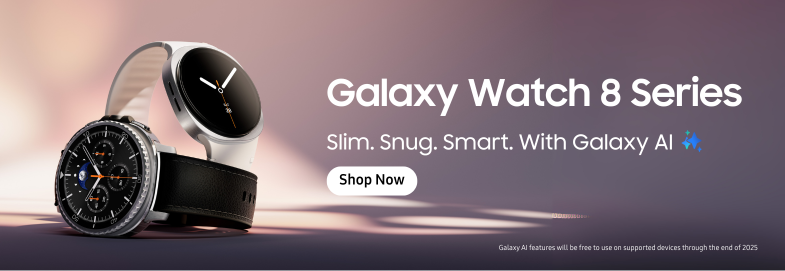
Are you curious about how well you really sleep at night? Your Samsung Gear S3 can give you clear answers by tracking your sleep patterns automatically.
Imagine waking up refreshed because you understand your sleep better and can make simple changes to improve it. You’ll learn exactly how to use sleep tracking on your Gear S3, step by step. By the end, you’ll have the tools to take control of your rest and feel more energized every day.
Keep reading—you won’t want to miss these easy tips that could transform your nights.
Credit: www.att.com
Setting Up Sleep Tracking
Setting up sleep tracking on your Samsung Gear S3 can transform how you understand your nightly rest. It’s not just about wearing the watch to bed; the process involves a few key steps to ensure accurate data collection. Let’s look at how to get your device ready for sleep tracking so you can start seeing real insights into your sleep patterns.
Installing Samsung Health App
The Samsung Health app is essential for tracking your sleep data effectively. You’ll need to download it from the Google Play Store or Samsung Galaxy Store if it’s not already installed on your phone.
Once installed, open the app and sign in with your Samsung account. This syncs your data between your phone and Gear S3, making it easier to view detailed sleep reports later.
Configuring Gear S3 For Sleep Tracking
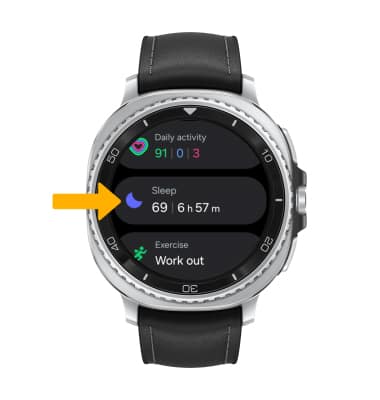
After setting up the app, it’s time to configure your Gear S3. On the watch, navigate to the Samsung Health app and look for the sleep tracking option.
Enable sleep tracking to allow your Gear S3 to monitor your movements and heart rate while you sleep. Remember, wearing your watch snugly but comfortably overnight improves the accuracy of the readings.
Adjusting Sleep Settings
Fine-tune your sleep settings for personalized tracking. In the Samsung Health app, you can set your usual bedtime and wake-up time to help the device better understand your sleep schedule.
You can also choose to receive sleep quality notifications or reminders to maintain a consistent sleep routine. Have you noticed any changes in your sleep after adjusting these settings?
Credit: www.att.com
Starting Sleep Tracking
Starting sleep tracking on the Samsung Gear S3 is simple and effective. This feature helps you understand your sleep patterns better. You can choose between manual and automatic tracking depending on your preference. Activating sleep mode prepares your watch to monitor your rest accurately. Following some tips can improve the tracking quality for clearer insights.
Manual Vs Automatic Tracking
Manual tracking lets you start and stop sleep monitoring yourself. This gives control over when tracking begins. Automatic tracking detects when you fall asleep and wakes you up. It runs in the background without any action needed. Both methods have benefits depending on your routine.
- Manual tracking requires you to activate sleep mode before bed.
- Automatic tracking starts when the watch senses inactivity and lowered heart rate.
- Manual tracking can be more precise if your sleep time varies.
- Automatic tracking is convenient for those with a regular schedule.
Activating Sleep Mode
To activate sleep mode, swipe to the Samsung Health app on your Gear S3. Scroll to the sleep section and select “Start Sleep.” This sets the watch to track your sleep until you stop it manually. Sleep mode dims the screen and reduces notifications for minimal disturbance. You can also set a sleep schedule in the app for better automatic tracking.
Tips For Accurate Tracking
- Wear the watch snugly but comfortably on your wrist.
- Keep the watch charged to avoid interruptions during sleep.
- Avoid moving the watch or taking it off during the night.
- Set a consistent bedtime to help automatic tracking work better.
- Enable Do Not Disturb to prevent screen light from waking you.
Analyzing Sleep Data
Sleep data on the Samsung Gear S3 reveals your sleep patterns and quality each night. Reviewing this information helps identify rest issues and improve sleep habits effectively.
Analyzing sleep data from your Samsung Gear S3 can improve your sleep quality. By understanding the data, you can make informed decisions about your rest. This analysis helps you identify patterns and potential sleep problems.Interpreting Sleep Stages
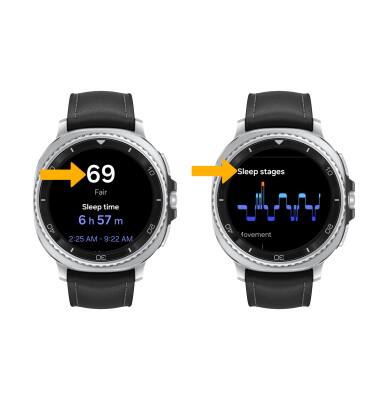
Your Gear S3 divides sleep into different stages. It includes light, deep, and REM sleep. Each stage has unique benefits for your body and mind. Light sleep is when your body relaxes. Deep sleep allows for physical recovery. REM sleep supports mental restoration and memory. Recognizing these stages can help you understand your sleep cycle better.Reviewing Sleep Trends
Track your sleep patterns over time. This can reveal trends in your sleep behavior. Are you getting enough deep sleep? Is your REM stage consistent? By reviewing these trends, you can see where improvements are needed. Use this information to adjust your bedtime routine. Aim for a balance in all sleep stages for optimal rest.Identifying Sleep Issues
Sleep data can uncover potential problems. Common issues include frequent awakenings or not enough deep sleep. If you notice irregularities, consider lifestyle changes. Reduce screen time before bed. Create a calming bedtime routine. If problems persist, consult a healthcare professional. Identifying issues early can prevent long-term sleep disturbances.
Credit: www.sammobile.com
Improving Sleep Quality
Improving sleep quality is essential for better health and energy. The Samsung Gear S3 helps track your sleep patterns with ease. Using its features can guide you to rest better and feel refreshed. Understanding your sleep habits is the first step toward improvement.
Setting Sleep Goals
Start by setting clear sleep goals on your Gear S3. Choose the number of hours you want to sleep each night. The watch will remind you to keep a regular sleep schedule. Regular sleep times help your body adjust and improve rest quality.
Using Sleep Insights
The Gear S3 provides detailed sleep insights every morning. It shows deep sleep, light sleep, and awake times. Use this data to notice patterns or disruptions in your sleep. Small changes, like avoiding screens before bed, can improve these numbers.
Integrating With Other Health Features
Combine sleep tracking with other health features for full benefits. Monitor your heart rate and stress levels along with sleep data. This helps identify factors affecting your rest. Use the Samsung Health app for a complete view of your well-being.
Troubleshooting Common Problems
Using the sleep tracking feature on your Samsung Gear S3 can offer valuable insights into your rest patterns. However, like any tech tool, you might face a few hiccups along the way. Troubleshooting these common problems ensures you get the most accurate and useful data without frustration.
Syncing Issues
One of the most frequent problems is syncing data between your Gear S3 and your smartphone. If your sleep data isn’t updating, start by checking that Bluetooth is turned on for both devices. Sometimes, simply turning Bluetooth off and back on can re-establish the connection.
Ensure your Samsung Health app is updated to the latest version. Outdated software can cause syncing delays or failures. Also, try restarting both your watch and phone to clear any temporary glitches.
Inaccurate Data
Sleep tracking relies on sensors detecting your movements and heart rate, which can sometimes lead to inaccurate readings. If you notice your sleep stages or total hours don’t seem right, check how snugly the watch fits your wrist. A loose fit can cause the sensors to miss important signals.
Also, consider your sleep environment—excessive movement or wearing other devices can interfere. You might want to manually log your sleep in the Samsung Health app to compare and adjust your data for better accuracy.
Battery Drain Concerns
Tracking sleep all night can impact your Gear S3’s battery life. If your watch runs out of charge quickly, look at what apps are running in the background. Turning off unnecessary notifications and features during sleep hours can help conserve power.
Adjust screen brightness and disable always-on display if you don’t need it overnight. Have you noticed your battery draining faster after enabling sleep tracking? Try these tweaks and monitor any improvements—you might find the right balance between tracking and battery life.
Frequently Asked Questions
How Do I Enable Sleep Tracking On Samsung Gear S3?
To enable sleep tracking, open the Samsung Health app on your Gear S3. Navigate to the sleep section and activate sleep tracking. Ensure the watch is worn snugly during sleep for accurate data.
Can Samsung Gear S3 Track Different Sleep Stages?
Yes, the Gear S3 tracks light, deep, and REM sleep stages. It provides detailed insights on sleep quality and duration through the Samsung Health app.
How Accurate Is Sleep Tracking On The Gear S3?
The Gear S3 offers reasonably accurate sleep tracking using motion and heart rate sensors. While not medical-grade, it effectively monitors sleep patterns and duration.
How Do I View My Sleep Data On Samsung Gear S3?
You can view your sleep data on the Samsung Health app on your watch or smartphone. It shows sleep duration, stages, and trends over time.
Conclusion
Using sleep tracking on your Samsung Gear S3 helps you understand your sleep better. It shows your sleep patterns and how long you rest each night. This information can guide you to improve your sleep habits. Regularly checking your sleep data can lead to better health and more energy.
Start using the sleep tracking feature today and see the difference it makes. Small changes can bring better sleep and a happier you. Give your body the rest it deserves.

