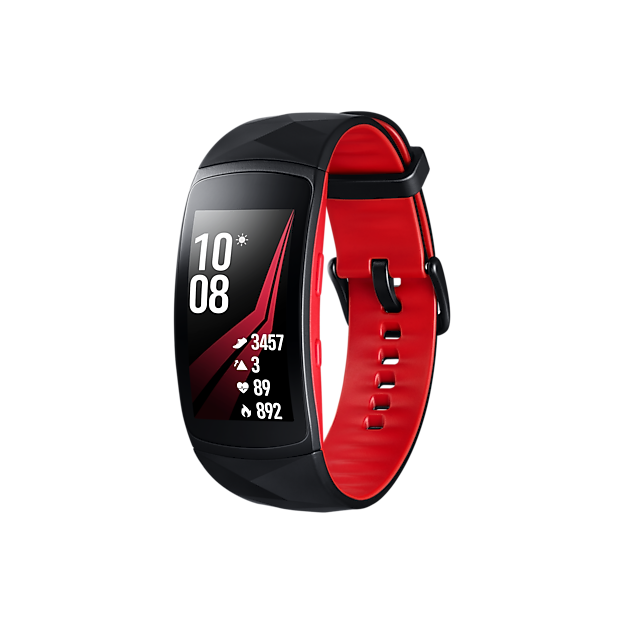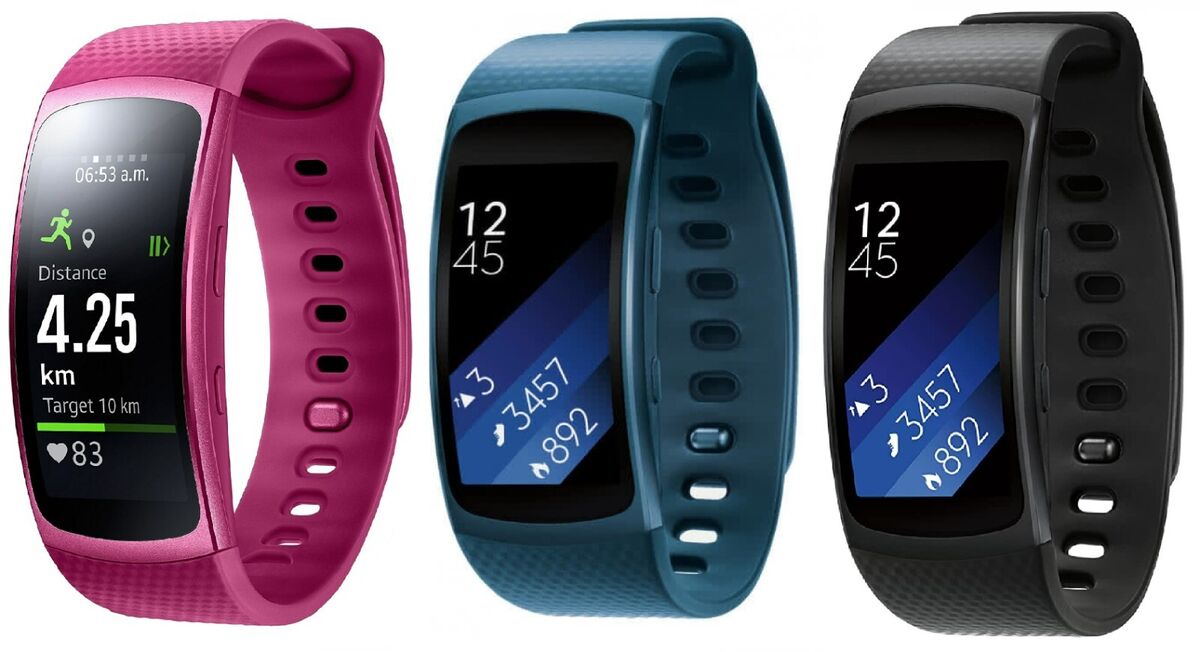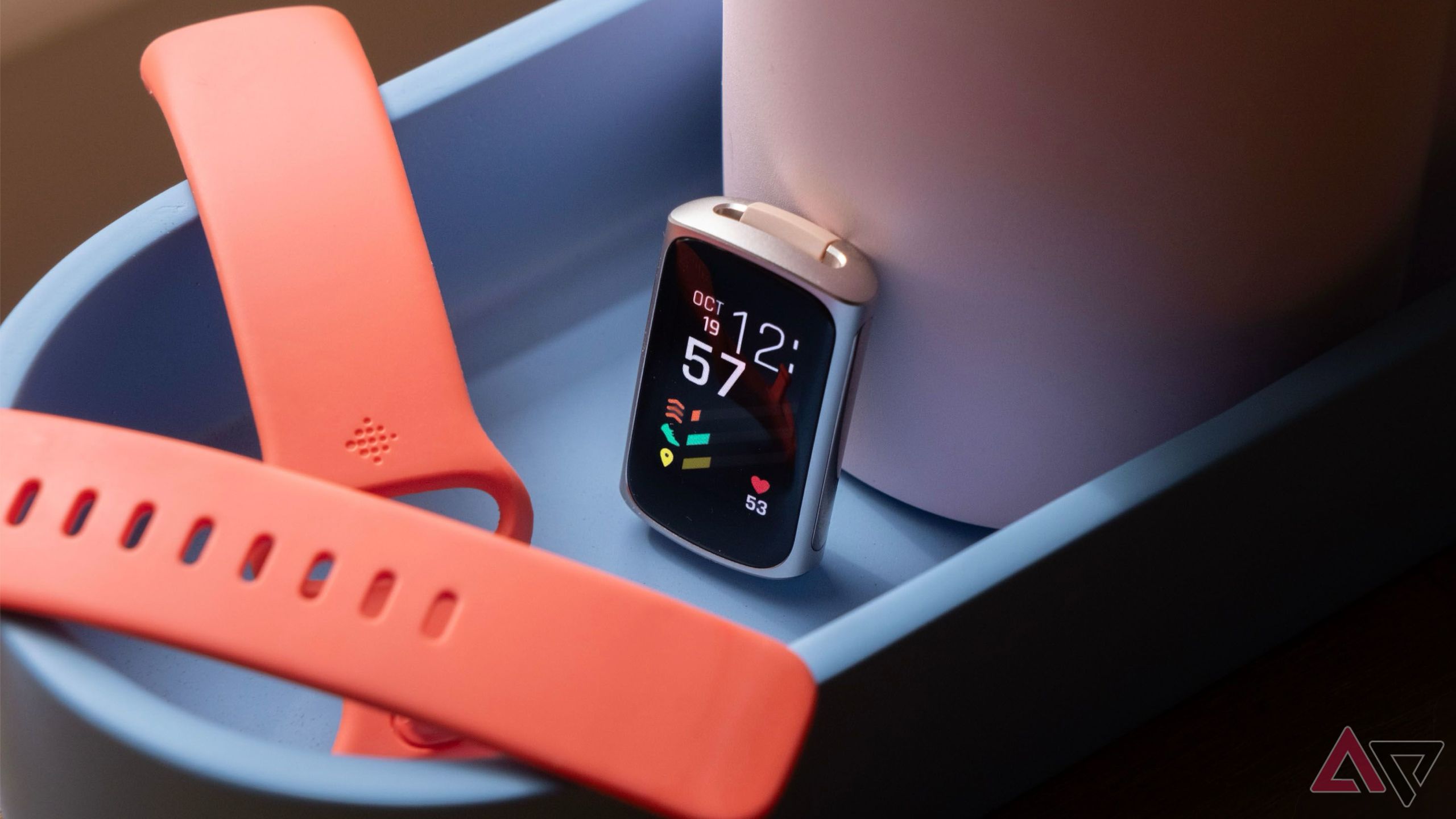
Are you ready to take control of your sleep and wake up feeling refreshed every day? Tracking your sleep with Gear Fit 2 Pro can give you powerful insights into your sleep patterns and help you improve your rest.
But if you’re unsure how to use your device for sleep tracking, don’t worry—you’re in the right place. In this guide, you’ll discover simple steps to set up and monitor your sleep with Gear Fit 2 Pro, so you can unlock the secrets to better sleep starting tonight.
Keep reading, and let’s make your nights as productive as your days.

Credit: www.reddit.com
Setting Up Gear Fit 2 Pro
Setting up your Gear Fit 2 Pro correctly is key to getting accurate sleep tracking data. The process is straightforward but requires attention to a few important steps. Let’s walk through how to get your device ready so you can start monitoring your sleep patterns effectively.
Initial Device Configuration
Start by powering on your Gear Fit 2 Pro and selecting your preferred language. The device will guide you through basic settings such as date, time, and measurement units. Take a moment to customize these details to ensure your data is relevant and precise.
During this setup, you’ll also be asked to input personal information like height, weight, and age. These details help the device calculate calories burned and sleep quality more accurately. Have this information handy to speed up the process.
Pairing With Smartphone
Your Gear Fit 2 Pro needs to connect with your smartphone for full functionality. Open the Samsung Wearable app on your phone and follow the prompts to pair with your device via Bluetooth. The connection allows your sleep data to sync and be displayed in an easy-to-understand format.
Keep your phone close during pairing to avoid interruptions. If the connection fails, try restarting both devices and ensure Bluetooth is enabled. Once paired, you’ll receive notifications and updates directly on your wrist.
Enabling Sleep Tracking
Sleep tracking is not always enabled by default, so you need to turn it on manually. On your Gear Fit 2 Pro, open the Samsung Health app and look for the sleep section. Enable sleep tracking to allow the device to monitor your rest automatically.
You can also customize sleep goals and set reminders for bedtime within the app. This feature helps you maintain a consistent sleep schedule, which is crucial for improving your overall sleep quality. Have you noticed how much easier it is to stay on track when you get these gentle nudges?
Credit: news.samsung.com
Optimizing Sleep Tracking Accuracy
Optimizing the accuracy of your sleep tracking with Gear Fit 2 Pro improves your sleep insights. Precise data helps you understand your rest patterns better. Simple adjustments can make a big difference in tracking quality.
Wearing The Device Correctly
Wear the Gear Fit 2 Pro snugly on your wrist. It should sit just above your wrist bone. Avoid a loose fit, which can cause sensor errors. Make sure the screen faces upwards for better sensor contact. Keep the device clean and dry for accurate readings.
Adjusting Sensor Settings
Access the device’s settings to fine-tune sensors. Enable heart rate monitoring for sleep tracking. Choose the right sensitivity level based on your activity. Turn on automatic sleep detection to capture all sleep stages. Review settings regularly to match your lifestyle changes.
Syncing Data Regularly
Sync your Gear Fit 2 Pro with the companion app daily. This process updates your sleep data and improves accuracy. Frequent syncing prevents data loss and sync errors. Use Wi-Fi or Bluetooth for a stable connection. Check the app for any syncing notifications or errors.
Using Samsung Health App
The Samsung Health app works seamlessly with the Gear Fit 2 Pro to track your sleep patterns. It collects detailed sleep data to help you understand your rest better. The app gives clear visuals and insights about your sleep quality and trends over time.
You can access your sleep records directly from the app’s dashboard. The interface is simple and user-friendly, making it easy to monitor your nightly rest. Sleep tracking helps you improve habits and achieve better health.
Navigating Sleep Data
Open the Samsung Health app and tap the sleep section to see your records. The app displays data in charts and graphs for easy reading. You will find daily, weekly, and monthly sleep summaries here.
- Total sleep duration
- Time you went to bed and woke up
- Sleep consistency over days
Swipe or tap on specific dates to view detailed reports. The app also highlights trends like longer or shorter sleep times.
Interpreting Sleep Stages
The app breaks down your sleep into stages: light, deep, and REM sleep. Each stage has a role in restoring your body and mind. Light sleep is when your body relaxes but you can still wake easily.
Deep sleep helps with physical recovery and memory. REM sleep supports brain function and dreaming. The app shows how much time you spent in each stage with colored bars.
Understanding these stages can guide you to improve sleep quality. Aim for a balanced amount of deep and REM sleep for full rest.
Customizing Sleep Goals
Set your sleep goals in the Samsung Health app to match your lifestyle. You can choose the number of hours you want to sleep each night. The app sends reminders to help you stick to these targets.
Adjust your bedtime and wake-up time for better routine. The app also tracks your progress toward goals over time. Consistent sleep habits improve your overall well-being and energy.
Troubleshooting Tracking Issues
Tracking your sleep accurately with the Gear Fit 2 Pro can sometimes hit a snag. You might notice irregular data or no data at all. Troubleshooting these issues quickly will help you get back to understanding your sleep patterns without frustration.
Common Tracking Errors
Sometimes your Gear Fit 2 Pro might miss tracking sleep phases or record shorter sleep durations. This often happens if the device isn’t snug on your wrist or if you move too much during the night. Have you noticed gaps in your sleep data after restless nights?
Other errors include inconsistent heart rate readings that affect sleep quality analysis. Make sure the sensor area is clean and your skin is dry before going to bed. A loose fit can also cause false readings, so adjust the strap comfortably but securely.
Resetting The Device
If tracking errors persist, resetting the Gear Fit 2 Pro can clear temporary glitches. This doesn’t delete your data stored in the Samsung Health app, but it refreshes the device’s system.
To reset, press and hold the back and home buttons simultaneously until the device restarts. After the reset, sync your Gear Fit 2 Pro with your phone again to restore full functionality. Have you tried resetting your device after unexpected sleep tracking issues?
Updating Firmware
Outdated firmware can cause tracking problems by reducing compatibility with the app or sensor performance. Check for firmware updates regularly through the Galaxy Wearable app.
- Open the Galaxy Wearable app on your phone.
- Tap on “About Gear” and then “Update Gear software.”
- Download and install any available updates.
Updating ensures your device runs smoothly and benefits from the latest improvements. Could skipping updates be why your sleep data seems off lately?
Tips For Better Sleep Monitoring
Ensure your Gear Fit 2 Pro is snug and comfortable before sleep. Sync the device with the Samsung Health app to view detailed sleep data. Regularly update the firmware for accurate tracking and new features.
Tracking your sleep effectively with the Gear Fit 2 Pro can significantly enhance your sleep quality. However, to get the most accurate data, there are a few essential tips to keep in mind. These tips will help you ensure that your device is working optimally and your sleep data is reliable. Let’s dive into these practical tips for better sleep monitoring.Maintaining Device Cleanliness
Keeping your Gear Fit 2 Pro clean is vital for accurate sleep tracking. Dust and sweat can accumulate, affecting the sensors’ performance. Make it a habit to wipe your device with a soft, damp cloth regularly. Ensure the charging ports are free from debris to maintain a good connection. A clean device not only functions better but also feels more comfortable on your wrist during sleep.Avoiding Interference
External interference can skew your sleep data. Keep your device away from magnetic objects or other electronic devices during the night. This ensures that the sensors pick up only your body’s signals. Be mindful of your sleeping environment. A quiet, dark room not only aids better sleep but also reduces chances of interference affecting your device’s accuracy.Establishing Consistent Sleep Patterns
Your Gear Fit 2 Pro is most effective when you maintain a regular sleep schedule. Try to go to bed and wake up at the same time each day. This consistency helps in building a comprehensive sleep pattern over time. Use the device’s sleep goals feature to set reminders for bedtime. Consistent sleep patterns not only improve the accuracy of your sleep data but also enhance your overall well-being. Are you ready to transform your sleep habits with these actionable tips?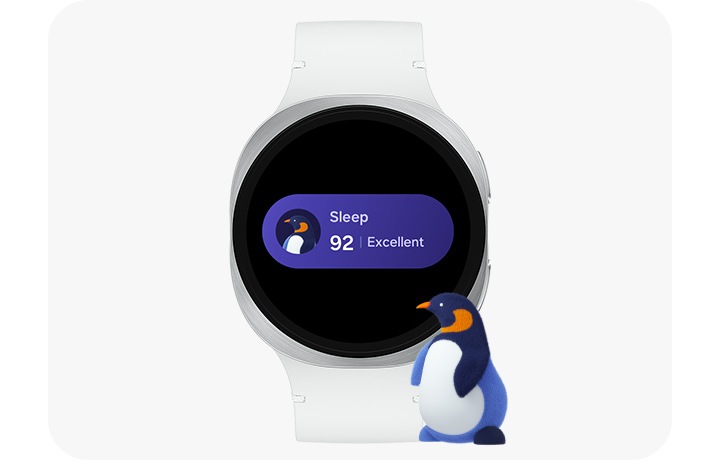
Credit: www.samsung.com
Frequently Asked Questions
How To Connect Gear Fit 2 Pro For Sleep Tracking?
To track sleep, first pair your Gear Fit 2 Pro with the Samsung Health app. Enable sleep tracking in the app settings. Wear the device while sleeping for accurate data collection.
How Accurate Is Gear Fit 2 Pro Sleep Tracking?
Gear Fit 2 Pro uses motion and heart rate sensors for sleep tracking. It provides reasonably accurate sleep stage detection but may vary slightly from medical devices.
Can Gear Fit 2 Pro Track Naps And Deep Sleep?
Yes, the Gear Fit 2 Pro detects naps and deep sleep automatically. It records sleep duration and quality to help improve your sleep habits.
How To View Sleep Data On Gear Fit 2 Pro?
Open the Samsung Health app on your phone. Navigate to the Sleep section to see detailed sleep patterns and trends recorded by your Gear Fit 2 Pro.
Conclusion
Tracking your Sleep Gear Fit 2 Pro is simple and useful. This device helps you understand your sleep patterns clearly. Check your stats daily to see improvements or changes. Use the app to set goals and stay motivated. Small steps can lead to better sleep and health.
Keep your device charged and worn correctly each night. Consistent use brings the best results. Start tracking tonight and feel the difference soon. Sleep well, live well.