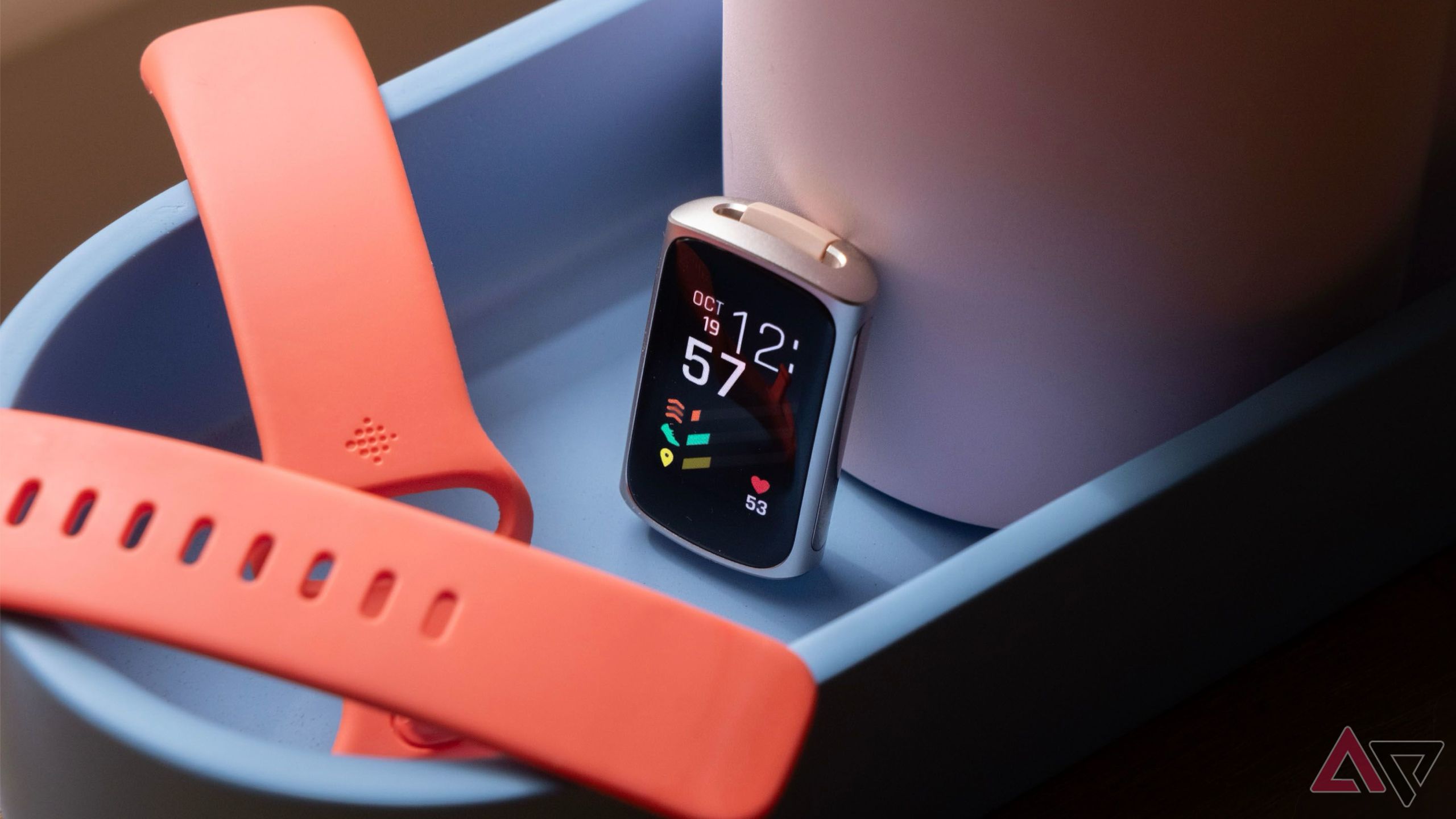
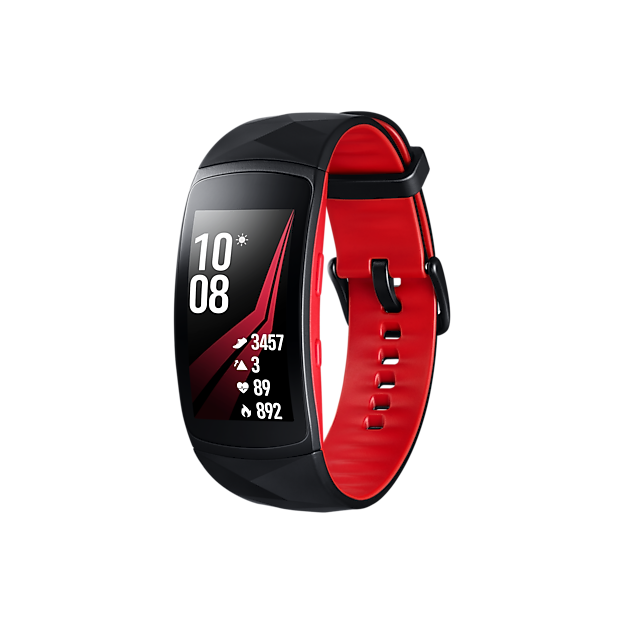
Are you curious about how well you really sleep each night? Your Gear S3 can help you unlock the secrets of your sleep patterns with ease.
Imagine waking up feeling refreshed, knowing exactly how your body rested. You’ll discover simple steps to monitor your sleep using your Gear S3 and learn how this smart tool can improve your rest. Keep reading to take control of your sleep and boost your energy every day.
Credit: www.sammobile.com
Setting Up Sleep Monitoring
Setting up sleep monitoring on your Gear S3 is straightforward and can provide valuable insights into your sleep patterns. Before you start tracking, you need to ensure the right apps are installed, configure your sleep preferences, and sync everything with your phone. This setup lays the foundation for accurate and useful sleep data.
Installing Required Apps
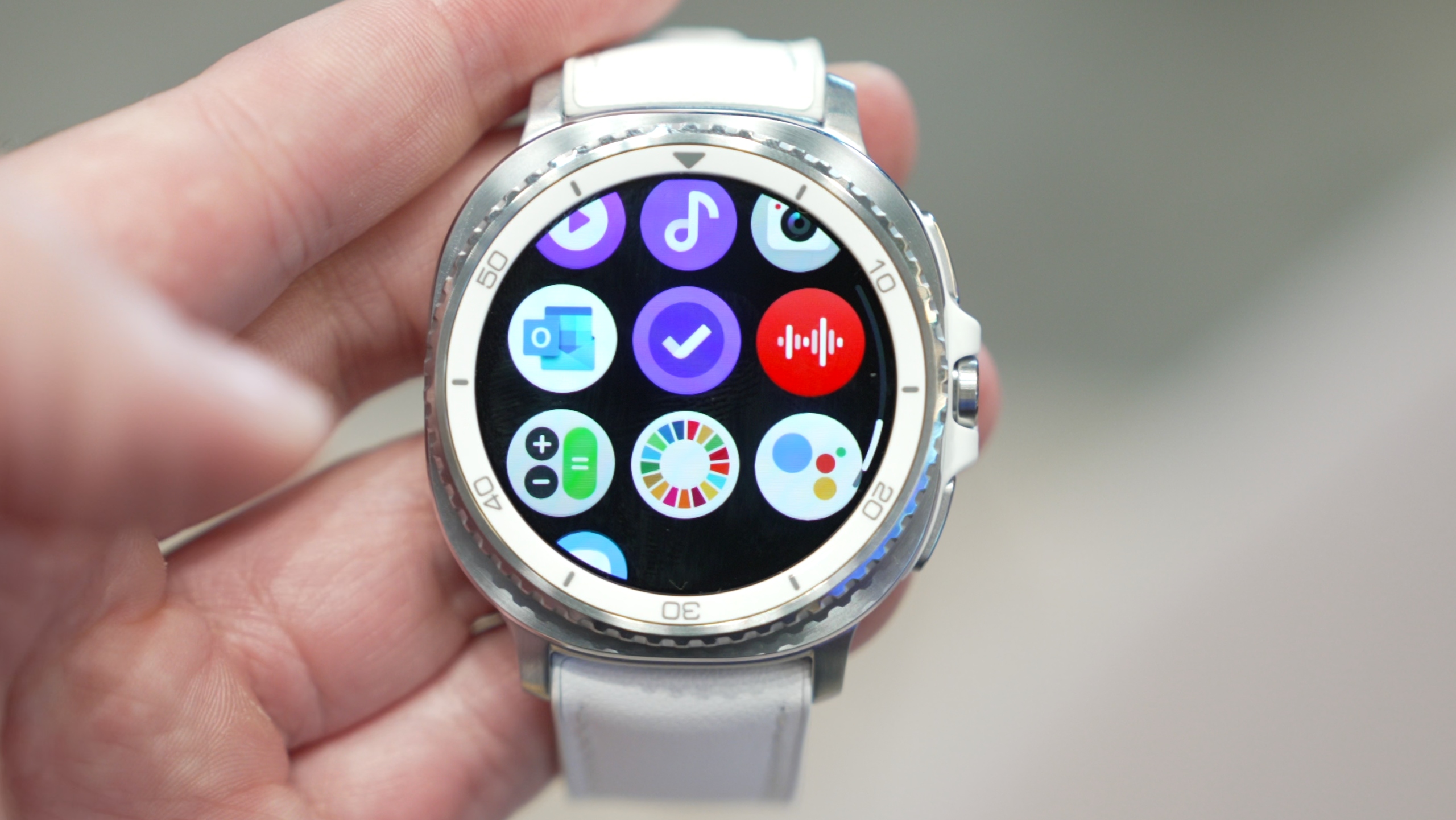
Your Gear S3 relies on specific apps to monitor sleep effectively. The Samsung Health app is essential for this purpose. If it’s not already on your watch, download it from the Galaxy Store directly on your Gear S3.
On your phone, also ensure the Samsung Health app is installed and updated. This app collects and displays your sleep data in an easy-to-understand format. Without these apps, your watch won’t be able to record or analyze your sleep.
Configuring Sleep Settings
Once the apps are ready, you need to set your sleep preferences. Open the Samsung Health app on your Gear S3 and navigate to the sleep section. Here, enter your usual bedtime and wake-up time to help the watch recognize when to monitor your rest.
You can also enable automatic sleep tracking, which lets the watch detect when you fall asleep without manual input. Adjust sensitivity settings if available, so the watch can better differentiate between light and deep sleep. Have you noticed how small tweaks improve the accuracy of your sleep reports?
Syncing With Your Phone
Syncing your Gear S3 with your phone is crucial for a seamless sleep tracking experience. Make sure your watch is connected to your phone via Bluetooth. Open the Samsung Health app on your phone and allow it to sync data from your Gear S3.
This synchronization ensures your sleep data is backed up and accessible for detailed analysis. You can review trends over weeks or months, helping you identify habits that improve or disrupt your sleep. Are you ready to see how your nightly rest truly measures up?

Credit: www.youtube.com
Using Sleep Tracking Features
Using the sleep tracking features on your Gear S3 can transform how you understand your nightly rest. These tools help you see patterns, identify disruptions, and adjust habits for better sleep quality. Let’s break down how to make the most of these features so you get clear, actionable insights.
Activating Sleep Mode
To start tracking your sleep, you first need to activate Sleep Mode on your Gear S3. This feature reduces distractions by silencing notifications and dimming the screen while you rest.
Simply swipe down on your watch face, tap the Sleep Mode icon, and your watch will automatically start monitoring once you lie down. You can also schedule Sleep Mode to turn on and off at set times, ensuring consistent tracking without manual effort.
Tracking Sleep Stages
Your Gear S3 goes beyond just counting hours—it tracks different sleep stages like light, deep, and REM sleep. Each stage plays a unique role in how refreshed you feel the next day.
Understanding these stages can reveal why you might wake up tired even after a full night in bed. For example, if you notice limited deep sleep, you might want to adjust your bedtime routine or room environment to improve it.
Viewing Sleep Data
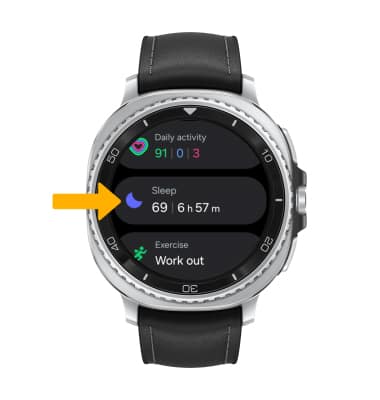
After a night’s sleep, checking your data is simple and insightful. Open the Samsung Health app on your watch or phone to see a detailed breakdown of your sleep stages, total sleep time, and even interruptions.
Pay attention to trends over several nights rather than a single night’s data. This will help you spot consistent issues and make changes that truly enhance your sleep quality. Have you noticed any surprising patterns in your own sleep data?
Interpreting Sleep Data
Tracking your sleep with Gear S3 helps you see how long and well you rest each night. The watch shows light, deep, and REM sleep stages, making it easy to understand your sleep quality. Regular use can guide better sleep habits.
Interpreting sleep data can feel overwhelming at first. The Gear S3 smart watch records valuable information about your sleep. Understanding this data helps improve your rest. Let’s explore how to interpret these insights for better sleep.Identifying Sleep Patterns
Your Gear S3 tracks different sleep stages. These include light, deep, and REM sleep. Each stage plays a unique role in rest. Light sleep helps with relaxation. Deep sleep aids in physical recovery. REM sleep boosts memory and creativity. Reviewing these patterns can show if you have a balanced sleep cycle. Look for consistent patterns over several nights. Variations may indicate disrupted sleep.Recognizing Sleep Quality Indicators
Sleep quality is more than just duration. Quality indicators include sleep efficiency and disturbances. The Gear S3 measures how long you stay asleep without waking up. It also tracks how quickly you fall asleep. High sleep efficiency means restful nights. Frequent wake-ups or long time to fall asleep signal issues. Aim for a high sleep efficiency rate for better rest.Spotting Common Sleep Issues
Common sleep issues include insomnia and restless sleep. The Gear S3 can identify these problems. Check for frequent awakenings or short sleep duration. Consistent low sleep efficiency might indicate insomnia. Restless sleep can be seen with excessive movement during the night. Spotting these issues early helps in seeking solutions. Simple changes can often improve sleep quality.Tips For Improving Sleep
Improving sleep quality is key to feeling rested and energized. The Gear S3 offers tools to help track and enhance your sleep patterns. Using its features wisely can lead to better rest and healthier habits.
Adjusting Sleep Goals
Set realistic sleep goals based on your daily needs. The Gear S3 lets you customize your target hours. Aim for consistent sleep times to support your body’s rhythm. Check your sleep data regularly and adjust goals as needed. Small changes can make a big difference in how you feel.
Optimizing Bedtime Routine
Create a calming routine before sleep to prepare your mind and body. Use the Gear S3 to remind you of your bedtime. Avoid screens and bright lights at least 30 minutes before bed. Try gentle stretching or deep breathing exercises. These habits help signal your body that it’s time to rest.
Using Smart Alarms Effectively
The Gear S3’s smart alarm wakes you at the best time in your sleep cycle. This prevents feeling groggy in the morning. Set the alarm within a time window, so it finds the optimal moment to wake you. Choose gentle sounds or vibrations to avoid sudden jolts. This feature improves how refreshed you feel on waking.
Troubleshooting Sleep Monitoring
Monitoring sleep with the Gear S3 is a helpful way to improve your rest. Sometimes, the device may not track sleep perfectly. Troubleshooting sleep monitoring problems helps keep your data accurate. This section covers common issues and easy fixes to keep your sleep tracking reliable.
Fixing Sync Problems
Sync issues can cause missing or delayed sleep data. Check the Bluetooth connection between your Gear S3 and phone. Restart both devices to refresh the connection. Open the Samsung Health app and force close it, then reopen. Make sure the app has permission to access your data. Syncing manually can also update sleep records quickly.
Dealing With Inaccurate Data
Inaccurate sleep data may result from improper watch placement. Wear the Gear S3 snugly on your wrist while sleeping. Avoid moving the watch too much during the night. Ensure no other apps interfere with sleep tracking. Sometimes, environmental factors like bright light or noise affect sensors. Try to create a calm sleep environment for better accuracy.
Updating Firmware And Apps
Outdated software can cause performance issues. Regularly check for Gear S3 firmware updates in the Galaxy Wearable app. Update the Samsung Health app to the latest version through the app store. Updates often fix bugs and improve sleep tracking features. Keeping software current ensures smooth and accurate monitoring.
Additional Features For Better Rest
The Gear S3 isn’t just about tracking your sleep hours—it offers several features that help improve the quality of your rest. These additional tools work together to give you a clearer picture of your overall well-being. Understanding how they function can make a real difference in how you approach your nightly routine.
Stress And Relaxation Tools
Your stress levels have a huge impact on how well you sleep. The Gear S3 includes guided breathing exercises that help lower your heart rate and calm your mind before bedtime. I’ve found that spending just a few minutes with these exercises helps me fall asleep faster and wake up feeling more refreshed.
Using the stress monitoring feature regularly can alert you when your tension is high during the day. This awareness lets you take quick action, like a short walk or deep breathing, to avoid carrying stress into the night. How often do you check in on your stress levels throughout the day?
Activity Tracking Benefits
Physical activity influences sleep quality more than many realize. The Gear S3 tracks your daily steps, workouts, and calories burned, giving you insights into how active you’ve been. You might notice that on days you move more, your sleep cycles are deeper and more restorative.
With this data, you can adjust your activity patterns to improve rest. For example, if you see low activity levels, you can plan short bursts of movement to boost your energy and promote better sleep at night. Do you pay attention to how your daytime activity affects your sleep?
Integrating With Health Apps
The Gear S3 syncs seamlessly with popular health apps, consolidating your sleep data with other health metrics. This integration helps you spot trends and correlations, like how diet or water intake might influence your rest. I’ve used this feature to uncover little habits that were subtly disrupting my sleep, such as late caffeine consumption.
By viewing all your health information in one place, you get a complete picture of your wellness. This makes it easier to set realistic goals and track your progress. Which health apps do you use to keep track of your overall well-being?
Credit: www.att.com
Frequently Asked Questions
How Does Gear S3 Track Sleep Patterns?
Gear S3 uses built-in sensors to monitor your movements and heart rate. It analyzes this data to estimate sleep duration and quality. The watch differentiates between light, deep, and REM sleep stages to provide comprehensive sleep insights.
Can I Set Sleep Goals On Gear S3?
Yes, Gear S3 allows you to set personalized sleep goals. You can specify desired sleep duration and bedtime reminders. This helps improve your sleep habits by encouraging consistent sleep schedules.
How Accurate Is Gear S3’s Sleep Monitoring?
Gear S3 provides reasonably accurate sleep tracking using motion and heart rate data. However, it may not be as precise as medical devices. It’s useful for general sleep pattern insights rather than clinical diagnosis.
How Do I View Sleep Data On Gear S3?
You can view sleep data directly on the Gear S3 or in the Samsung Health app. The app provides detailed reports, including sleep stages and trends over time. This helps you track and improve your sleep health.
Conclusion
Monitoring your sleep with the Gear S3 helps you understand your rest better. It tracks your sleep stages and shows patterns over time. This simple tool encourages healthier habits and better nights. Regular use can improve your daily energy and mood.
Try using the Gear S3 each night to see your progress. Small changes in sleep can make a big difference. Start paying attention to your sleep today for a brighter tomorrow.