Are you curious about how well you really sleep each night? Your Samsung Gear S3 can help you uncover the secrets of your sleep patterns with just a few simple steps.
Imagine waking up refreshed, knowing exactly how long and how deeply you slept. Tracking your sleep isn’t just about numbers—it’s about understanding your body better and improving your daily energy. You’ll discover how to easily track your sleep on your Samsung Gear S3 and use that information to feel your best every day.
Keep reading to unlock the power of your sleep data!

Credit: www.lavalite.org
Setting Up Sleep Tracking
Setting up sleep tracking on your Samsung Gear S3 is a simple process. It helps you monitor your sleep patterns and improve rest quality. Follow these steps to start tracking your sleep effectively.
Installing Samsung Health App
Download the Samsung Health app on your smartphone. It is available on both Android and iOS platforms. Open the app store, search for “Samsung Health,” and tap install. This app collects and displays your sleep data from the Gear S3.
Connecting Gear S3 To Your Phone
Turn on Bluetooth on your phone. Open the Galaxy Wearable app to link your Gear S3. Follow the on-screen instructions to pair the devices. Ensure your Gear S3 is close to your phone during this process. Once connected, your phone can sync data from the watch.
Enabling Sleep Tracking Features
Open the Samsung Health app on your phone. Navigate to the “Sleep” section in the app menu. Enable sleep tracking by switching the toggle on. Wear your Gear S3 to bed to allow automatic sleep detection. The watch tracks your sleep stages and sends data to the app.
Using Sleep Tracking On Gear S3
Tracking your sleep with the Samsung Gear S3 is straightforward and offers valuable insights into your rest patterns. Whether you prefer to start sleep tracking manually or rely on the watch’s automatic detection, the Gear S3 provides flexibility to suit your habits. Understanding how to access and interpret your sleep data on the watch can help you make better decisions about your sleep hygiene and overall wellness.
Starting Sleep Tracking Manually
If you want full control over when your sleep tracking begins, you can start it manually on your Gear S3. Simply navigate to the sleep tracking app on your watch and tap the start button before you go to bed. This method is especially useful if your sleep schedule is irregular or if you want to track naps.
Remember to stop the tracking once you wake up to ensure the data is accurate. Manually starting sleep tracking can give you a clearer picture of your actual sleep duration without extra data from times you’re just resting or inactive.
Automatic Sleep Detection
The Gear S3 also offers automatic sleep detection, which activates without any input from you. The watch senses when you fall asleep by monitoring your movements and heart rate, making it hassle-free. This option is convenient if you prefer not to interact with your device at bedtime.
Automatic tracking might occasionally miss short naps or light sleep phases, but it generally captures your main sleep periods effectively. Have you noticed how easy it is to forget to start tracking manually? Automatic detection solves that issue by working quietly in the background.
Checking Sleep Data On The Watch
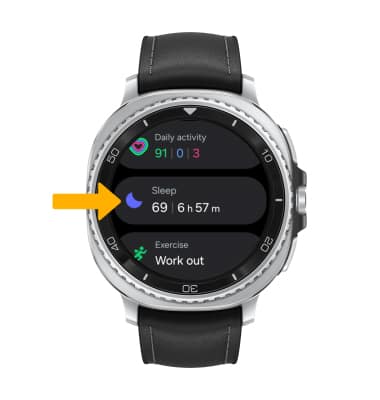
Once your sleep is tracked, you can check your sleep data directly on the Gear S3. Scroll through the sleep app to see details like total sleep time, deep sleep, light sleep, and awake periods. This quick overview helps you understand the quality of your rest without needing to pull out your phone.
For deeper analysis, syncing with the Samsung Health app on your phone provides charts and trends over days and weeks. How often do you review your sleep data? Making it a daily habit can reveal patterns you might otherwise miss.
Analyzing Sleep Data
Analyzing sleep data on your Samsung Gear S3 can enhance your sleep quality. This smartwatch offers a detailed look at your sleep patterns. Dive into the data to understand your nightly rest better.
Viewing Sleep Stages
Your Samsung Gear S3 breaks down your sleep into stages. These include light, deep, and REM sleep. Light sleep is the stage where your body relaxes. Deep sleep helps your body recover. REM sleep is crucial for your mind’s health. You can view these stages in the Samsung Health app. This data helps you see how well you sleep each night.
Understanding Sleep Scores
The sleep score provides a quick overview of your sleep quality. It combines various factors like sleep duration and continuity. A higher score indicates better sleep quality. This score helps you assess your sleep health at a glance. Pay attention to your score for insights into your nightly rest.
Tracking Sleep Trends Over Time
Tracking sleep trends over time helps identify patterns. You can see improvements or changes in your sleep habits. The Samsung Health app provides graphs and charts. These visuals show your sleep trends over weeks or months. Understanding these trends can lead to better sleep strategies. Observe your sleep data regularly for long-term benefits.
Credit: www.att.com
Optimizing Sleep Tracking Accuracy
Tracking your sleep with the Samsung Gear S3 can provide valuable insights into your rest patterns. However, the accuracy of this data heavily depends on a few key factors. Small adjustments to how you wear and set up your watch can significantly improve the quality of the sleep information you receive.
Wearing The Watch Correctly
How you wear your Gear S3 affects sensor performance. Make sure the watch fits snugly but comfortably around your wrist. It shouldn’t be too loose, or the sensors might not maintain proper contact with your skin, causing inaccurate readings.
Try wearing the watch on your non-dominant hand. This reduces movement during sleep, which helps the sensors track your heart rate and motion more precisely. If you notice inconsistent data, adjusting the strap tightness often makes a difference.
Calibrating Sensors
Calibration helps your Gear S3 understand your unique body signals. Start by syncing your watch with the Samsung Health app and inputting accurate personal details like age, weight, and height. These details tailor the algorithms to your body.
Occasionally, restart your watch and update the firmware to keep sensors optimized. You can also perform a manual heart rate check during the day to ensure sensors respond correctly. Consistency in calibration routines contributes to more reliable sleep tracking.
Avoiding Common Tracking Errors
Some common mistakes can throw off your sleep data without you realizing it. Avoid charging your watch right before bed, as the activity might interfere with sleep detection. Also, keep the watch clean—dirt and sweat can block sensors.
Think about your sleep environment too. Excessive wrist movement, like tossing and turning or wearing the watch over thick clothing, can cause errors. If your sleep patterns seem off, compare the Gear S3 data with how you actually feel. Does the report match your experience? If not, adjusting these factors might help.
Troubleshooting Sleep Tracking Issues
Troubleshooting sleep tracking on your Samsung Gear S3 can help improve accuracy. Problems may arise from syncing errors, data not recording, or outdated software. Solving these issues ensures reliable sleep data for better rest insights.
Syncing Problems
Syncing issues occur when your Gear S3 does not connect properly to your phone. Check Bluetooth settings and make sure both devices are close. Restart your watch and phone to refresh connections. Clear cache in the Samsung Health app to remove temporary data. Re-pair the Gear S3 with your phone if syncing still fails.
Data Not Recording
Sleep data might not record if the watch is not worn correctly. Wear the Gear S3 snugly on your wrist during sleep. Ensure the watch sensors touch your skin for accurate tracking. Disable any battery saver mode that may limit sensor use. Confirm that sleep tracking is enabled in the Samsung Health app settings.
App And Firmware Updates
Outdated software can cause sleep tracking errors. Check for updates to the Samsung Health app in the app store. Update the Gear S3 firmware through the Galaxy Wearable app. Updated software fixes bugs and improves tracking features. Regular updates keep your device running smoothly and accurately.
Enhancing Sleep Quality With Gear S3
The Samsung Gear S3 offers practical tools to improve sleep quality. It tracks sleep patterns and helps you understand your rest better. Using this data, you can make small changes for healthier sleep habits.
Setting Sleep Goals
Set clear sleep goals on your Gear S3 to guide your rest routine. Choose the hours you want to sleep each night. The watch will remind you to stick to your target bedtime. Tracking progress helps keep you motivated and consistent.
Using Sleep Reminders
Sleep reminders on the Gear S3 nudge you to prepare for bed. They alert you to wind down and reduce screen time. These gentle prompts create a calming pre-sleep routine. Following reminders can help you fall asleep faster and feel rested.
Integrating With Other Health Features
The Gear S3 connects sleep tracking with fitness and stress management tools. Monitoring daily activity and heart rate adds insight into sleep quality. This integration offers a full picture of your health. Adjusting exercise and relaxation based on this data supports better sleep.
Credit: www.sammobile.com
Frequently Asked Questions
How Do I Enable Sleep Tracking On Samsung Gear S3?
To enable sleep tracking, open the Samsung Health app on your Gear S3. Navigate to the Sleep section and activate sleep tracking before bedtime.
Can Samsung Gear S3 Track Sleep Stages Accurately?
Yes, the Gear S3 tracks light, deep, and REM sleep stages using built-in sensors. Accuracy may vary based on wear and movement.
How Do I View My Sleep Data On Samsung Gear S3?
Sleep data is viewable on the Samsung Health app on your phone. Sync your Gear S3 to see detailed sleep patterns and duration.
Does Samsung Gear S3 Track Sleep Without A Phone?
Yes, the Gear S3 can track sleep independently. However, syncing with a phone app provides detailed analysis and long-term tracking.
Conclusion
Tracking sleep on your Samsung Gear S3 helps you understand rest better. The watch records your sleep stages clearly each night. Checking this data daily can improve your sleep habits. Use the Samsung Health app to see detailed reports. Consistent tracking shows patterns and areas to change.
Better sleep means more energy and focus during the day. Start using your Gear S3 for sleep tracking tonight. Small steps lead to healthier sleep and a happier life.