Are you curious about how well you really sleep each night? Tracking your sleep can unlock valuable insights to help you feel more rested and energized every day.
If you own a Gear S3 Frontier, you already have a powerful tool on your wrist that can monitor your sleep patterns easily. You’ll discover simple steps to set up and use your Gear S3 Frontier for sleep tracking. By the end, you’ll know exactly how to turn your smartwatch into a personal sleep coach, helping you improve your rest and wake up refreshed.
Keep reading to find out how!

Credit: upgrademystatus.com
Gear S3 Frontier Sleep Tracking Features
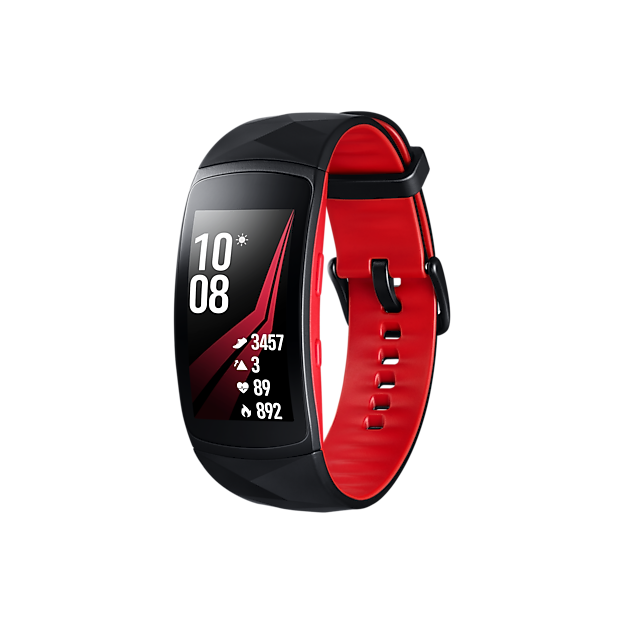
The Gear S3 Frontier offers a variety of sleep tracking features designed to help you understand your nightly rest better. By using its advanced technology, it monitors your sleep patterns without needing extra devices. This allows you to see details like sleep duration and quality right from your wrist.
Built-in Sensors And Technology
The Gear S3 Frontier uses several sensors to track your sleep accurately. It includes an accelerometer that detects your movements while you sleep. Less movement usually means deeper sleep phases.
It also has a heart rate sensor that measures your pulse throughout the night. Changes in your heart rate can indicate different sleep stages, such as light or deep sleep. These sensors work together to give you a clearer picture of your sleep cycle.
Compatibility And App Integration
The watch connects seamlessly with the Samsung Health app, making it easy to view and analyze your sleep data. You can check your sleep trends over days, weeks, or even months to spot patterns or issues.
Moreover, the Gear S3 Frontier supports syncing with other health apps, allowing you to combine sleep data with exercise and nutrition. This integrated approach helps you make smarter decisions about your lifestyle and rest.
Setting Up Sleep Tracking On Gear S3
Setting up sleep tracking on your Gear S3 Frontier is straightforward and designed to fit seamlessly into your nightly routine. By enabling the right features and customizing your sleep goals, you can gain meaningful insights into your rest patterns. Let’s break down how to get started and make the most of the sleep tracking capabilities.
Activating Sleep Mode
To track your sleep accurately, you first need to activate Sleep Mode on your Gear S3. This mode minimizes interruptions by silencing notifications and dimming the screen while you rest.
Here’s how you can activate it:
- Swipe down on the watch face to open the quick settings panel.
- Look for the Sleep Mode icon (usually a crescent moon) and tap it.
- Alternatively, you can enable Sleep Mode through the Samsung Health app on your watch.
Activating Sleep Mode helps the Gear S3 focus on monitoring your movements and heart rate without distractions. Have you noticed how silencing your device can make falling asleep easier?
Configuring Sleep Goals
Setting a sleep goal gives your Gear S3 a clear target to track your nightly rest. It helps you stay motivated and understand if you’re meeting your personal sleep needs.
To configure your sleep goals:
- Open the Samsung Health app on your Gear S3.
- Navigate to the Sleep section.
- Tap on the settings or goal option and set your desired amount of sleep, such as 7 or 8 hours.
Adjusting your sleep goal to match your lifestyle makes the feedback you receive more relevant. Have you tried changing your sleep goal to see how it impacts your habits?
Monitoring Sleep Data
The Gear S3 Frontier tracks sleep by sensing movement and heart rate during the night. It collects data automatically, showing sleep patterns in the Samsung Health app. Users can review sleep quality and duration easily each morning.
Monitoring sleep data with the Gear S3 Frontier is not just about numbers. It’s about understanding your sleep patterns to improve your daily energy and health. This smartwatch does more than just tell time; it can give you insights into how well you’re resting at night.Accessing Sleep Reports
To access your sleep reports, sync your Gear S3 Frontier with the Samsung Health app on your smartphone. Once synced, open the app and navigate to the ‘Sleep’ section. Here, you’ll find detailed reports on your sleep duration, efficiency, and more. Have you ever wondered how long you actually stay in deep sleep? These reports break it down for you. It’s fascinating to see the contrast between what we think about our sleep and what the data reveals. Use this information to tweak your bedtime routine for better rest.Interpreting Sleep Stages
Understanding sleep stages is crucial for optimizing your rest. The Gear S3 Frontier categorizes your sleep into light, deep, and REM stages. Each stage plays a unique role in physical recovery and mental rejuvenation. Look at your sleep stage data and ask yourself: Are you getting enough deep sleep? This stage is vital for muscle recovery and growth. On the other hand, REM sleep is when dreams occur and is essential for mental sharpness. Use this information to adjust your lifestyle. Maybe it’s time to cut back on late-night screen time or to consider a more relaxing pre-bedtime routine. Small changes can lead to significant improvements in your sleep quality. Remember, better sleep means a better you. So, take charge of your rest with the Gear S3 Frontier’s sleep tracking features.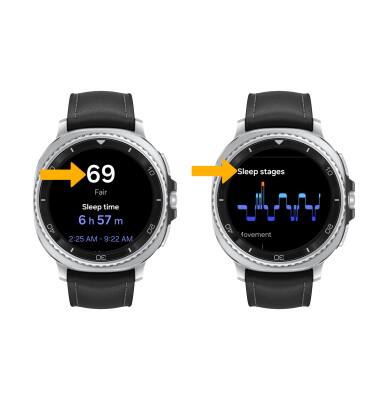
Credit: www.att.com
Improving Sleep Quality With Gear S3
Improving your sleep quality with the Gear S3 Frontier is more than just tracking hours spent in bed. The device offers smart features that help you understand your sleep patterns and make meaningful changes. By paying attention to the data it provides, you can take control of your rest and wake up feeling truly refreshed.
Using Insights And Recommendations
The Gear S3 Frontier doesn’t just collect sleep data; it turns that data into insights you can use. After wearing the watch overnight, you get a detailed breakdown of your sleep stages—light, deep, and REM sleep. This helps you see if you’re getting enough restorative rest or if interruptions are hurting your sleep quality.
Based on these insights, the device offers personalized recommendations. Maybe it suggests going to bed earlier or reducing screen time before sleep. I noticed my deep sleep improved after following its advice to keep my bedroom cooler and avoid caffeine late in the day. Have you ever tracked your sleep only to realize small changes make a big difference?
Setting Sleep Reminders
The Gear S3 Frontier lets you set sleep reminders to help you stick to a consistent bedtime. Consistency can be a game-changer when improving sleep quality. The watch gently nudges you when it’s time to start winding down, reducing the temptation to stay up too late.
You can customize these reminders based on your schedule and lifestyle. For example, if you need to wake up early, the watch can remind you to head to bed earlier than usual. Over time, these reminders build a healthier sleep routine without feeling like a chore. How often do you ignore your body’s call for rest?
Troubleshooting Sleep Tracking Issues
Tracking your sleep with the Gear S3 Frontier can sometimes hit a snag. You might notice gaps in data or inaccurate sleep patterns. Troubleshooting these issues helps you get reliable insights without frustration.
Common Problems And Fixes
One frequent problem is the watch not detecting when you fall asleep. This often happens if the watch isn’t snug on your wrist. Try adjusting the strap to ensure it fits comfortably but firmly.
Another issue is incomplete sleep data. If your watch runs out of battery during the night, the tracking stops early. Make it a habit to charge your Gear S3 Frontier before bed to avoid this.
Sometimes, sleep tracking shows unusual results, like waking up at odd times without cause. This can happen if you move your arm a lot while sleeping. Consider how your sleep habits affect the readings and try wearing the watch on your non-dominant hand.
Firmware Updates And Support
Have you checked if your Gear S3 Frontier has the latest firmware? Samsung often releases updates that improve sleep tracking accuracy. Keeping your device updated can fix bugs that cause tracking problems.
If updates don’t solve the issue, reach out to Samsung support. They can guide you through deeper troubleshooting or repair options. Don’t hesitate to ask for help—accurate sleep data is worth it.
Comparing Gear S3 Sleep Tracking To Other Devices
Comparing the sleep tracking capabilities of the Gear S3 Frontier with other devices helps you decide which gadget fits your needs best. Each device offers unique features and varying levels of accuracy that can influence how well you understand your sleep patterns. Let’s dig into how the Gear S3 stacks up against others in terms of accuracy and overall user experience.
Accuracy And Features
The Gear S3 Frontier uses a combination of motion sensors and heart rate monitoring to track your sleep stages. While it provides a reliable overview of light, deep, and REM sleep, some newer devices offer more advanced sensors like SpO2 monitoring for oxygen levels during sleep.
Unlike some fitness trackers that focus solely on step counts and heart rate, the Gear S3 adds smart features like sleep coaching and detailed sleep reports. However, if you need pinpoint accuracy for medical reasons, devices like the Fitbit Sense or Oura Ring might offer more precise data.
Ask yourself: Do you want basic sleep insights or detailed health metrics? Your choice may depend on which features matter most to your sleep goals.
User Experience
Wearing the Gear S3 Frontier to bed feels comfortable due to its lightweight design and adjustable strap. It’s not bulky, which means you’re less likely to disrupt your sleep by wearing it.
The Gear S3 syncs seamlessly with Samsung Health, offering a clear and easy-to-navigate app that displays your sleep data. This straightforward interface helps you quickly spot trends without feeling overwhelmed by numbers.
Compared to some devices that require manual input or complicated setups, the Gear S3 makes sleep tracking almost effortless. Have you found yourself avoiding sleep trackers because they’re too complex? The Gear S3 might change that for you.
Credit: www.sammobile.com
Frequently Asked Questions
How Do I Enable Sleep Tracking On Gear S3 Frontier?
To enable sleep tracking, open the Samsung Health app on your Gear S3. Navigate to the sleep section and activate sleep tracking. Wear your watch while sleeping to monitor your sleep patterns accurately.
Can Gear S3 Frontier Track Different Sleep Stages?
Yes, Gear S3 Frontier tracks light, deep, and REM sleep stages. It uses motion and heart rate sensors to analyze your sleep quality. You can view detailed sleep stage data in the Samsung Health app.
How Accurate Is Sleep Tracking On Gear S3 Frontier?
The Gear S3 uses advanced sensors to provide reliable sleep data. While not medical-grade, it gives a good overview of sleep duration and quality. Accuracy improves when you wear the watch snugly during sleep.
How To View Sleep Data Recorded By Gear S3 Frontier?
Open the Samsung Health app on your connected phone or watch. Go to the sleep section to see detailed charts and summaries. You can track trends over days, weeks, or months for better insights.
Conclusion
Tracking sleep with the Gear S3 Frontier is simple and helpful. Just wear the watch while you sleep. It collects data on your sleep patterns each night. You can check this data on the Samsung Health app. This helps you understand your sleep quality better.
Better sleep means better health and energy. Keep using your Gear S3 to see your progress. Small changes can improve your rest over time. Start tracking tonight for a healthier tomorrow.