Are you curious about how well you really sleep each night? Your Gear S3 can be a powerful tool to help you track your sleep patterns effortlessly.
Imagine waking up every morning with clear insights about your rest, so you can improve your energy and mood throughout the day. You’ll learn exactly how to set up and use sleep tracking on your Gear S3. By the end, you’ll have simple steps to unlock better sleep and take control of your health like never before.
Keep reading to discover how easy it is to start monitoring your sleep tonight!
Setting Up Sleep Tracking
Setting up sleep tracking on your Gear S3 is the first step to gaining valuable insights into your nightly rest. It’s not just about turning on a feature; it’s about preparing your device and yourself to capture accurate data every night. Getting this setup right makes a noticeable difference in how well you understand and improve your sleep patterns.
Installing Samsung Health App
The Samsung Health app is essential for tracking sleep on your Gear S3. Without it, your watch won’t be able to collect or analyze sleep data. You can download the app from the Google Play Store or the Galaxy Store.
Once installed, open the app and connect your Gear S3 by pairing it via Bluetooth. This connection lets your watch sync sleep information directly to your phone, where you can view detailed reports and trends.
Have you checked if your app is up to date? Updates often improve sleep tracking features and fix bugs that might cause inaccurate readings.
Configuring Sleep Settings
After installing the app, customize your sleep settings to match your routine. Set your typical sleep and wake times to help the Gear S3 recognize your sleep window. This ensures the watch tracks your rest only during those hours.
Enable sleep tracking and consider turning on “auto sleep detection” if available. This feature helps the watch detect when you fall asleep without manual input. You can also set reminders to encourage a consistent bedtime.
Don’t forget to review your personal details like age, weight, and height in the app. These factors influence sleep analysis and help generate more accurate insights.
Wearing Gear S3 Correctly
How you wear your Gear S3 impacts the quality of sleep data. The watch should fit snugly but comfortably on your wrist—not too loose or tight. A loose watch may skip heart rate readings, and a tight one can cause discomfort and disrupt your sleep.
Wear the Gear S3 on your non-dominant hand to reduce movement interference. Make sure the sensor on the back of the watch stays in contact with your skin throughout the night.
Have you noticed any gaps in your sleep data? Adjusting your watch’s position slightly might solve the problem. Small changes can lead to significantly better tracking results.
Using Gear S3 For Sleep Monitoring
Using your Gear S3 to monitor sleep can turn your nights into valuable data for better rest. The watch offers tools that track how long and how well you sleep, helping you spot patterns and improve your habits. Understanding how to activate and manage these features will make your sleep tracking more effective and insightful.
Activating Sleep Mode
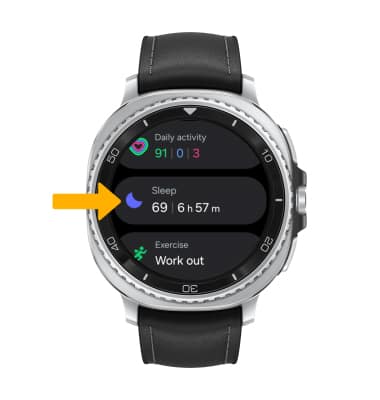
To start sleep tracking on your Gear S3, you need to activate Sleep Mode. This mode tells the watch to switch focus from daily activity to monitoring your rest. You can easily turn it on by swiping to the Sleep widget on your watch or setting it up through the Samsung Health app on your phone.
Activating Sleep Mode manually before bed ensures your watch tracks your sleep phases accurately. It also minimizes interruptions by silencing notifications, so your sleep isn’t disturbed. Have you noticed how small disruptions can throw off your sleep quality? Activating this mode can help reduce those disturbances.
Automatic Vs Manual Tracking
The Gear S3 offers two ways to track sleep: automatic and manual. Automatic tracking detects when you fall asleep and wake up without any input, which is handy if you forget to activate Sleep Mode. However, it may sometimes miss short naps or fail to detect sleep accurately if your movements are minimal.
Manual tracking requires you to start and stop sleep monitoring yourself. This option often provides more precise data because you control when the watch records your sleep. Consider which method fits your lifestyle better—do you prefer the convenience of automation or the accuracy of manual control?
Ensuring Accurate Data Collection
Accuracy is key when tracking sleep, and several factors can impact the data collected by your Gear S3. Wearing the watch snugly but comfortably on your wrist ensures the sensors maintain good contact with your skin. Loose straps can cause gaps in data, while too tight can be uncomfortable overnight.
Also, keep your watch’s software up to date for the latest improvements in sleep tracking algorithms. Avoid moving excessively during sleep, if possible, as this may confuse the sensors. Have you ever checked your sleep report and wondered why it showed you awake for long periods? Small changes in how you wear the watch can make a big difference.
Interpreting Sleep Data
The Samsung Gear S3 offers a comprehensive look at your sleep patterns. Understanding the data it provides is key to improving your sleep health. By interpreting sleep data, you can make informed decisions about your rest and well-being.
Understanding Sleep Stages
The Gear S3 tracks various sleep stages. These stages include light, deep, and REM sleep. Each stage plays a crucial role in your sleep cycle. Light sleep helps with memory and learning. Deep sleep is vital for physical recovery. REM sleep is where dreaming happens.
Knowing these stages helps you understand your sleep quality. A balanced sleep cycle with all stages is ideal. The Gear S3 provides insights into how much time you spend in each stage.
Analyzing Sleep Duration And Quality
Sleep duration is the total time you sleep each night. Quality refers to how restful that sleep is. The Gear S3 monitors both these aspects. It records the total hours slept and how restful those hours were.
Longer sleep doesn’t always mean better sleep. Quality is key. The Gear S3 helps you see if you’re getting enough restful sleep. It indicates disturbances or short sleep cycles that affect restfulness.
Identifying Sleep Patterns
Patterns show your sleep habits over time. The Gear S3 tracks your sleep patterns nightly. This data helps identify trends and irregularities.
Consistent sleep patterns indicate a healthy routine. Irregular patterns might suggest issues like insomnia. Monitoring patterns can help you identify triggers for poor sleep.
The Gear S3 offers a detailed look into your sleep habits. Use this data to make positive changes and improve your sleep health.
Credit: www.att.com
Improving Sleep Accuracy
Improving sleep accuracy on your Gear S3 can make a big difference in understanding your rest patterns. Small adjustments help the device read your sleep better and give you clearer insights. Focus on sensor calibration, avoid common mistakes, and tweak settings for better results.
Calibrating Sensors
Proper sensor calibration helps the Gear S3 track sleep more precisely. Make sure the watch fits snugly on your wrist, not too loose or tight. Keep the sensors clean by wiping them gently with a soft cloth. Restart the device occasionally to reset the sensors. These steps ensure better contact and accurate data collection.
Avoiding Common Tracking Errors
Errors often happen due to movement or incorrect wear. Avoid wearing the watch too high or low on your wrist. Remove the watch during activities that cause excessive shaking. Turn off features that interfere with sleep tracking, like continuous heart rate monitoring, if they drain the battery too fast. Sleep tracking works best when the device gets consistent signals without disruption.
Optimizing Gear S3 Settings
Adjust settings to improve sleep data quality. Enable the “Auto Sleep” feature to let the watch detect sleep automatically. Set the correct bedtime and wake-up time in the app for better tracking alignment. Update the firmware regularly to benefit from improved algorithms. Customize notifications to avoid disturbances during sleep hours. These steps help the Gear S3 focus on your sleep without distractions.
Troubleshooting Sleep Tracking Issues
Sleep tracking on the Gear S3 may sometimes face issues that affect data accuracy. These problems can cause frustration and confusion about your sleep patterns. Troubleshooting helps ensure your device records sleep data correctly. Addressing common issues improves your overall experience and trust in the device.
Fixing Sync Problems
Sync issues often block sleep data from updating on your phone. Check Bluetooth connection between the Gear S3 and your smartphone. Restart both devices to refresh the connection. Open the Samsung Health app and manually sync data if needed. Clear cache of the Samsung Health app to remove temporary bugs. Ensure both devices are close to each other during syncing.
Resolving Inaccurate Readings
Inaccurate sleep data can happen due to improper device wear or settings. Wear the Gear S3 snugly on your wrist, not too loose or tight. Avoid moving too much during sleep to prevent confusion. Calibrate sensors by restarting the watch regularly. Review sleep tracking settings to confirm they match your sleep schedule. Remove any apps that might interfere with sensor accuracy.
When To Update Firmware
Firmware updates fix bugs and improve sleep tracking features. Check for new updates in the Galaxy Wearable app or watch settings. Install updates promptly to keep the device running smoothly. Updates often enhance sensor performance and data syncing. Regular updates help prevent future sleep tracking problems.

Credit: upgrademystatus.com
Advanced Tips And Features
Exploring advanced tips and features can enhance your sleep tracking experience on the Gear S3. These options offer deeper insights and more control over your sleep habits. They help you understand patterns and improve rest quality.
Using Third-party Sleep Apps
The Gear S3 supports various third-party apps for sleep tracking. These apps often provide more detailed data than the default tracker. They can track sleep stages, breathing, and movements with better accuracy.
Some popular apps offer:
- Custom sleep reports
- Smart alarms that wake you gently
- Integration with other health data
Download apps from the Galaxy Store and connect them to your watch. This expands your options for tracking and analyzing sleep.
Integrating With Health Platforms
Syncing your Gear S3 with health platforms brings all your wellness data together. Platforms like Samsung Health or Google Fit collect sleep, activity, and heart rate data in one place. This helps you see how sleep affects your overall health.
Integration benefits include:
- Easy access to long-term trends
- Personalized recommendations
- Sharing data with doctors or trainers
Enable syncing in your watch’s settings to connect with these platforms smoothly.
Setting Sleep Goals And Reminders
Setting clear sleep goals guides you toward better rest habits. The Gear S3 lets you define your target sleep duration. It also can remind you when it’s time to go to bed.
Use reminders to:
- Maintain a consistent sleep schedule
- Prepare for sleep by winding down
- Track if you meet your goals daily
Regular reminders improve your chances of getting enough quality sleep.
Credit: www.sammobile.com
Frequently Asked Questions
How Do I Start Sleep Tracking On Gear S3?
To start sleep tracking on Gear S3, open the Samsung Health app. Tap the Sleep option and enable automatic tracking. Wear the watch while sleeping for accurate data collection.
Can Gear S3 Track Sleep Stages Accurately?
Yes, Gear S3 tracks light, deep, and REM sleep stages using built-in sensors. It provides detailed insights to help improve your sleep quality.
How Do I View My Sleep Data On Gear S3?
Open the Samsung Health app on your watch or phone. Select Sleep to see your sleep duration, quality, and stages in a clear summary.
Does Gear S3 Require Manual Sleep Logging?
No, Gear S3 tracks sleep automatically once enabled. However, you can manually add sleep sessions in the Samsung Health app if needed.
Conclusion
Tracking sleep with your Gear S3 helps you understand your rest better. The watch collects useful data each night. You can check this data anytime on the device or app. Simple steps make tracking easy and clear. Regular use gives a better view of your sleep patterns.
Good sleep is key to feeling well and staying healthy. Use your Gear S3 to keep an eye on your sleep habits. Small changes can lead to better rest and more energy. Start tracking tonight and see the difference soon.

