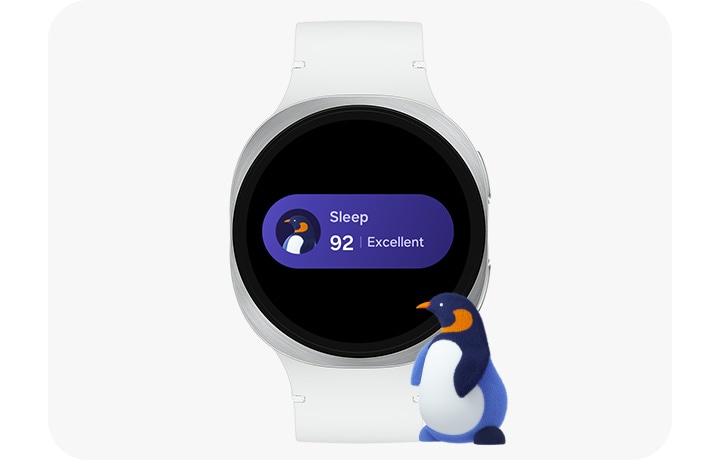
Are you struggling to understand your sleep patterns? Your Samsung Gear Fit 2 can be the key to unlocking better rest and more energy.
Tracking your sleep isn’t just about knowing how many hours you sleep—it’s about discovering the quality of your rest and making simple changes to feel refreshed every day. You’ll learn exactly how to use your Gear Fit 2 to monitor your sleep easily and effectively.
Keep reading to take control of your nights and wake up ready to conquer your day!

Credit: www.youtube.com
Setting Up Your Gear Fit 2
Getting your Samsung Gear Fit 2 ready for sleep tracking is easier than you might think. Setting it up correctly ensures accurate data that helps you understand your sleep patterns better. Let’s walk through the key steps to prepare your device for tracking your nightly rest.
Charging And Powering On
Before you start, make sure your Gear Fit 2 is fully charged. Connect the charger to the device and plug it into a power source. A full battery means your device can track your sleep without interruptions throughout the night.
Once charged, press and hold the power button on the side until the screen lights up. This quick action wakes your device and prepares it for syncing with your smartphone.
Connecting To Samsung Health App
Your Gear Fit 2 works best when paired with the Samsung Health app. Download the app on your smartphone if you haven’t already. Open it and follow the prompts to connect your Gear Fit 2 via Bluetooth.
Check that your phone recognizes the device and that syncing is active. This connection lets your sleep data transfer smoothly, giving you detailed insights through the app’s interface.
Configuring Sleep Tracking
Within the Samsung Health app, navigate to the sleep tracking settings. Here, you can customize how your device monitors your sleep. Turn on automatic sleep tracking to let your Gear Fit 2 detect when you fall asleep without needing to start it manually.
Consider setting your usual sleep and wake times. This helps the device better identify your sleep phases and disruptions. Have you noticed how customizing these settings improves the accuracy of your sleep reports? It’s a simple step that can make a big difference.
Using Sleep Tracking Features
Using the sleep tracking features on your Samsung Gear Fit 2 can give you valuable insights into your nightly rest. These features help you understand how well you sleep and identify areas to improve your sleep quality. Getting comfortable with how to start and manage sleep tracking is the first step to making the most out of your device.
Starting Sleep Mode
To begin tracking your sleep, you can activate Sleep Mode directly on your Gear Fit 2. Simply swipe through the menu until you find the Sleep app, then tap to start tracking before you go to bed. This puts your device into a low-power state focused on monitoring your rest without interruptions.
You can also set a schedule for Sleep Mode to start automatically at a specific time each night. This way, you don’t have to remember to activate it every evening. Have you tried setting a sleep schedule yet? It can help you develop a consistent bedtime routine.
Automatic Vs Manual Tracking
The Gear Fit 2 offers two ways to track your sleep: automatic and manual. Automatic tracking detects when you fall asleep and wakes up without any input from you. This can be convenient if you forget to start Sleep Mode, but it may sometimes miss short naps or restless moments.
Manual tracking requires you to start and stop the sleep session yourself. This method is more precise if you want to control exactly when the tracking begins. Think about your habits—do you prefer the device to track sleep quietly in the background, or do you want full control over each sleep session?
Tracking Sleep Stages
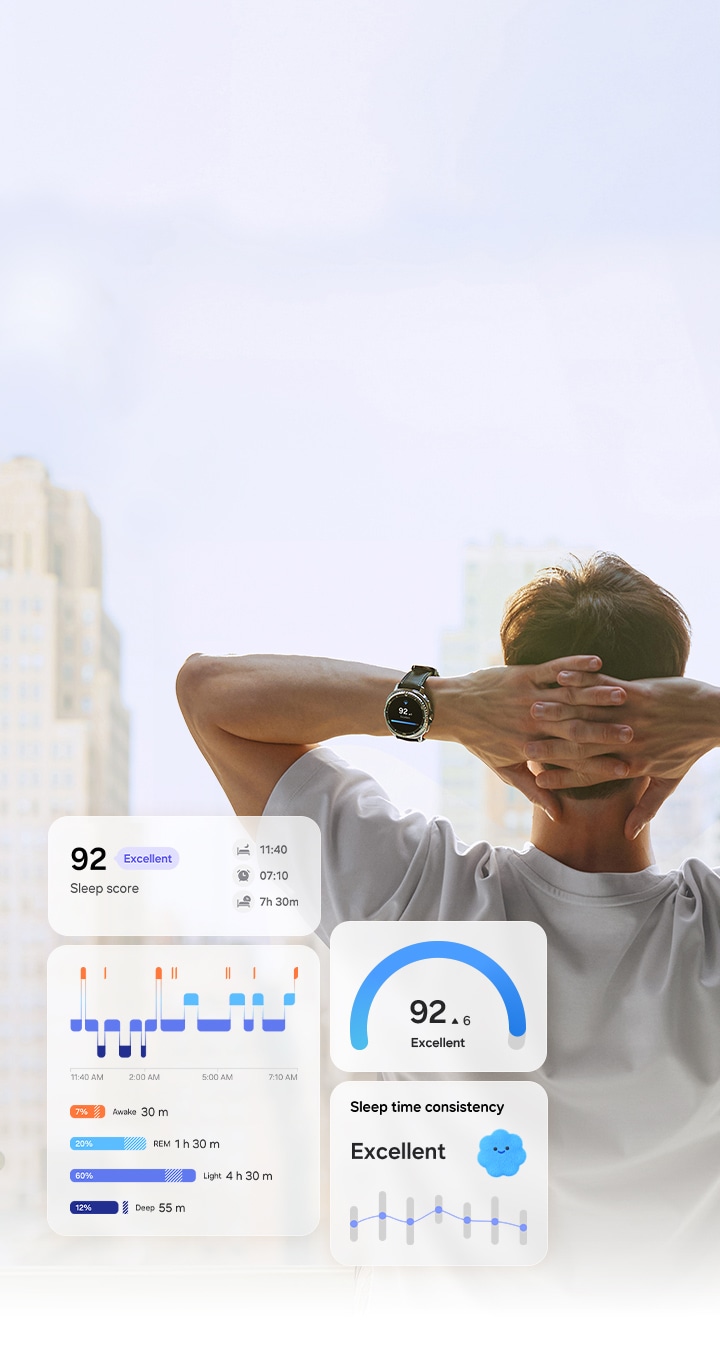
Your Gear Fit 2 breaks down your sleep into stages: light sleep, deep sleep, and REM sleep. Each stage plays a different role in how rested you feel the next day. The device uses heart rate and movement data to estimate how long you spend in each stage.
Reviewing these stages helps you spot patterns, like too little deep sleep or frequent awakenings. If you notice your REM sleep is consistently low, it might be time to adjust your bedtime habits or discuss it with a healthcare professional. Have you checked your sleep stages lately? Understanding them can change how you approach rest.
Analyzing Sleep Data
Analyzing sleep data from your Samsung Gear Fit 2 can improve your rest. Understanding your sleep patterns helps you make better lifestyle choices. This device provides detailed sleep reports. These reports offer insights into your sleep quality and patterns.
Accessing Sleep Reports
Accessing sleep reports is simple. Open the Samsung Health app on your phone. Navigate to the sleep section. Here, you’ll find detailed sleep data. The app displays your sleep duration, stages, and efficiency. This information helps you understand your sleep habits.
Interpreting Sleep Quality
Sleep quality is crucial for well-being. The app shows your sleep score. This score reflects sleep duration and stages. Deep sleep is essential for recovery. Light sleep supports memory and mood. Monitoring these stages helps improve sleep quality.
Identifying Sleep Patterns
Consistent patterns indicate healthy sleep. Look for trends in your sleep data. Regular bedtimes and wake times are ideal. Notice any disruptions in your sleep cycle. Address these to enhance your rest. Tracking patterns helps you adjust your routine for better sleep.
Credit: news.samsung.com
Improving Sleep With Gear Fit 2
Improving your sleep with the Samsung Gear Fit 2 goes beyond just tracking hours. It’s about understanding your patterns and making small, targeted changes that lead to deeper, more refreshing rest. Using the Gear Fit 2 as a daily companion helps you stay aware of your sleep habits and motivates you to take control of your nighttime routine.
Setting Sleep Goals
Start by defining clear, realistic sleep goals in the Samsung Health app. You can set your ideal bedtime and wake-up time based on how many hours of sleep you need. Having a goal makes it easier to stay consistent and gives you a target to work towards every night.
Think about your current sleep schedule. Are you aiming for 7 or 8 hours? Adjust your targets if you notice you feel tired or restless. The Gear Fit 2 will remind you when it’s time to wind down, helping you stick to those goals even on busy days.
Using Sleep Insights
The Gear Fit 2 provides detailed sleep insights by breaking down your sleep stages: light, deep, and REM sleep. Checking these stats regularly shows you where your sleep quality might be lacking. For example, if your deep sleep is consistently low, it could explain why you wake up feeling unrefreshed.
Look for trends over several nights instead of focusing on one bad night. This helps you spot patterns and understand what affects your sleep quality. The app also offers tips tailored to your data, making it easier to improve specific areas.
Adjusting Habits For Better Rest
Use the data from your Gear Fit 2 to make simple changes in your daily habits. Maybe you find that late-night screen time reduces your deep sleep, or that a cup of coffee in the afternoon disrupts your rest. Small tweaks like reducing caffeine after 3 PM or setting a no-phone rule before bed can have a big impact.
Ask yourself: what habits are standing between you and better sleep? Try adjusting one habit at a time and track the results with your Gear Fit 2. This ongoing feedback loop keeps you engaged and helps you build a healthier sleep routine that fits your lifestyle.
Troubleshooting Common Issues
Tracking your sleep with the Samsung Gear Fit 2 can sometimes hit a few bumps. If your device isn’t syncing properly or the sleep data seems off, it can be frustrating. Let’s look at some common issues and how you can fix them to get the most accurate sleep insights.
Syncing Problems
If your Gear Fit 2 isn’t syncing sleep data with the Samsung Health app, the first thing to check is the Bluetooth connection. Make sure your watch and phone are close to each other and that Bluetooth is enabled on both devices.
Try restarting both your phone and Gear Fit 2. This simple step often solves syncing glitches. Also, ensure the Samsung Health app has the necessary permissions to access data from your watch.
Have you noticed syncing fails mostly after a phone update? Sometimes, clearing the cache of the Samsung Health app can help. Go to your phone’s Settings > Apps > Samsung Health > Storage and tap “Clear Cache.”
Inaccurate Sleep Data
Your Gear Fit 2 relies on movement and heart rate to track sleep stages. If the data looks inaccurate, it might be due to how you wear the device. The band should fit snugly but comfortably, right above your wrist bone.
Sleeping with your arm under your head or body can block sensors and cause errors. Try to keep your wrist relaxed and avoid covering the watch with heavy blankets.
Another tip is to check if “Sleep Detection” is enabled in the Samsung Health app. Without this, the watch might miss tracking your sleep or record incorrect times.
App And Firmware Updates
Outdated software can cause many issues, including syncing and inaccurate data. Regularly check for updates to the Samsung Health app and your Gear Fit 2’s firmware.
Updates often fix bugs and improve sensor accuracy. You can check for firmware updates by opening the Galaxy Wearable app, selecting your Gear Fit 2, and tapping “Update firmware.”
Are you skipping updates because you’re worried about losing data? Rest assured, updates usually keep your data safe and improve overall performance.
Credit: www.samsung.com
Frequently Asked Questions
How Do I Enable Sleep Tracking On Samsung Gear Fit 2?
To enable sleep tracking, open the Samsung Health app on your Gear Fit 2. Select “Sleep” and toggle the tracking feature on. Wear the device overnight for accurate data. Sync your Gear Fit 2 with your phone to view detailed sleep reports.
Can Samsung Gear Fit 2 Track Different Sleep Stages?
Yes, the Gear Fit 2 tracks light, deep, and REM sleep stages. It uses heart rate and movement data to analyze sleep quality. The app displays a detailed breakdown to help you understand your sleep patterns better.
How Accurate Is Sleep Tracking On Samsung Gear Fit 2?
The Gear Fit 2 offers reliable sleep tracking using sensors and algorithms. However, accuracy can vary due to device fit and user movement. Regularly wearing the device correctly improves data precision. It’s a helpful tool but not a medical-grade monitor.
How Do I View My Sleep Data On Samsung Gear Fit 2?
After syncing your Gear Fit 2 with the Samsung Health app, open the app on your phone. Navigate to the “Sleep” section to see detailed graphs and summaries. You can monitor trends and improve your sleep habits over time.
Conclusion
Tracking sleep with your Samsung Gear Fit 2 helps improve your rest. The device records your sleep patterns clearly and simply. You can see how long and well you slept each night. This information helps you make better choices for healthier sleep.
Just wear the Gear Fit 2 to bed and check the app each morning. Small changes can lead to better sleep and more energy. Start using your Gear Fit 2 to understand your sleep better today. Good sleep brings a better day.

