Are you struggling to understand your sleep patterns? Knowing how well you sleep is key to feeling energized and healthy every day.
If you own a Gear Fit 2, you have a powerful tool right on your wrist that can help you track your sleep effortlessly. You’ll discover simple steps to use your Gear Fit 2 to monitor your sleep, so you can finally unlock better rest and wake up refreshed.
Keep reading, and learn how to turn your sleep data into real improvements for your nights and days.
Credit: www.tomsguide.com
Gear Fit 2 Sleep Tracking Features
The Gear Fit 2 offers a range of sleep tracking features designed to help you understand your sleep patterns better. Its combination of sensors and smart algorithms work together to monitor your rest without being intrusive. Knowing how this device tracks your sleep can help you make the most of its capabilities and improve your nightly recovery.
Sensors And Technology
The Gear Fit 2 uses an accelerometer and heart rate sensor to monitor your sleep. The accelerometer detects your movement, while the heart rate sensor measures your pulse throughout the night. Together, these sensors provide data on when you fall asleep, how restless you are, and when you wake up.
Unlike some devices that require a separate sleep mode activation, Gear Fit 2 automatically detects when you’re sleeping. This hands-free approach makes tracking effortless. Have you ever forgotten to start sleep mode on your tracker and lost valuable data? Gear Fit 2 helps avoid that problem.
Sleep Metrics Tracked
The device tracks key sleep metrics such as total sleep duration, light sleep, deep sleep, and awake times. These metrics offer insights into the quality of your sleep, not just the quantity. You can see how much time you spend in each stage, helping you identify if you’re getting enough restorative deep sleep.
Additionally, the Gear Fit 2 records your sleep efficiency, which is the percentage of time you actually spend sleeping while in bed. This metric can point out issues like frequent awakenings or restless nights. Have you noticed nights when you’re in bed for hours but still feel tired? This data can explain why.
Accuracy And Limitations
The Gear Fit 2 provides reasonably accurate sleep tracking for everyday use, but it’s not perfect. Movement and heart rate data give good estimates, but the device can sometimes misinterpret quiet wakefulness as sleep or miss short naps. It’s important to view the data as a helpful guide rather than an exact measurement.
External factors like how tightly you wear the band or your individual sleep habits can impact accuracy. If you’re a restless sleeper or often change positions, the data might show more awake periods than you actually have. Are you ready to use these insights to notice patterns rather than obsess over each number?
Setting Up Sleep Tracking
Setting up sleep tracking on your Gear Fit 2 is straightforward but crucial for getting accurate insights into your rest patterns. Proper setup ensures the device captures data effectively, making your sleep analysis reliable. Let’s walk through how to configure your device, sync it with the Samsung Health app, and tailor your sleep goals to fit your lifestyle.
Configuring The Device
Start by turning on your Gear Fit 2 and navigating to the settings menu. Find the “Sleep” option and activate sleep tracking to allow the device to monitor your rest automatically.
Make sure your Gear Fit 2 fits snugly on your wrist; a loose fit can affect sensor accuracy. If you’ve noticed inconsistent data before, this simple adjustment might be the key to better results.
Syncing With The Samsung Health App
To view detailed sleep reports, connect your Gear Fit 2 to the Samsung Health app on your smartphone. Open the app and ensure Bluetooth is enabled for seamless syncing.
Once paired, your sleep data will transfer automatically each time your devices connect. Have you checked your sleep trends over a week? This syncing makes it easy to spot patterns and adjust habits accordingly.
Customizing Sleep Goals
Open the Samsung Health app and go to the sleep section to set personalized sleep goals. You can specify how many hours of sleep you aim for each night based on your daily schedule and health needs.
Adjusting these goals helps keep you motivated. Imagine waking up knowing exactly how close you are to meeting your target—doesn’t that encourage better bedtime habits?
Using Gear Fit 2 For Sleep Monitoring
Using the Gear Fit 2 for sleep monitoring transforms how you understand your rest patterns. This wearable tracks your sleep automatically, giving you detailed insights without extra effort. Knowing how to wear it correctly and manage its sleep mode can boost the accuracy of your data and help you make better sleep decisions.
Wearing Tips For Accurate Tracking
Wear your Gear Fit 2 snugly but comfortably on your wrist. It shouldn’t be too loose; otherwise, sensors might lose contact with your skin and miss important signals. A good fit ensures the heart rate monitor and accelerometer capture your movements and pulse consistently throughout the night.
Try wearing it on your non-dominant hand to reduce unnecessary movement that can confuse the tracking. Also, make sure the device’s sensors are clean and free from dirt or sweat before bedtime. These small steps help the Gear Fit 2 provide reliable sleep data.
Starting And Stopping Sleep Mode
The Gear Fit 2 usually detects sleep automatically, but you can also manually start sleep mode if you want precise control. To begin, open the Samsung Health app on your device and select the sleep tracking feature, then press the start button right before you go to bed.
When you wake up, either the device stops tracking automatically or you can manually end the sleep session in the app. Manual control helps if you have irregular sleep hours or naps, allowing you to capture every rest period accurately. Have you ever wondered if your device missed a nap? Taking control solves that problem.
Interpreting Sleep Data
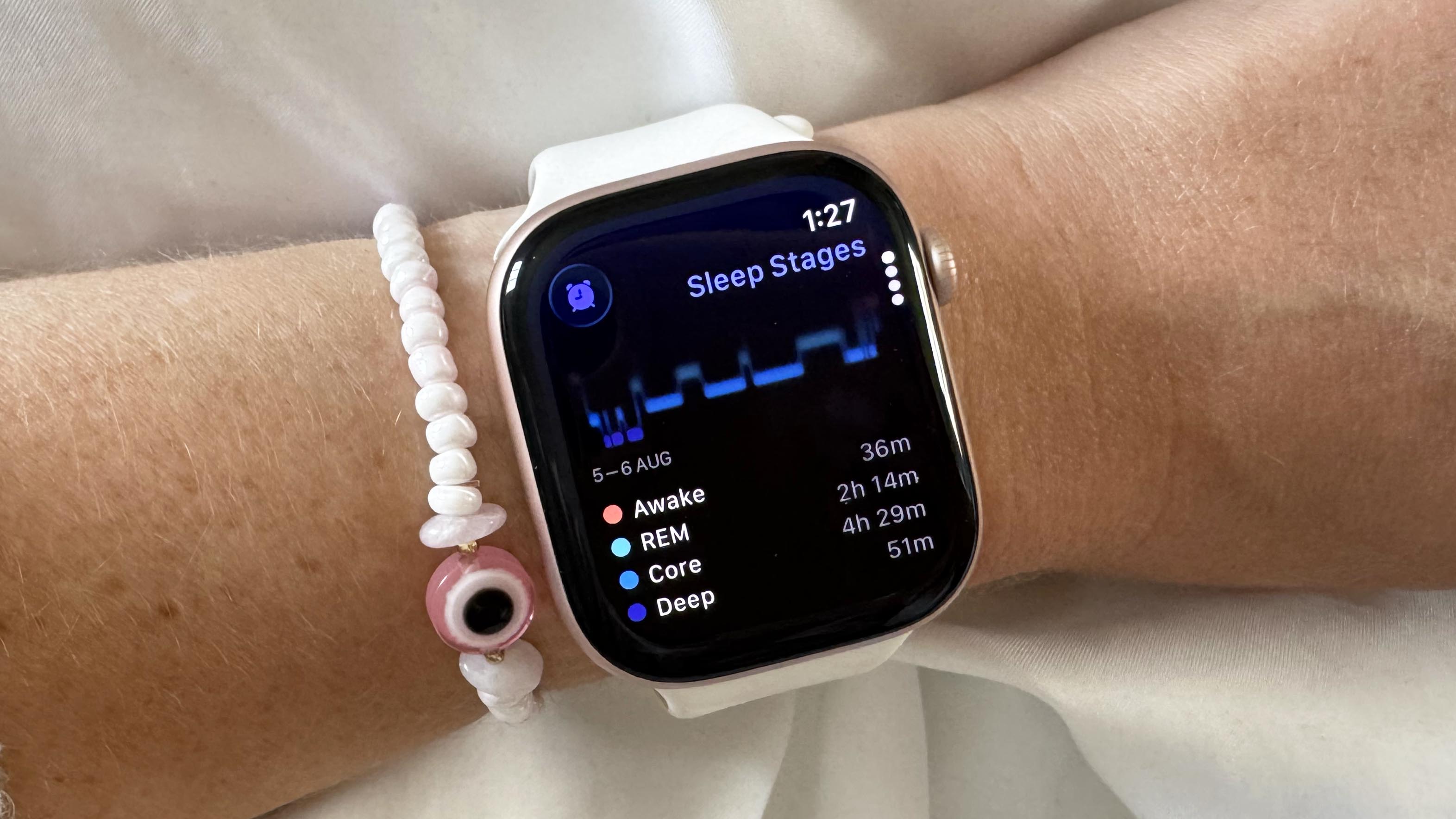
After a night’s rest, your Gear Fit 2 provides a breakdown of your sleep stages: light, deep, and REM sleep. Each stage plays a unique role in recovery and mental clarity. Understanding these stages can guide you to adjust your habits for better rest.
The app also shows total sleep duration and quality score. Look for patterns such as frequent awakenings or low deep sleep time, which might indicate stress or poor sleep conditions. What changes could you make tonight based on this data to improve tomorrow’s sleep?
Credit: www.androidpolice.com
Analyzing Sleep Reports
Analyzing sleep reports from your Gear Fit 2 can transform how you understand your nights. These reports offer clear data that help you see beyond just hours slept. They show what’s happening throughout your sleep, allowing you to make smarter choices for better rest.
Understanding Sleep Stages
Your Gear Fit 2 breaks down your sleep into stages: light, deep, and REM sleep. Each stage plays a unique role in how refreshed you feel. For instance, deep sleep helps your body repair itself, while REM sleep supports memory and mood.
Look closely at the percentages of each stage in your report. If you notice very little deep sleep, you might want to adjust your bedtime or reduce evening screen time. Did you know that even small changes can increase your deep sleep by 10-15%?
Identifying Sleep Patterns
Sleep reports reveal patterns that might surprise you. Maybe you sleep longer on weekends but wake up groggy, or perhaps midweek naps disrupt your nighttime rest. Your Gear Fit 2 shows you these trends over days or weeks.
Ask yourself: Are you consistent with your sleep schedule? Inconsistent sleep times often lead to feeling tired, even after a full night. Use the pattern data to spot habits that could be harming your sleep quality.
Tracking Sleep Improvements
Tracking progress is motivating. When you see your deep sleep increasing or fewer wake-ups during the night, it confirms your efforts are working. Gear Fit 2 allows you to monitor these changes easily.
Set small goals based on your reports, like going to bed 15 minutes earlier or avoiding caffeine after 3 PM. Over time, these tweaks show up in your sleep data and boost your overall energy. How will you adjust your habits tonight based on what your sleep report tells you?
Tips To Improve Sleep Quality
Tracking sleep with Gear Fit 2 helps you understand your sleep patterns easily. It records your sleep stages and duration, giving clear insights to improve rest. Regular monitoring guides better habits for deeper, more restful sleep.
Improving your sleep quality is key to feeling refreshed and energetic each day. With the Gear Fit 2, you have a powerful tool at your disposal. Not only can it track your sleep patterns, but it also offers insights to help you make meaningful changes. Here’s how you can leverage this technology to enhance your sleep quality.Establishing A Sleep Routine
Creating a consistent sleep schedule can greatly benefit your sleep quality. Try going to bed and waking up at the same time every day, even on weekends. This routine helps regulate your body’s internal clock, making it easier to fall asleep and wake up naturally. Gear Fit 2 can assist by reminding you to start winding down at a set time each night. Use these reminders to create a calming pre-sleep ritual, like reading a book or meditating.Optimizing Sleep Environment
Your sleep environment plays a crucial role in the quality of your rest. Ensure your bedroom is cool, quiet, and dark. Consider using blackout curtains or a white noise machine to enhance your sleep space. Gear Fit 2 can track your sleep environment’s impact on your rest. Review this data to identify patterns, like whether a cooler room temperature improves your sleep.Using Gear Fit 2 Data To Adjust Habits
The data collected by your Gear Fit 2 can offer valuable insights into your sleep habits. Look for trends in your sleep stages, such as light, deep, or REM sleep. Are you getting enough deep sleep? If not, consider reducing screen time before bed as blue light can disrupt sleep. Use the insights from your Gear Fit 2 to experiment with adjustments and monitor their impact. Does your sleep improve when you exercise earlier in the day? The data can guide you to make small tweaks that lead to big improvements. By understanding your sleep patterns and making informed changes, you can enhance your overall well-being. Gear Fit 2 is not just a tracker; it’s a tool to help you achieve better sleep and a healthier lifestyle.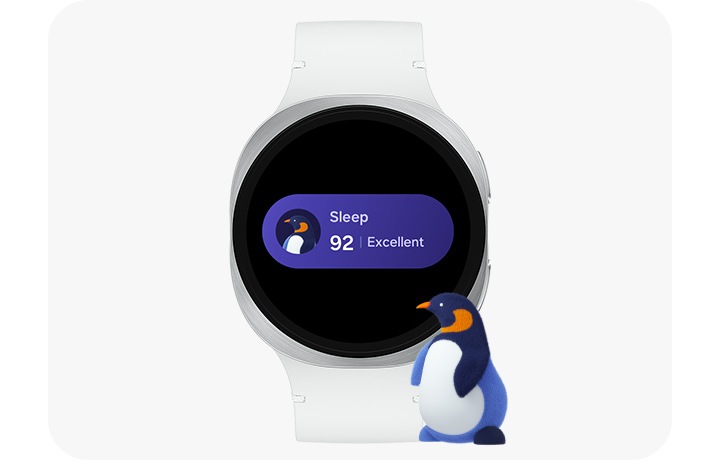
Credit: www.samsung.com
Troubleshooting Sleep Tracking Issues
Sleep tracking with the Gear Fit 2 can sometimes face issues that disrupt accurate data collection. Troubleshooting these problems improves your sleep analysis and helps you understand your rest better.
Several factors may cause sleep tracking errors. Fixing them often requires simple steps. Regular maintenance and updates keep the device functioning smoothly.
Common Problems And Fixes
- Sleep not recorded: Ensure the Gear Fit 2 is worn snugly on your wrist during sleep.
- Inaccurate sleep duration: Make sure the device is charged and synced with the Samsung Health app.
- Sleep stages missing: Restart the device to refresh sensors and software.
- Data not syncing: Check Bluetooth connection and app permissions on your phone.
- Device feels loose: Adjust the strap for a better fit to improve sensor contact.
Firmware Updates And Compatibility
Firmware updates fix bugs and enhance sleep tracking features. Check for updates regularly in the Samsung Wearable app.
Running outdated firmware may cause tracking errors or compatibility issues. Always install the latest version.
Ensure your smartphone’s operating system supports the Gear Fit 2 and Samsung Health app for smooth syncing.
When To Reset Or Recalibrate
Reset the Gear Fit 2 if sleep data remains inaccurate after basic fixes. This clears temporary glitches.
Recalibrate sensors by performing a factory reset through the device settings menu. This helps restore sensor accuracy.
Backup your data before resetting. Sync your sleep records to the Samsung Health app to avoid data loss.
Comparing Gear Fit 2 With Other Sleep Trackers
Comparing the Gear Fit 2 with other popular sleep trackers helps you decide if it fits your needs or if another device might serve you better. Each device offers unique features and varying accuracy levels that impact how well you understand your sleep patterns. Let’s break down the Gear Fit 2’s strengths and weaknesses alongside its competitors to help you make an informed choice.
Pros And Cons
The Gear Fit 2 shines with its comfortable design and seamless integration with Samsung Health. It tracks sleep stages like light, deep, and REM sleep, giving you a clear picture of your night’s rest. Battery life lasts up to 3-4 days, which is decent but not the longest among trackers.
On the downside, its sleep tracking can sometimes be less precise compared to dedicated sleep devices like the Fitbit Charge series or the Oura Ring. The Gear Fit 2 may also struggle to detect short naps or restless periods accurately. Additionally, the lack of advanced metrics such as heart rate variability during sleep limits detailed analysis.
Feature Differences
| Feature | Gear Fit 2 | Fitbit Charge 5 | Oura Ring |
|---|---|---|---|
| Sleep Stages (Light, Deep, REM) | Yes | Yes | Yes |
| Heart Rate Variability (HRV) | No | Yes | Yes |
| Respiratory Rate Tracking | No | Yes | Yes |
| Sleep Score | Basic | Advanced | Advanced |
| App Integration | Samsung Health | Fitbit App | Oura App |
| Battery Life | 3-4 days | 7+ days | 4-7 days |
Notice how Fitbit and Oura provide more in-depth data that can reveal subtle sleep issues. If you want a device that offers more than just basics, those might be worth considering.
Value For Sleep Monitoring
The Gear Fit 2 offers solid value if you already use Samsung devices and want a device that doubles as a fitness tracker. Its price point is generally lower than premium trackers but still delivers reliable sleep data for most users.
Think about what you want to get from sleep tracking. Are you looking for simple insights, or do you want detailed reports to improve your sleep quality? If it’s the latter, investing in a device with richer analytics might save you time and guesswork.
Ultimately, the Gear Fit 2 is a good starting point for casual users. But if you’re serious about sleep optimization, comparing features and long-term value across devices can help you pick the best tool for your health journey.
Frequently Asked Questions
How Do I Enable Sleep Tracking On Gear Fit 2?
To enable sleep tracking, open the Samsung Health app on your phone. Connect your Gear Fit 2, then go to the Sleep section. Turn on automatic sleep tracking for accurate monitoring while you rest.
Can Gear Fit 2 Track Different Sleep Stages?
Yes, Gear Fit 2 tracks light, deep, and REM sleep stages. It analyzes your movement and heart rate to provide detailed sleep insights for better rest management.
How Accurate Is Gear Fit 2 Sleep Tracking?
Gear Fit 2 provides reasonably accurate sleep data by monitoring heart rate and movement. However, it may not be as precise as medical-grade devices.
How Do I View My Sleep Data On Gear Fit 2?
Open the Samsung Health app on your phone. Navigate to the Sleep section to see detailed charts and summaries of your sleep patterns and quality.
Conclusion
Tracking sleep with Gear Fit 2 helps you understand your rest better. It shows how long and well you sleep each night. You can use this data to improve your habits. The device is easy to wear and simple to use.
Checking your sleep patterns regularly helps you feel more refreshed. Start paying attention to your sleep today for a healthier life. Small changes can make a big difference in how you feel. Gear Fit 2 makes sleep tracking simple and clear.
Give it a try and see the results yourself.

