Are you struggling to get a good night’s sleep and want an easy way to monitor your rest? Your Samsung Gear S3 can help you track your sleep patterns without any extra effort.
Imagine waking up refreshed because you understand how well you really sleep each night. You’ll discover simple steps to set up and use your Gear S3 to track your sleep accurately. By the end, you’ll have the tools to take control of your sleep and improve your overall well-being.
Keep reading to unlock the full potential of your smartwatch and start sleeping smarter tonight.
Credit: www.sammobile.com
Setting Up Sleep Tracking
Setting up sleep tracking on your Samsung Gear S3 lets you monitor your rest easily. The process starts with preparing your devices and apps. A few simple steps connect your watch to your phone. Then, you customize the sleep tracking features to fit your needs. Follow these instructions to get started quickly.
Installing Samsung Health App
Download the Samsung Health app from your phone’s app store. The app is free and works on most Android and iOS devices. Open the app and sign in or create a Samsung account. This app collects and shows your sleep data from the Gear S3.
Pairing Gear S3 With Your Phone
Turn on Bluetooth on your phone. Open the Galaxy Wearable app to connect your Gear S3. Follow the on-screen prompts to pair your watch and phone. Ensure both devices are nearby during this process. Once paired, your watch will sync data with the phone automatically.
Configuring Sleep Settings
Open the Samsung Health app on your phone. Go to the Sleep section and tap on settings. Set your usual sleep and wake times to improve tracking accuracy. Enable automatic sleep detection if available. Check that notifications and permissions are allowed for sleep tracking. Adjust these settings to match your daily routine.
Credit: www.att.com
Using Sleep Tracking Features
Samsung Gear S3 tracks your sleep by monitoring movements and heart rate during the night. Simply wear the watch to bed, and review sleep data on the Samsung Health app. This helps understand sleep patterns and improve rest quality.
Tracking your sleep with the Samsung Gear S3 can enhance your understanding of sleep patterns and improve your overall well-being. This smartwatch comes equipped with features designed to monitor your sleep quality, duration, and cycles. By utilizing these features effectively, you can gain insights into your sleep habits and make informed decisions to optimize your rest.Activating Sleep Mode
To make the most of sleep tracking, you first need to activate Sleep Mode on your Gear S3. Navigate to the settings menu and locate the Sleep Mode option. Turning this on will ensure that your device is ready to monitor your sleep patterns throughout the night. Sleep Mode minimizes disturbances by silencing notifications, allowing you to rest without interruptions. This feature is crucial if you want accurate data collection during your sleep.Wearing Gear S3 Correctly
Proper placement of the Gear S3 is key to getting reliable sleep data. Wear the watch comfortably on your wrist, ensuring it’s snug but not too tight. A loose fit might lead to inaccurate readings, while an overly tight band could be uncomfortable and disrupt sleep. Consider your sleeping position. If you tend to move a lot during the night, double-check that the watch remains securely on your wrist. This attention to detail ensures you receive precise information about your sleep cycles.Automatic Vs Manual Tracking
The Gear S3 offers both automatic and manual sleep tracking options. Automatic tracking is convenient for those who prefer a hands-off approach. The watch detects when you fall asleep and when you wake up, providing a seamless experience. Manual tracking, on the other hand, offers more control. You can manually start and stop sleep tracking, which is useful if you have an irregular sleep schedule. This method allows you to tailor the tracking to your specific needs, ensuring the data collected is relevant and accurate. Which method aligns best with your lifestyle? Consider your daily routine and preferences to decide whether automatic or manual tracking suits you. Both have their advantages, and choosing the right one can significantly enhance your sleep monitoring experience.Interpreting Sleep Data
Understanding the sleep data your Samsung Gear S3 provides can transform how you approach your rest. It’s not just about seeing numbers or charts; it’s about learning what your body is telling you each night. Interpreting this data correctly helps you make informed changes that improve your overall sleep quality.
Sleep Stages Explained
Your Gear S3 breaks down sleep into different stages: light, deep, and REM sleep. Each stage plays a unique role in how refreshed you feel the next day.
- Light Sleep:This is when your body starts to relax and slow down. It’s easier to wake up during this stage.
- Deep Sleep:Essential for physical recovery, deep sleep is when your body repairs muscles and strengthens the immune system.
- REM Sleep:This stage supports brain function, memory, and mood regulation. Dreaming usually happens here.
Knowing how much time you spend in each stage reveals if your sleep is truly restorative or if something might be off.
Reviewing Sleep Trends
Look beyond a single night’s data and focus on patterns over weeks or months. Your Gear S3 stores this history, making it easier to spot consistent habits or disruptions.
Ask yourself: Are there nights when you consistently get less deep sleep? Does your REM sleep vary depending on your stress levels? Tracking these trends guides you in adjusting routines, like bedtime or screen use before sleep.
Identifying Sleep Issues
Sometimes your sleep data might show frequent awakenings or insufficient deep sleep. These signs can point to issues like insomnia or sleep apnea.
Don’t ignore repeated poor sleep readings. Consider consulting a healthcare professional if your Gear S3 data shows ongoing sleep disturbances. Meanwhile, small changes such as reducing caffeine or creating a calming bedtime ritual can make a big difference.

Credit: upgrademystatus.com
Improving Sleep With Gear S3
The Samsung Gear S3 offers useful tools to improve your sleep quality. Tracking sleep patterns helps you understand rest habits better. The watch collects data during sleep and shows it clearly. This insight allows you to make smart changes for better rest.
Setting Sleep Goals
Start by setting clear sleep goals on your Gear S3. Choose a target bedtime and wake-up time. The watch reminds you to stick to these times daily. Consistency helps your body adjust and rest deeply. You can also set goals for total hours of sleep. This keeps you aware of your sleep needs and progress.
Using Sleep Insights
The Gear S3 provides detailed sleep insights each morning. It shows sleep stages like deep, light, and REM sleep. You see how long you spent in each stage. The watch also tracks interruptions during the night. These insights reveal how well you really sleep. Understanding this data guides you to improve your sleep habits.
Adjusting Habits Based On Data
Use the data to change habits that affect sleep. Notice patterns like late bedtimes or frequent waking. Try adjusting your routine to avoid these issues. For example, reduce screen time before bed or avoid caffeine late in the day. Small changes can lead to better sleep quality over time. Regularly check your Gear S3 to track improvements and stay motivated.
Troubleshooting Sleep Tracking
Tracking your sleep with the Samsung Gear S3 can give you valuable insights into your rest patterns. However, sometimes the device might not record your sleep accurately or face syncing problems. Understanding common issues and their fixes can help you get the most out of your sleep tracking experience.
Common Tracking Problems
One frequent issue is the Gear S3 not detecting when you fall asleep or waking you up too early in the recorded data. This often happens if you move a lot during sleep or if the watch is worn loosely on your wrist.
Try tightening the strap to ensure the sensors maintain good contact with your skin. Also, avoid wearing the watch too high or too low on your wrist—position it just above the wrist bone for optimal tracking.
Another problem could be the watch confusing resting periods during the day with sleep. If you nap often, the Gear S3 might record these as nighttime sleep, skewing your overall data.
Syncing Issues
If your sleep data isn’t showing up on your phone, syncing problems are likely the cause. Check that Bluetooth is enabled on both your Gear S3 and your smartphone, and that they are within range.
Sometimes, simply restarting both devices helps reset the connection. If you still have trouble, try unlinking and then re-pairing the Gear S3 with your phone through the Galaxy Wearable app.
Have you noticed your data syncing only partially or with delays? Clearing the cache of the Galaxy Wearable app can often speed things up and resolve glitches.
Firmware Updates
Outdated firmware can cause sleep tracking errors or prevent features from working correctly. Regularly check for updates through the Galaxy Wearable app to ensure your Gear S3 runs smoothly.
Updating firmware has solved many issues for me in the past, especially when the device started missing sleep sessions or failing to sync data.
To check for updates, open the Galaxy Wearable app, go to Watch settings, then About watch, and select Update watch software. Download and install any available updates.
Additional Features For Better Sleep
The Samsung Gear S3 offers more than just basic sleep tracking. It includes extra features that help improve sleep quality. These tools work together to create a better sleep environment.
Users can relax before bedtime, control distractions, and sync data with other apps. This creates a complete picture of health and sleep habits.
Using Relaxation And Stress Tools
The Gear S3 includes apps that promote calmness. Breathing exercises guide you through slow, deep breaths. This helps reduce stress and prepares your body for rest.
Some tools track your heart rate to detect tension. Lower stress levels can lead to deeper, more restful sleep. Using these tools regularly can improve your overall sleep routine.
Customizing Notifications
Notifications can interrupt your sleep cycle. The Gear S3 allows you to control which alerts you receive at night. You can mute non-essential notifications during sleep hours.
This feature helps keep your night quiet and free from disturbances. Setting up “Do Not Disturb” mode ensures you wake up refreshed. Customize alerts to support your sleep goals.
Integrating With Other Health Apps
The Gear S3 connects with popular health apps like Samsung Health and Google Fit. This integration collects all health data in one place. It gives a clear view of your sleep patterns alongside daily activity.
Data sharing helps identify habits affecting sleep quality. Tracking exercise, diet, and stress alongside sleep can reveal useful insights. Syncing apps makes managing your health easier and more effective.
Frequently Asked Questions
How Do I Enable Sleep Tracking On Samsung Gear S3?
To enable sleep tracking, open the Samsung Health app on your Gear S3. Navigate to the Sleep section and activate sleep tracking. Wear your watch while sleeping for accurate data collection.
Can Samsung Gear S3 Track Different Sleep Stages?
Yes, the Gear S3 tracks light, deep, and REM sleep stages. It uses built-in sensors to monitor your movements and heart rate during sleep. This helps provide a detailed sleep analysis.
How Accurate Is Sleep Tracking On Samsung Gear S3?
The Gear S3 offers reasonably accurate sleep tracking using motion and heart rate sensors. However, it may not be as precise as medical-grade devices. Consistent use improves data reliability.
How To View Sleep Data On Samsung Gear S3?
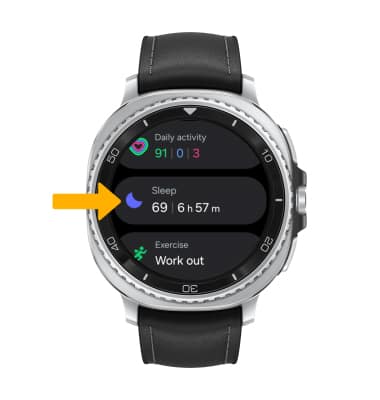
Sleep data can be viewed on the Samsung Health app on your watch or paired phone. It shows sleep duration, quality, and stages in easy-to-understand graphs and summaries.
Conclusion
Tracking sleep with the Samsung Gear S3 helps you understand your rest better. The device gives clear data on your sleep patterns each night. You can see when you sleep deeply and when you wake up. This info helps you make small changes to feel more rested.
Using the Gear S3 regularly can lead to better sleep habits. Start tracking tonight and watch your sleep improve over time. Simple steps can make a big difference in your health.

