
Are you struggling to track your sleep accurately with your Samsung Gear? Unlocking the full potential of the Samsung Gear sleep function can transform how you understand your rest and improve your daily energy.
In this guide, you’ll discover simple steps to set up and use the sleep feature effectively. By the end, you’ll know exactly how to monitor your sleep patterns and wake up feeling truly refreshed. Keep reading to take control of your nights like never before.
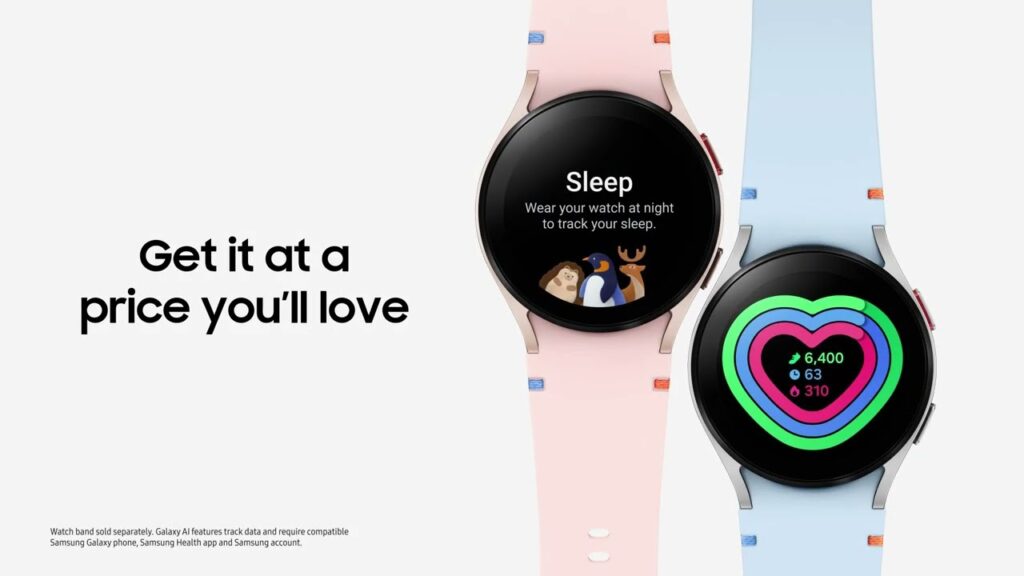
Credit: insights.samsung.com
Samsung Gear Sleep Features
The Samsung Gear offers a variety of sleep features designed to help you understand and improve your rest. These tools go beyond simple tracking by providing detailed insights into your sleep patterns. Knowing how to use these features can transform the way you approach your nightly routine.
Sleep Tracking Basics
The Samsung Gear tracks your sleep by monitoring your movement and heart rate throughout the night. This data helps create a clear picture of your sleep duration and quality. You don’t need to do much—just wear the device to bed, and it starts collecting information automatically.
Have you ever wondered how much uninterrupted sleep you actually get? The Gear makes it easy to find out by showing you periods of restlessness and deep sleep.
Automatic Sleep Detection
One standout feature is automatic sleep detection. The Gear recognizes when you fall asleep without needing to press any buttons. This means you won’t have to worry about forgetting to start the sleep mode, making tracking effortless and reliable.
This function adjusts to your habits and even detects naps. So, if you catch a quick rest during the day, your Gear will log it without any manual input.
Sleep Stages Monitoring
The Samsung Gear breaks down your sleep into different stages: light, deep, and REM sleep. Each stage plays a unique role in your overall rest and recovery. By analyzing these stages, you can see where your sleep might be lacking.
Understanding your sleep stages can answer questions like, “Am I getting enough deep sleep to feel refreshed?” The Gear provides graphs and tips based on this data, helping you adjust your habits for better rest.
Setting Up Sleep Mode
Setting up the sleep mode on your Samsung Gear is a straightforward process that helps you track your rest effectively. By adjusting a few key settings, you can tailor the experience to fit your personal sleep habits. This not only improves the accuracy of your sleep data but also enhances your overall sleep quality.
Configuring Sleep Settings
Start by opening the Samsung Health app on your Gear or connected phone. Navigate to the sleep section, where you can set your usual bedtime and wake-up time. This helps the device recognize when you’re likely to be asleep, improving the tracking accuracy.
You can also choose to have the watch automatically detect when you fall asleep. This is useful if your sleep schedule varies day to day. Have you noticed how automatic tracking picks up naps you didn’t even realize you took?
Enabling Do Not Disturb
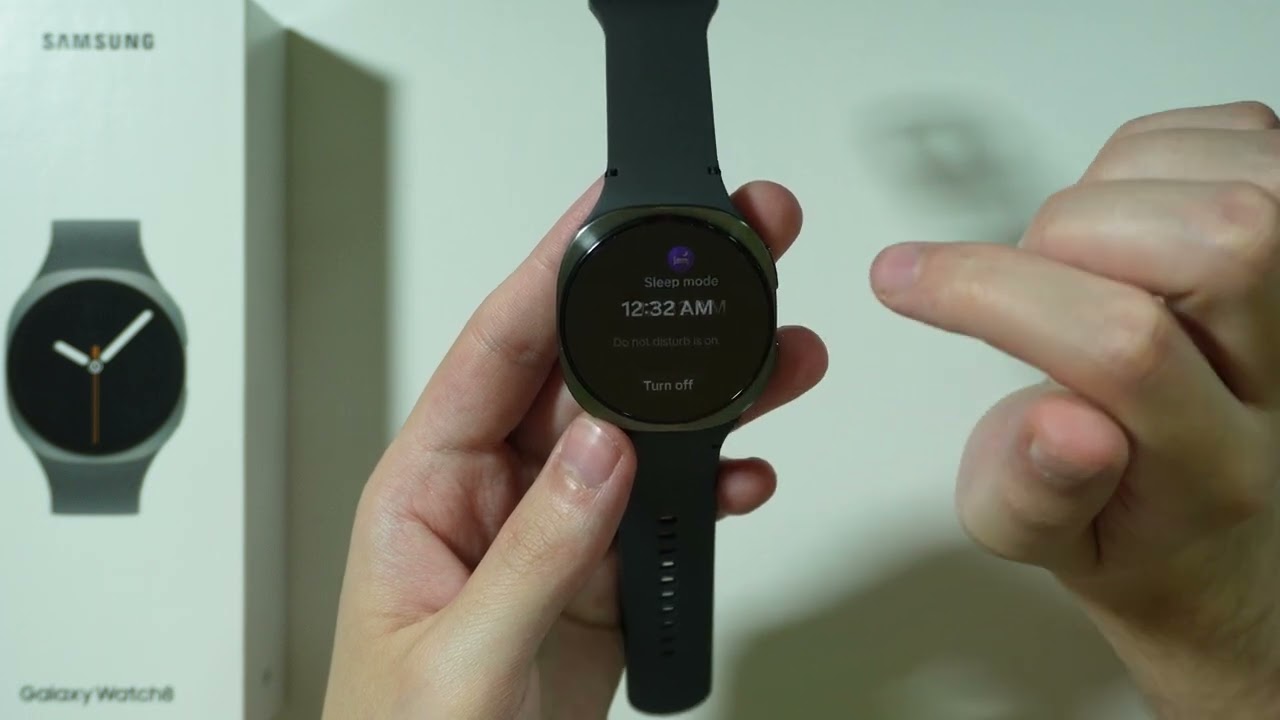
Activating Do Not Disturb (DND) during your sleep hours stops notifications from disturbing your rest. On your Gear, you can schedule DND to turn on automatically at bedtime. This ensures calls, messages, and alerts stay silent without needing manual intervention.
Try enabling this feature and see how much more uninterrupted your sleep feels. It’s surprising how even small pings can disrupt deep sleep cycles.
Customizing Sleep Alarms
Sleep alarms on the Samsung Gear offer gentle wake-ups that align with your sleep stages. You can set alarms that vibrate quietly on your wrist, avoiding harsh sounds that jar you awake.
Adjust the alarm time to fit your ideal wake-up window. Have you experimented with waking up during lighter sleep phases? Many users find it makes mornings less groggy and more refreshing.
Using Sleep Insights
Understanding how well you sleep is crucial for good health. Samsung Gear’s sleep function provides valuable insights. It helps you track and improve your sleep quality. By analyzing the data, you can make informed decisions. Improve your rest and feel more refreshed each day.
Analyzing Sleep Data
The Samsung Gear collects detailed data while you sleep. It monitors your sleep stages and duration. Use this information to see how long you spend in each stage. Check how much time you spend in deep sleep, light sleep, and REM sleep. Deep sleep is essential for feeling rested. Light sleep and REM sleep are important too. Use these insights to adjust your routine. Aim for a healthier sleep cycle.
Understanding Sleep Scores
Samsung Gear assigns a sleep score each night. This score reflects the quality of your sleep. A higher score means better rest. The score considers factors like sleep duration and efficiency. Use it to gauge your sleep quality over time. Compare scores from different nights. Identify patterns that affect your rest. Work towards improving your sleep score. Achieve better rest and overall health.
Identifying Sleep Patterns
Recognize patterns in your sleep habits with Samsung Gear. Track when you go to bed and wake up. Notice how lifestyle factors affect your sleep. Stress, diet, and exercise can influence sleep quality. Use the data to identify disruptions in your sleep. Adjust your habits to improve rest. Create a consistent sleep schedule. Enhance your sleep environment for better results.
Improving Sleep Quality
Improving your sleep quality is essential for feeling refreshed and staying productive throughout the day. The Samsung Gear’s sleep function offers tools that help you track and enhance your rest. But technology alone won’t do the trick; combining it with smart habits will create the biggest impact on how well you sleep.
Creating A Sleep Routine
Consistency is key to better sleep. Use your Samsung Gear to set reminders that signal when it’s time to start winding down. Try going to bed and waking up at the same time every day, even on weekends.
Think about your current habits—do you often stay up late scrolling on your phone? Setting a strict bedtime alarm on your Gear can help you break this cycle. Over time, your body will get used to the routine, making it easier to fall asleep and wake up naturally.
Optimizing Sleep Environment
Your sleep environment plays a huge role in rest quality. Use the Samsung Gear’s ambient noise feature or connect it to smart home devices to adjust your bedroom’s lighting and temperature before bed.
Try to keep your room dark, cool, and quiet. If noise bothers you, the Gear’s white noise or nature sounds can mask distractions. Have you noticed how much a cooler room affects your sleep compared to a warmer one? The Gear can help track these patterns.
Using Gear Tips For Better Rest
The Samsung Gear offers personalized insights based on your sleep data. Check your sleep stages and look for patterns that suggest restless or light sleep. Use the tips provided to tweak your habits, like reducing caffeine or avoiding screen time before bed.
Additionally, use the Gear’s breathing exercises to relax before sleeping. I found that just five minutes of guided breathing helped me fall asleep faster on stressful nights. What small change can you try tonight using your Gear’s features to improve your rest?
Troubleshooting Sleep Issues
Sleep tracking on the Samsung Gear can sometimes face glitches or inaccuracies. These issues affect the quality of your sleep data and insights. Troubleshooting helps restore accurate tracking and smooth device function.
Several factors cause sleep tracking problems. It could be sensor misreads, low battery, or outdated software. Addressing these areas improves your Gear’s performance during sleep mode.
Fixing Tracking Errors
Make sure the Gear fits snugly on your wrist. A loose fit leads to poor sensor contact and wrong data. Clean the sensors gently with a soft cloth to remove dirt or sweat.
Restart your Gear to clear temporary glitches. Open the Samsung Health app and check if sleep tracking is enabled. Disable and re-enable sleep tracking to reset the function.
Battery Management For Sleep Mode
Charge your Gear fully before sleep. Low battery can cause tracking to stop early. Turn off unused features like GPS or always-on display to save power.
Use power-saving mode if available. It extends battery life without affecting sleep tracking. Avoid charging your Gear during sleep to prevent overheating and data loss.
Updating Gear Software
Check for software updates regularly. Updates fix bugs and improve sleep tracking accuracy. Connect your Gear to Wi-Fi and use the Galaxy Wearable app for easy updates.
After updating, restart your device. Monitor sleep data to confirm the update resolved issues. Keep your phone’s software up to date for better Gear compatibility.

Credit: www.youtube.com
Credit: www.youtube.com
Frequently Asked Questions
How Do I Activate The Samsung Gear Sleep Function?
To activate the Samsung Gear sleep function, open the Samsung Health app. Navigate to the sleep section and enable sleep tracking. Wear your Gear device while sleeping for accurate data collection and insights.
Can Samsung Gear Track Different Sleep Stages?
Yes, Samsung Gear tracks sleep stages including light, deep, and REM sleep. This helps you understand your sleep quality and patterns better for improved rest.
How Accurate Is Samsung Gear Sleep Tracking?
Samsung Gear uses advanced sensors to monitor movement and heart rate. It provides reasonably accurate sleep data, but may vary slightly depending on device fit and usage.
How Do I View Sleep Data On Samsung Gear?
Open the Samsung Health app on your phone. Select the sleep section to view detailed sleep duration, stages, and trends collected by your Gear device.
Conclusion
Using the Samsung Gear sleep function helps track your rest easily. It gives useful data about your sleep quality and patterns. You can check this info daily to improve your sleep habits. The feature works quietly and does not disturb your night.
Try using it for a few nights to see results. Good sleep leads to better health and more energy. Simple tools like this make healthy living easier. Start tonight and notice the difference in your mornings.

