Imagine losing all your important files or facing a sudden system crash—how prepared are you to bounce back? If you want a simple, reliable way to protect your data and restore your computer quickly, the Acronis Survival Kit might be exactly what you need.
You’ll discover how to use the Acronis Survival Kit step by step, ensuring your digital life stays safe and stress-free. Keep reading, and you’ll learn how to take control of your backups like a pro.
Getting Started With Acronis Survival Kit
Starting with Acronis Survival Kit is simple and essential for protecting your data. This kit creates a complete backup solution, allowing quick system recovery. It combines software and hardware to secure your files and system settings.
Understanding its components and requirements helps you set it up without hassle. Let’s explore what the Survival Kit includes and what your system needs.
What Is Acronis Survival Kit
Acronis Survival Kit is a backup and recovery tool. It stores your operating system, applications, and data. The kit helps restore your system if it crashes or fails.
It creates a bootable drive with all necessary files. This means you can start your computer and recover your data even if your main drive is damaged.
Components Of The Survival Kit
- External Storage Device:A USB drive or external hard drive to store backups.
- Acronis Software:The backup application that creates and manages the backups.
- Bootable Media:A recovery environment to start your computer and restore backups.
- Backup Image:A complete copy of your system and files saved on the external device.
These parts work together to keep your data safe and easy to recover.
System Requirements
| Requirement | Details |
|---|---|
| Operating System | Windows 7 or later, macOS 10.12 or later |
| Storage Device | USB 3.0 or external HDD with enough free space |
| Processor | 1 GHz or faster |
| RAM | At least 1 GB |
| Free Disk Space | Depends on backup size |
Meeting these requirements ensures smooth backup and recovery with Acronis Survival Kit.
Credit: us.informatiweb.net
Setting Up The Survival Kit
Setting up the Acronis Survival Kit prepares you for quick recovery during emergencies. This kit includes your system backup and the necessary tools to restore your data. A proper setup ensures smooth and fast access to your files when needed.
Preparing Your External Drive
Choose a reliable external drive with enough space for backups. The drive should be formatted for Windows or Mac, depending on your system. Connect the drive to your computer using a USB or Thunderbolt port. Check the drive for errors or bad sectors before proceeding. Label the drive clearly as your Survival Kit to avoid confusion.
Installing Acronis Software
Download the latest Acronis software from the official website. Run the installer and follow the on-screen instructions carefully. Choose the option to install the full backup suite. Ensure that the software can access your external drive during installation. Restart your computer if the software asks for it to complete setup.
Creating The Survival Kit
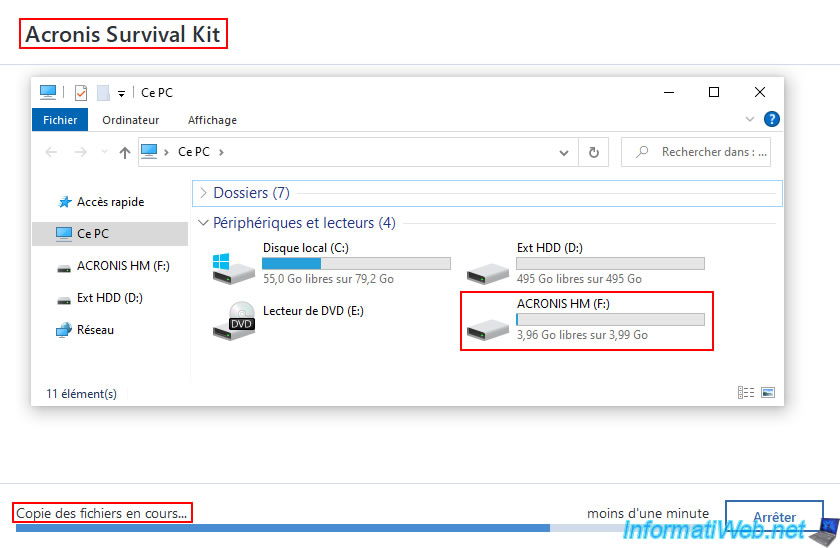
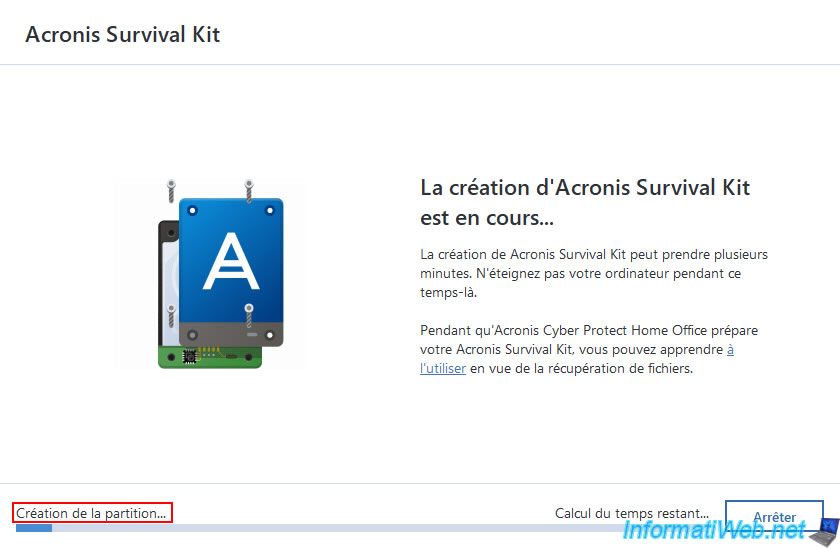
Open the Acronis software and select the Survival Kit feature. Choose your external drive as the destination for the kit files. The software will copy recovery tools and create a bootable environment on the drive. Add your system backup to the kit for complete protection. Verify the kit to confirm it works correctly before storing it safely.
Using The Survival Kit For Backup
The Acronis Survival Kit is more than just a recovery tool; it serves as a powerful backup companion. Using the Survival Kit for backup ensures that your essential files and system settings stay safe and easy to restore. Let’s dive into how you can make your backups reliable and stress-free.
Backing Up Your System
Start by connecting your Survival Kit drive to your computer. Open Acronis True Image and select the option to create a full system backup. This process captures your entire system, including the operating system, applications, and personal files.
Choose the Survival Kit drive as your backup destination. It’s designed to hold all critical data and recovery tools in one place. Have you checked your drive space lately? Ensuring enough free space avoids interruptions during backup.
Scheduling Automatic Backups
Manual backups are good, but automatic backups keep you protected without effort. Acronis lets you set a backup schedule tailored to your routine—daily, weekly, or monthly.
To set this up, go to the backup settings and pick the schedule option. You can choose specific days and times when backups run quietly in the background. This way, you won’t have to remember to start the process yourself.
Think about your work habits. When do you typically leave your computer on but idle? Scheduling backups during these times minimizes disruptions and keeps your data safe consistently.
Verifying Backup Integrity
Backing up data is one thing, but ensuring it’s usable is another. Acronis includes a verification step that checks if your backup files are intact and not corrupted.
After a backup completes, run the verification tool to confirm everything is in order. If errors appear, you can address them before relying on the backup in an emergency.
Have you ever tried to restore a backup only to find it unusable? Verifying backup integrity prevents that frustration and gives you peace of mind that your Survival Kit truly works when you need it most.
Credit: us.informatiweb.net
Restoring Data With The Survival Kit
Restoring data with the Acronis Survival Kit is straightforward and designed to get you back on track quickly. Whether your system has crashed or you just need to recover specific files, the Survival Kit acts as your safety net. Understanding how to use it effectively can save you from hours of frustration and potential data loss.
Booting From The Survival Kit
To start restoring, you first need to boot your computer using the Survival Kit. This means plugging in the external drive that contains the kit and restarting your PC. Make sure your BIOS or UEFI settings allow booting from USB or external drives.
Once you boot from the Survival Kit, you’ll see Acronis’ recovery environment instead of your regular operating system. This environment lets you access backup images even if your main system is completely unbootable. Have you checked if your device supports booting from external drives? It’s a key step to avoid surprises.
Recovering Your Operating System
After booting, you can restore your entire operating system from the backup stored on the Survival Kit. The recovery tool guides you through selecting the latest system image to bring your PC back to life. This is especially useful if your OS has been corrupted or wiped out by malware.
Choose the recovery option carefully—restoring the whole system means all your settings, programs, and files will be as they were at the backup time. This process might take some time, so ensure your device stays plugged in and avoid interruptions.
Restoring Individual Files
Sometimes, you don’t need to recover the whole system—just a few important files. The Survival Kit lets you browse through your backup and pick exactly what you want to restore. This feature is a lifesaver if you accidentally delete a document or need an old version of a file.
Simply navigate through the backup folders and select files or folders for recovery. You can restore them to their original location or choose a different folder to avoid overwriting current files. Have you thought about how often you back up individual files to avoid panic moments?
Advanced Features And Tips
Mastering the advanced features of Acronis Survival Kit can dramatically increase your data security and recovery speed. Understanding these tools helps you prepare for unexpected failures with confidence. Here are some practical tips and tricks to help you get the most out of your Survival Kit.
Cloning Your Hard Drive
Cloning your hard drive creates an exact copy of your current system, including the operating system, applications, and files. This can be a lifesaver if your main drive fails and you need to get back to work immediately.
To clone your drive using Acronis, connect a destination drive with enough space, then select the cloning option within the software. The process is straightforward but requires that you do not interrupt it once started.
Think about how much downtime you could avoid by having a cloned drive ready to swap in. It’s a smart move for anyone who can’t afford to lose hours or days rebuilding their system from scratch.
Using The Survival Kit For Disaster Recovery
The Survival Kit is designed to help you recover quickly from a system crash. It includes bootable media and all essential backup files in one place.
Make sure your Survival Kit is always updated after each backup session. This ensures you have the latest system image and recovery tools ready if disaster strikes.
Have you tested your Survival Kit recently? Running a test recovery can reveal potential issues before you actually need to use it, saving you from unpleasant surprises.
Optimizing Backup Performance
Backup speed and efficiency can make a big difference, especially if you manage large amounts of data. Acronis offers several settings to help you optimize performance.
- Schedule backups during off-hoursto avoid slowing down your system during work time.
- Exclude unnecessary fileslike temporary files or duplicates to reduce backup size.
- Use incremental backupsto save only changes instead of full copies every time.
Adjusting these settings not only saves space but also shortens backup duration. Have you noticed how much faster your backups run with these tweaks?
Troubleshooting Common Issues
Encountering issues with your Acronis Survival Kit can be frustrating, especially when you rely on it for critical backups and recovery. Troubleshooting common problems quickly helps you avoid downtime and data loss. Let’s walk through some frequent challenges and how you can resolve them effectively.
Survival Kit Not Recognized
If your computer doesn’t recognize the Survival Kit, start by checking the USB connection. Sometimes, simply unplugging and re-plugging the device into a different USB port can fix the problem.
Make sure the USB drive is formatted correctly and compatible with your system. Opening the Disk Management tool on Windows or Disk Utility on Mac can show if the drive is detected but not mounted.
Have you checked for driver updates recently? Outdated or missing drivers often cause recognition issues. Updating your USB or chipset drivers might solve the problem without further hassle.
Backup Failures
Backup failures can happen for various reasons, including insufficient storage space on the Survival Kit or corrupted backup files. Verify that your Survival Kit has enough free space before starting a backup.
Errors during backup may also result from interrupted connections or software conflicts. Closing unnecessary programs and ensuring a stable connection can improve backup success.
Check the backup logs in Acronis to understand the exact error message. The logs often point directly to the problem, such as file permission issues or incompatible file types.
Recovery Problems
When recovery from the Survival Kit doesn’t work, confirm that the data on the kit is intact and not corrupted. Running a disk check can help identify and repair errors on the drive.
Sometimes, recovery problems stem from trying to restore to different hardware or mismatched system configurations. Are you attempting to recover on the same machine or a different one? Adjust settings accordingly.
Another tip is to test the recovery environment before a real emergency. Boot from the Survival Kit to ensure it loads properly and can access backups. This step can prevent surprises when you need recovery most.
Credit: us.informatiweb.net
Frequently Asked Questions
What Is The Acronis Survival Kit?
The Acronis Survival Kit is a comprehensive backup tool. It helps restore your system after failures or attacks. This kit includes system backup, boot media, and essential utilities. It ensures you can recover your data quickly and efficiently. It’s vital for safeguarding your digital assets.
How To Create An Acronis Survival Kit?
To create an Acronis Survival Kit, use Acronis True Image software. Connect an external drive to your computer. Open Acronis True Image and select “Create Acronis Survival Kit. ” Follow the on-screen instructions to complete the process. This will prepare your system for potential recovery needs.
Why Use The Acronis Survival Kit?
The Acronis Survival Kit provides reliable data protection. It ensures your system can recover from failures. Using it reduces downtime and data loss risks. It combines backup, boot media, and essential tools. This kit is crucial for securing your important data effectively.
Can I Customize The Acronis Survival Kit?
Yes, you can customize the Acronis Survival Kit. During creation, choose specific backup and recovery options. Select the files and folders important to you. You can also include additional tools. This customization ensures your kit meets your unique needs and preferences.
Conclusion
Acronis Survival Kit keeps your data safe and ready. It helps you back up files and recover fast. Creating the kit is simple and saves time later. Keep it updated to protect against unexpected problems. Use it to avoid stress during computer crashes.
Everyone should have a clear backup plan. This tool makes data protection easy and reliable. Stay prepared and secure your important information today.