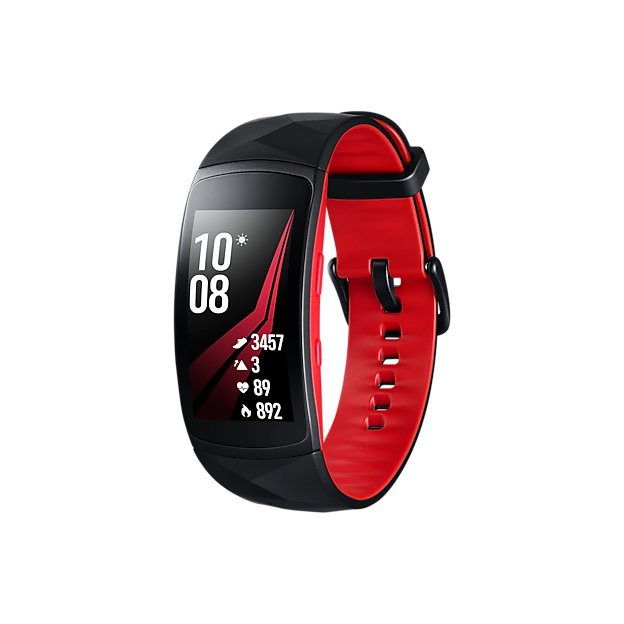
Are you ready to take your sleep tracking to the next level with your Gear S2? Installing Sleep As Android on your smartwatch can transform how you monitor and improve your sleep patterns.
In this guide, you’ll discover simple, step-by-step instructions to get the app up and running quickly. By the end, you’ll have a powerful tool right on your wrist that helps you wake up refreshed and energized. Keep reading to find out exactly how to make it happen!
Gear S2 Compatibility
Before you dive into installing Sleep As Android on your Gear S2, it’s crucial to confirm whether your device supports the app. Compatibility affects how well the app runs and the features you can use. Let’s look at the key points to check to ensure a smooth setup experience.
Check Device Requirements
Your Gear S2 needs to meet certain hardware and connectivity standards for Sleep As Android to function properly. The app relies on sensors like the accelerometer and heart rate monitor, so make sure your model includes these features.
- Gear S2 Classic and Sport models generally support the necessary sensors.
- Battery life is important; the app tracks sleep throughout the night, so your watch should hold a charge well.
- Bluetooth connectivity is required to sync data with your phone.
If your Gear S2 lacks any of these, you might face issues such as inaccurate sleep tracking or failed synchronization. Have you noticed any sensor malfunctions on your watch before? This could be a red flag.
Verify Software Version
The software version on your Gear S2 can impact app compatibility significantly. Sleep As Android often requires the latest Tizen OS updates for optimal performance.
- Go to Settings > About Gear > Software Information to check your current version.
- Look for updates via the Galaxy Wearable app on your paired phone.
- Running an outdated OS may prevent installation or cause crashes.
Keeping your software up to date doesn’t just help with app compatibility; it also improves security and overall watch performance. Have you updated your Gear S2 recently? If not, this is a good time to do so before installing Sleep As Android.
Prepare Your Gear S2
Preparing your Gear S2 for Sleep As Android installation is key. A few settings need changing. These steps make the process smooth and safe. Follow each carefully to avoid issues later.
Charge Your Watch
Ensure your Gear S2 battery is fully charged. A full charge prevents shutdowns during installation. Plug in the charger and wait until the battery reaches 100%. This step avoids interruptions and saves time.
Enable Developer Options
Access the Developer Options on your Gear S2. Go to Settings > About Watch > Software. Tap “Build number” seven times. A message will confirm Developer Options are active. This unlocks advanced settings needed for app installation.
Allow Unknown Sources
Allow the Gear S2 to install apps from unknown sources. Open Settings > Security > Unknown Sources. Toggle the switch on to enable it. This setting lets you install Sleep As Android safely. It prevents installation errors from blocked sources.
Download Sleep As Android
To enjoy the full benefits of Sleep As Android on your Gear S2, downloading the app is your first step. It’s not just about getting the app onto your device; it’s about ensuring you do it securely and efficiently. Follow these simple guidelines to get started with Sleep As Android seamlessly.
Find The Apk File
Begin by locating the APK file necessary for installation. This file is crucial as it contains all the data needed to run Sleep As Android on your Gear S2. Ensure you download the correct version compatible with your device to avoid any installation issues.
Searching for APK files can seem daunting, but it’s quite straightforward. Use your preferred search engine and type in “Sleep As Android APK for Gear S2.” It’s always wise to double-check that the file version matches your Gear S2 specifications.
Use Trusted Sources
Downloading from trusted sources is vital for your device’s safety. Not all sites offering APK files are secure, and some might host malicious software. Stick to well-known tech forums or the official Sleep As Android website to avoid any potential threats.
Have you ever downloaded an app and regretted it due to security issues? Trustworthy sources reduce that risk significantly. Prioritize your device’s security over convenience to ensure a smooth and safe installation process.
By ensuring you download from reliable sources, you safeguard your Gear S2 from harmful files. It’s a small step that makes a big difference in your overall experience with Sleep As Android.

Credit: www.youtube.com
Install The App On Gear S2
Installing Sleep As Android on your Gear S2 is a straightforward process that enhances your sleep tracking without relying solely on your phone. You’ll need to transfer the app’s APK file to your watch and then complete the installation directly on the device. Let’s dive into how you can get this done smoothly.
Transfer Apk To Watch
First, you need the Sleep As Android APK file ready on your computer or phone. Connect your Gear S2 to your PC using a USB cable or use a file transfer app like Samsung’s Gear Manager or a Bluetooth file transfer tool.
- Locate the APK file on your device.
- Send the APK to the Gear S2’s internal storage or SD card.
- Make sure the transfer completes without interruption.
Have you checked if your watch allows installation from unknown sources? This setting is crucial and often overlooked, blocking the APK transfer from being recognized.
Run Installation
Once the APK is on your Gear S2, navigate to the file manager app on your watch. Find the APK file and tap it to start the installation process.
- You might see a prompt asking for permission to install apps from unknown sources—allow it.
- Follow the on-screen instructions to complete installation.
- After installation, launch the Sleep As Android app to check if it runs properly.
Taking this step yourself gives you control and flexibility over what apps are on your device. Does your watch show the app icon after installation? If not, it might be hidden or require a restart.
Troubleshoot Common Issues
Sometimes, the installation won’t go as planned. If the APK won’t install, double-check that the file isn’t corrupted and matches your watch’s compatibility.
- Verify the APK version supports Tizen OS or the Gear S2’s Android variant.
- Ensure your watch has enough storage space.
- Clear cache or restart the watch if the app doesn’t appear after installation.
If you encounter permission errors, revisit the settings and confirm that “Install from Unknown Sources” is enabled. Have you updated your Gear S2’s firmware recently? Sometimes outdated software blocks new app installations.
Installing Sleep As Android on your Gear S2 puts a powerful sleep tracking tool right on your wrist. With these steps, you’re ready to track your nights better and understand your sleep patterns deeply.
Set Up Sleep As Android
Setting up Sleep As Android on your Gear S2 is a straightforward process that lets you take full advantage of its sleep tracking features. Proper setup ensures accurate data collection and personalized alarm functionality. Let’s break down the key steps to get you started smoothly.
Grant Necessary Permissions
Sleep As Android needs access to certain sensors and data on your Gear S2 to track your sleep effectively. When you first open the app, it will prompt you to allow permissions such as motion sensors, notifications, and battery optimization exceptions.
Make sure to grant these permissions promptly. Denying any of them can limit the app’s accuracy or functionality. For example, without motion sensor access, the app cannot detect your sleep movements, reducing the precision of your sleep analysis.
Configure Sleep Tracking
Once permissions are in place, configure the sleep tracking settings to match your habits. You can choose between automatic detection and manual start, depending on what suits you best.
Consider your typical sleep schedule and whether you want the app to monitor naps or only nighttime sleep. Adjust sensitivity settings if you notice the app misses movements or wakes you up unnecessarily. This customization helps make the sleep data more reliable and useful.
Customize Alarm Settings
Sleep As Android offers smart alarms that wake you during light sleep phases. Customize the alarm window to define how early or late you want to be woken within your set wake-up time.
You can also select alarm sounds, vibration patterns, and even integrate with your favorite music apps for a gentler wake-up experience. Have you tried setting the alarm to gradually increase volume? It can make mornings much more pleasant.
Fine-tuning these settings ensures your Gear S2 not only tracks your sleep but also helps improve your wake-up routine.

Credit: www.amazon.com
Optimize Performance
Optimizing the performance of Sleep As Android on your Gear S2 is key to getting the most accurate sleep tracking without draining your watch’s battery. Small adjustments can make a big difference in how smoothly the app runs and how long your device lasts through the night. Let’s look at practical ways you can keep the app efficient and reliable.
Manage Battery Usage
Battery life on the Gear S2 is limited, so managing how Sleep As Android uses power is essential. You can start by turning off features you don’t need, such as constant heart rate monitoring or excessive vibration alerts. These functions can quickly drain your battery, leaving you with incomplete sleep data.
Adjust the app’s update frequency in settings to reduce how often it syncs with your phone. Syncing less frequently means less power consumption without sacrificing important data accuracy. Have you noticed your battery running low faster on nights when you use all features? Cutting back selectively can extend your watch’s uptime.
Update The App Regularly
Keeping Sleep As Android updated ensures you benefit from bug fixes and new efficiency improvements. Developers often release updates that reduce battery drain or improve compatibility with devices like the Gear S2. Ignoring updates might cause the app to run slower or behave unpredictably.
Enable automatic updates on your phone or manually check for new versions every couple of weeks. This small habit helps your sleep tracking stay accurate and your watch performing well. Do you remember the last time you updated the app? If it’s been a while, now’s a good time to check.
Tips For Better Sleep Tracking
Tracking your sleep accurately with Sleep As Android on your Gear S2 depends on a few simple habits. These tips help you get the most out of your device, turning raw data into meaningful insights. Small adjustments can make a big difference in how well the app records and interprets your sleep patterns.
Wear Your Gear Properly
Make sure your Gear S2 fits snugly but comfortably on your wrist. A loose watch can cause the sensors to miss important signals like your heart rate and movements. Try wearing it slightly higher on your wrist, just above the wrist bone, for better contact.
If you find the watch too tight, it might disrupt your sleep instead of helping it. Think about how you wear a fitness band during the day and adjust for night use accordingly. Your comfort directly affects the quality of your sleep data.
Sync With Phone App
Regularly syncing your Gear S2 with the Sleep As Android phone app ensures all your sleep data is saved and analyzed properly. Open the app after waking up and let it transfer data from your watch. This step helps avoid data loss and keeps your sleep history complete.
Check your Bluetooth connection if syncing doesn’t happen automatically. Sometimes, manually opening the app or restarting the watch can fix syncing issues. How often do you check your app for updates? Staying current ensures smoother communication between devices.
Review Sleep Data
After syncing, take time to explore your sleep graphs and statistics on the phone app. Look beyond total sleep time—notice how often you wake up or how deep your sleep cycles are. These details reveal habits you might want to change.
Ask yourself what affects your sleep quality: stress, screen time, or bedtime routine? The data can guide you to make targeted improvements. Have you tried adjusting your schedule based on these insights? Monitoring regularly helps you track progress over weeks, not just nights.

Credit: www.amazon.com
Frequently Asked Questions
How To Download Sleep As Android For Gear S2?
To download Sleep As Android on Gear S2, visit the Galaxy Store. Search for the app, then tap “Install. ” Ensure your Gear S2 is connected to your phone for seamless installation.
Is Sleep As Android Compatible With Gear S2?
Yes, Sleep As Android supports Gear S2. Compatibility depends on the latest app version and Gear S2 software updates. Always keep your device updated for best performance.
Can I Track Sleep Without A Smartphone?
Yes, Sleep As Android on Gear S2 can track sleep independently. However, syncing with your phone enhances data analysis and provides detailed insights.
Does Sleep As Android Use Gear S2 Sensors?
Sleep As Android uses Gear S2’s built-in sensors like accelerometer and heart rate monitor. These sensors help accurately track your sleep patterns and quality.
Conclusion
Installing Sleep As Android on your Gear S2 helps track your sleep easily. Follow the steps carefully to avoid any issues. This app offers simple tools to monitor sleep quality. You can check your sleep patterns right on your wrist.
Keep your Gear S2 connected to your phone during setup. Enjoy better sleep insights every night with this handy app. Try it today and see the difference in your rest. Good sleep starts with the right tools on your smartwatch.