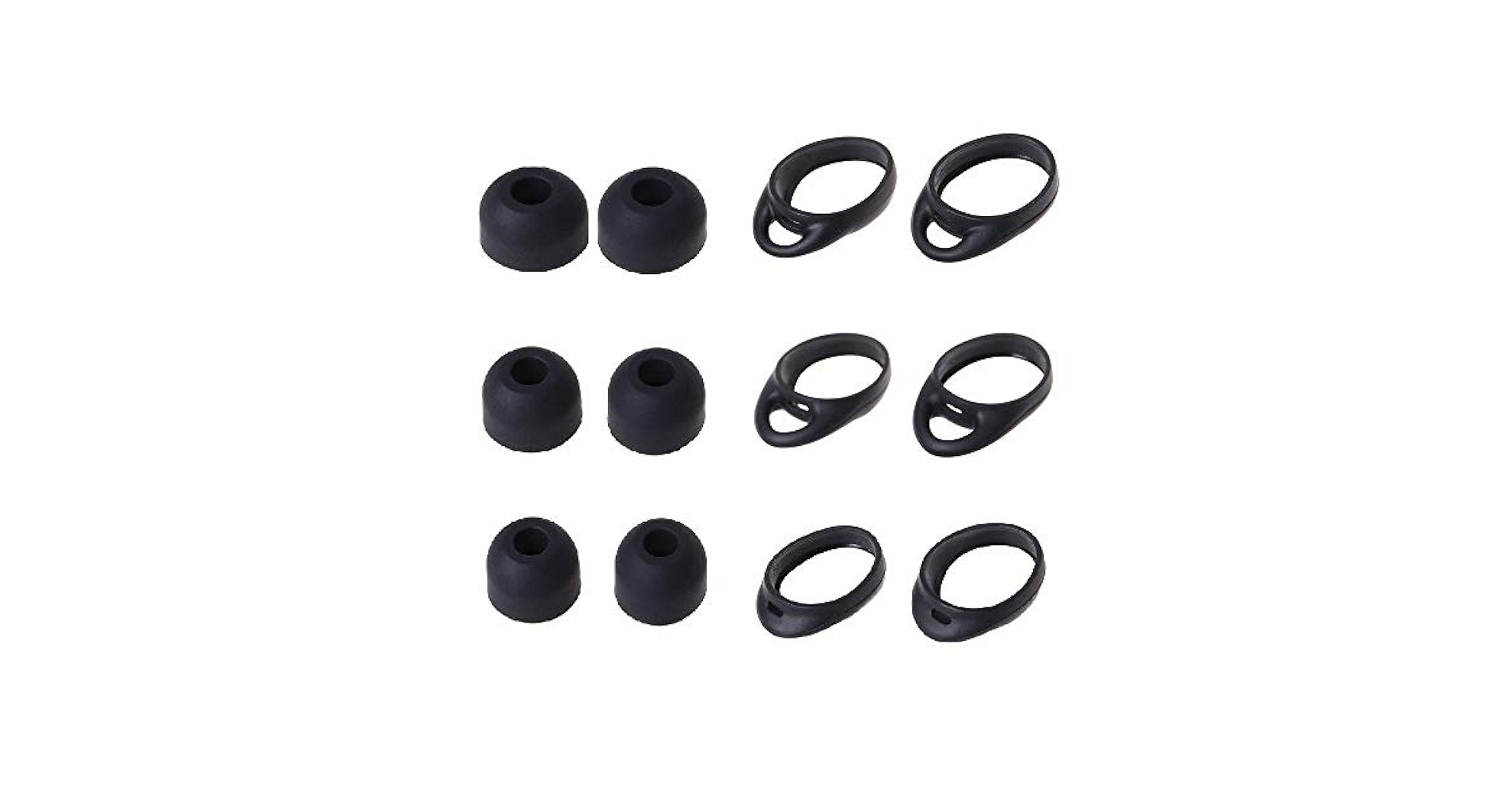
Are you tired of your Gear IconX falling asleep just when you need it most? It can be frustrating when your earbuds power down unexpectedly, interrupting your music or workout.
But don’t worry—there are simple tricks you can use to keep your Gear IconX awake and ready to go. You’ll discover easy steps to stop your earbuds from dozing off, so you can enjoy uninterrupted sound every time. Keep reading to find out how to take full control of your Gear IconX experience.

Credit: www.amazon.com
Why Gear Iconx Sleeps
The Gear Iconx sleeps to save battery life and protect the device. This feature helps the earbuds last longer between charges. It also prevents unnecessary power use when you are not wearing or using them. Understanding why the Gear Iconx goes to sleep can help you manage its settings better.
Power Saving Features
The Gear Iconx has built-in power saving features. These features turn off the earbuds after some time without use. The earbuds enter a low-power mode to keep the battery from draining fast. This helps you enjoy longer listening times during workouts or daily use.
Inactivity Triggers
The Gear Iconx detects when it is not in use. It uses sensors to know if the earbuds are in your ears or not. If you take them out or stop using them, they start to sleep. This automatic sleep mode activates after a short time of inactivity.
Adjusting Sleep Settings
Adjusting the sleep settings on your Gear IconX can help you keep the device active longer, preventing interruptions during workouts or daily use. By customizing these settings, you control how quickly the earbuds enter sleep mode, which can improve your overall experience. Let’s look at how you can easily manage these options.
Using Samsung Wearable App
The Samsung Wearable app is your main hub for managing Gear IconX settings. Open the app on your phone and connect your earbuds to access the device controls.
Inside the app, navigate to the settings menu where you’ll find options related to power management and sleep. Adjusting these controls lets you decide how your earbuds behave when not in use.
Have you noticed your earbuds going to sleep too quickly? The app gives you the chance to delay that, keeping your music playing without constant interruptions.
Changing Timeout Duration
Timeout duration determines how long your Gear IconX stays awake before going to sleep. You can increase this duration to keep the device active for a longer time between uses.
- Open the Samsung Wearable app.
- Tap on “Earbuds settings” or a similar section.
- Look for “Auto sleep” or “Timeout” options.
- Select a longer timeout period, such as 10 or 15 minutes.
Adjusting this timer is useful if you often pause your music or take breaks during workouts. It prevents the hassle of waiting for your earbuds to wake up again.
Preventing Sleep During Use
Keeping your Gear IconX from going to sleep during use can make a big difference in your listening experience. The device’s sleep mode saves battery but can interrupt your music at inconvenient moments. Understanding how to prevent this helps you enjoy continuous playback without annoying pauses.
Keeping Music Playing
One of the easiest ways to stop your Gear IconX from sleeping is to keep music actively playing. The earbuds tend to enter sleep mode during extended silence. So, try to avoid stopping your music for long periods.
If you’re taking breaks between songs, consider playing a playlist or podcast that has minimal gaps. You can also use apps with gapless playback to keep the sound flowing smoothly. This small change can keep your earbuds awake and responsive.
Avoiding Long Pauses
Long pauses are the main trigger for your Gear IconX to enter sleep mode. If you often pause your music to chat or focus on something else, your earbuds will shut down to save power.
Try these quick tips to avoid long pauses:
- Use shorter pauses instead of long silence periods.
- If you stop the music, restart playback within a few minutes.
- Consider using ambient sounds or white noise playlists during breaks.
Have you noticed how your earbuds react when you pause for too long? Keeping these pauses short can help prevent the sleep mode from kicking in and save you the hassle of reconnecting.

Credit: www.yahoo.com
Firmware And Software Updates
Firmware and software updates keep your Gear Iconx running smoothly. These updates fix bugs and improve device performance. Updating regularly helps prevent the earbuds from going to sleep too soon.
Checking For Updates
Open the Galaxy Wearable app on your phone. Connect your Gear Iconx to the app. Look for the “Update Gear software” option. Tap it to see if a new update is available. Follow the instructions to download and install updates.
Ensure your earbuds have enough battery before starting. Stay near your phone during the update. Avoid disconnecting the earbuds until the update finishes.
Benefits Of Latest Firmware
- Fixes bugs that cause sleep mode issues
- Improves battery life and management
- Enhances connection stability
- Adds new features and settings
- Optimizes overall device performance
Updating firmware keeps your Gear Iconx responsive. It reduces unexpected sleep or shutdown problems. Regular updates make sure your earbuds work as expected.
Resetting Gear Iconx
Keeping your Gear Iconx from going to sleep can be done by adjusting its settings. Disable the auto sleep feature or keep the device active by playing music continuously. This helps maintain connection and prevents interruptions during use.
Resetting Gear Iconx Keeping your Gear Iconx from going to sleep can be a challenge, but resetting your earbuds can often resolve many issues. Whether you’re experiencing connectivity problems or your earbuds are not functioning as expected, a reset could be your quick fix. It’s simple and something you can do at home without any special tools. Let’s explore how a soft reset and a factory reset can help you get your earbuds back on track.Soft Reset Steps
A soft reset is the first step you should try if your Gear Iconx is acting up. This process is quick and non-invasive, ensuring that your data stays intact. – Remove the earbuds from your ears and place them back in the charging case. This action often re-establishes a proper connection. – Close the lid of the charging case and wait for about 10 seconds. This pause gives the earbuds time to reset their internal systems. – Reopen the case and check the LED indicator. If the light is steady, your earbuds are ready to use again. Soft resets can solve minor hiccups. However, if issues persist, a more thorough reset may be needed.Factory Reset Procedure
A factory reset should be your last resort. It wipes all data and settings, returning your earbuds to their original state. – Open the Galaxy Wearable app on your smartphone. This app is your control center for everything related to Gear Iconx. – Navigate to the ‘About Earbuds’ section in the settings. You’ll find the option for a factory reset here. – Select ‘Reset Earbuds’ and confirm your choice. This will initiate the reset process. – Wait for the process to complete, then pair your earbuds with your device again. Consider what you might lose before you proceed, such as any custom settings you’ve made. But remember, a fresh start can often solve stubborn problems. Have you tried these steps yet? If not, why not give it a go? Your earbuds might just need a little nudge to get back to peak performance.Battery Management Tips
Managing the battery of your Gear IconX effectively can help prevent it from going to sleep unexpectedly. Taking care of the battery not only extends its life but also ensures your earbuds stay active when you need them. Let’s look at practical tips you can apply right now to keep your Gear IconX ready for use.
Charging Best Practices
Charge your Gear IconX regularly, but avoid leaving them plugged in overnight. Overcharging can reduce battery efficiency over time.
Use the original charging case and cable provided by Samsung. Third-party chargers may deliver inconsistent power and harm the battery.
- Charge your earbuds fully before the first use to calibrate the battery.
- Keep the charging contacts clean to ensure proper connection.
- Charge in a cool, dry place to prevent overheating.
Have you noticed your earbuds losing charge faster after a few months? This often happens when charging habits are inconsistent or chargers are unreliable.
Battery Health Maintenance
Battery health depends on how you use and store your Gear IconX. Avoid letting the battery drain completely before charging it again. Deep discharges stress the battery and shorten its lifespan.
Store your earbuds in their case when not in use. This keeps them protected and maintains a consistent power level.
- Try to keep the battery charge between 20% and 80% for daily use.
- Turn off features like active noise cancellation when not needed to save power.
- Update the firmware regularly; manufacturers often release battery optimization improvements.
Ask yourself: Are you using your earbuds in ways that might drain the battery unnecessarily? Small changes can keep your Gear IconX active longer and reduce sleep interruptions.
Using Third-party Apps
Keeping your Gear IconX from going to sleep can be tricky, especially when you’re in the middle of an activity. Luckily, third-party apps can help you manage this by preventing the earbuds from entering sleep mode automatically. These apps offer customizable settings that keep your device awake based on your preferences.
Apps To Prevent Sleep Mode
Several apps are designed to keep your Gear IconX active and responsive. Here are some popular options:
- Keep Screen On:This app is simple and effective. It prevents your connected device from sleeping, which indirectly keeps your earbuds active.
- Stay Alive!Offers more detailed controls, letting you specify when to keep your device awake, such as during music playback or specific apps running.
- Wake Lock – PowerManager:Grants you temporary or permanent wake locks, helping to maintain Bluetooth connectivity without interruptions.
By using these apps, you can customize how long your Gear IconX stays awake, ensuring uninterrupted music or calls. Have you noticed your earbuds disconnecting during workouts? These apps might be the fix you need.
Risks And Considerations
While these apps can be helpful, they come with some risks. Keeping your Gear IconX and phone awake longer can drain the battery faster than usual.
Some apps require special permissions, which could affect your device’s performance or privacy. Always check user reviews and app permissions before downloading.
Think about how often you really need to prevent sleep mode. Is it worth the extra battery use? Sometimes, adjusting your usage habits can be just as effective as using an app.
Credit: www.tomsguide.com
Frequently Asked Questions
How Do I Stop Gear Iconx From Sleeping Automatically?
To stop automatic sleep, adjust the auto-off settings in the Gear Iconx app. Keep the earbuds active by playing music or using the touch controls regularly to prevent sleep mode.
Can I Disable Sleep Mode On Gear Iconx Earbuds?
Sleep mode cannot be fully disabled, but you can extend the auto-off timer. Use the companion app to increase inactivity time before the earbuds go to sleep.
Why Does My Gear Iconx Keep Going To Sleep Quickly?
Quick sleep happens to save battery when earbuds are idle. Regularly use touch controls or play music to keep them awake longer.
Does Firmware Update Affect Gear Iconx Sleep Behavior?
Yes, firmware updates can improve battery management and sleep features. Always keep your Gear Iconx updated for optimal performance and better sleep control.
Conclusion
Keeping your Gear Iconx awake helps you enjoy music without interruptions. Adjusting the sleep settings saves you time and frustration. Small changes make a big difference in daily use. Stay aware of battery life to avoid surprises. Try these tips and enjoy smoother listening sessions every day.
Simple steps can improve your Gear Iconx experience a lot.

