
Are you struggling to get a clear picture of your sleep patterns? Your Gear S3 can be the key to unlocking better rest and more energy every day.
Tracking your sleep with this smartwatch is easier than you think, and once you know how, you’ll start to understand what’s helping or hurting your sleep quality. You’ll discover simple steps to monitor your sleep using the Gear S3, so you can wake up feeling refreshed and ready to take on the day.
Keep reading to learn how to turn your smartwatch into your personal sleep coach.

Credit: upgrademystatus.com
Gear S3 Sleep Tracking Features
The Gear S3 offers a range of sleep tracking features designed to help you understand your sleep quality better. Its technology works quietly while you rest, collecting valuable data without interrupting your night. Knowing exactly what the watch tracks can help you use it more effectively to improve your sleep habits.
Sensors Used For Sleep Monitoring
The Gear S3 uses multiple sensors to monitor your sleep patterns accurately. It primarily relies on an accelerometer to detect movement and a heart rate sensor to track your pulse throughout the night. These sensors work together to distinguish between restful and restless periods.
Because the watch is worn on your wrist, it can continuously gather data without any extra effort from you. Have you ever noticed how small wrist movements can reveal a lot about your sleep quality? The Gear S3 taps into this simple fact to provide detailed insights.
Types Of Sleep Data Collected
The device collects several types of sleep data that are crucial for understanding your rest. It records the total sleep time, interruptions during sleep, and your heart rate variability. This combination gives you a clear picture of how deep or light your sleep phases are.
One useful feature is the recording of sleep interruptions. Tracking how often you wake up can pinpoint factors that disturb your rest. This data can be a game-changer if you struggle with frequent awakenings but don’t know why.
Sleep Stages Tracked
The Gear S3 breaks down your sleep into three main stages: light sleep, deep sleep, and REM sleep. Each stage plays a unique role in your overall health and recovery. Understanding how much time you spend in each stage helps you identify areas for improvement.
For example, if your deep sleep is consistently low, you might feel tired even after a full night’s rest. Have you checked how your daily activities affect these stages? The Gear S3’s detailed tracking makes it easier to connect your lifestyle choices with your sleep quality.
Setting Up Sleep Tracking
Begin by opening the Samsung Health app on your Gear S3. Enable sleep tracking in the settings to start monitoring your sleep patterns automatically. Wear the watch snugly while sleeping for accurate data collection.
Setting up sleep tracking on your Gear S3 can transform your nights into a treasure trove of insights. Imagine waking up every morning, not just refreshed, but also with data that guides you to better sleep habits. Whether you’re a night owl trying to adjust your bedtime or someone who just wants to improve sleep quality, getting started with sleep tracking is the first step towards healthier sleep.Enabling Sleep Mode
To begin, make sure your Gear S3 is ready for sleep tracking by enabling sleep mode. This feature is crucial as it minimizes disturbances by silencing notifications and dimming the screen. Navigate to your watch settings, and with a few taps, set your device to automatically enter sleep mode at your preferred time. Do you often find yourself distracted by notifications at night? Enabling sleep mode ensures that your watch is focused solely on tracking your rest, allowing you to drift into slumber without interruptions.Configuring Sleep Goals
Setting sleep goals is like setting a destination for your sleep journey. Access the sleep tracking settings and decide how many hours of sleep you aim to get each night. Maybe you’re targeting a solid eight hours or perhaps you’re working towards a more personalized goal. Input your desired sleep duration, and watch as your Gear S3 keeps you on track with gentle reminders and progress updates.Calibrating Sensors
Calibrating the sensors on your Gear S3 is key to ensuring accurate sleep data. Place the watch snugly on your wrist, ensuring proper contact with your skin for the sensors to function optimally. Have you ever wondered why some nights seem to be better than others? With precise calibration, your Gear S3 can provide detailed insights into your sleep patterns, helping you to identify what truly affects your rest. Taking the time to calibrate properly means your data will reflect a true picture of your sleep health, guiding you to make informed adjustments.Using The Samsung Health App
The Samsung Health app is the key tool for tracking sleep with your Gear S3. It collects all sleep data and presents it in an easy-to-understand format. This app helps you monitor sleep patterns and improve your rest. Use it daily to get the most accurate insights.
Syncing Data With Gear S3
Connect your Gear S3 to your smartphone via Bluetooth. Open the Samsung Health app to start syncing. Sleep data automatically transfers from the watch to the app. Ensure both devices stay close during syncing. This process keeps your sleep records updated.
Viewing Sleep Reports
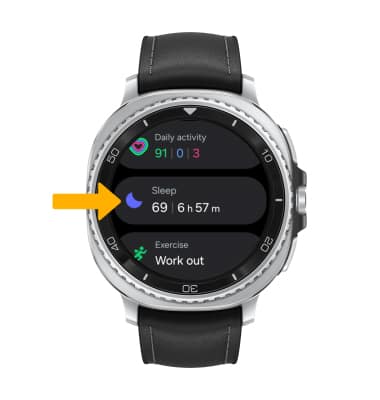
Open the Samsung Health app and select the Sleep section. You will see a summary of your last night’s sleep. The report shows total sleep time, deep sleep, and light sleep stages. Graphs help visualize your sleep trends over days or weeks. Use these reports to notice patterns and changes.
Customizing Sleep Insights
Adjust settings in the Samsung Health app for tailored sleep feedback. Set your preferred sleep goals and bedtime reminders. Enable notifications to encourage better sleep habits. Choose which metrics to display in your sleep reports. This customization makes the app fit your personal needs.
Improving Sleep Accuracy
Improving sleep accuracy on the Gear S3 helps you understand your rest better. It ensures the data you get matches your real sleep patterns. Small adjustments can make a big difference in tracking results.
Wearing The Watch Correctly
Wear the Gear S3 snugly on your wrist. Too loose or too tight affects sensor readings. Place the watch just above your wrist bone. This position helps the sensors monitor your heart rate and movement accurately.
Keep the watch clean and dry. Sweat or dirt can block sensors. Remove the watch during heavy activity to avoid false data. Proper wear improves the reliability of your sleep tracking.
Ensuring Software Updates
Keep your Gear S3 software updated. Updates fix bugs and improve sensor functions. Use the Samsung Wearable app to check for updates regularly. Updated software helps the watch collect better sleep data.
Enable automatic updates for convenience. This keeps your device running smoothly without manual checks. Updated software supports better accuracy in sleep tracking features.
Managing Battery Life
Charge your Gear S3 fully before bedtime. Low battery can stop tracking mid-night. Use power-saving modes wisely to keep the watch active longer. Avoid letting the battery drain completely.
Turn off unnecessary apps and features before sleep. This saves battery and reduces interruptions. Proper battery care ensures continuous and accurate sleep monitoring.
Troubleshooting Sleep Tracking Issues
Troubleshooting sleep tracking issues on your Gear S3 can restore accurate data quickly. Problems with sleep tracking happen due to software glitches, sensor errors, or sync failures. Understanding how to fix these issues helps keep your sleep data reliable.
Common Problems And Fixes
- Sleep data not syncing: Restart your watch and phone to reset the connection.
- Inaccurate sleep tracking: Make sure the watch fits snugly on your wrist during sleep.
- Missing sleep records: Check if the sleep tracking feature is enabled in the Samsung Health app.
- App crashing or freezing: Update the Samsung Health app and your Gear S3 software.
- Battery draining quickly: Turn off unnecessary apps running in the background.
Resetting Sleep Data
Resetting sleep data can help clear corrupted files and refresh tracking. Open the Samsung Health app on your phone.
Navigate to the sleep section and look for the option to delete or reset sleep data. Confirm the reset to erase old records.
After resetting, wear your Gear S3 overnight to collect fresh sleep data. This process can fix persistent errors in sleep reports.
When To Contact Support
Contact Samsung support if problems persist after all fixes. Issues like hardware defects or sensor failure need professional help.
Prepare your device information and a description of the problem before reaching out. Support can guide you through advanced troubleshooting or repair options.
Credit: www.att.com
Comparing Gear S3 With Other Devices
Choosing the right device for sleep tracking can be tricky, especially with so many options available. The Gear S3 stands out in some ways but also falls behind in others. Comparing it with other popular sleep trackers helps you understand where it fits and whether it meets your specific needs.
Accuracy Differences
Sleep tracking accuracy varies widely across devices. Gear S3 uses motion sensors and heart rate data to estimate your sleep stages, but it may not be as precise as specialized devices like the Fitbit Charge series or the Oura Ring.
During my own testing, I noticed the Gear S3 sometimes misclassified light sleep as awake time. This can affect how you interpret your sleep quality. If you rely heavily on exact sleep phase data, you might find other devices more reliable.
Feature Comparison
| Feature | Gear S3 | Fitbit Charge 5 | Oura Ring |
|---|---|---|---|
| Sleep Stage Tracking | Basic | Advanced | Advanced |
| Heart Rate Monitoring | Yes | Yes | Yes |
| SpO2 Measurement | No | Yes | Yes |
| Sleep Score | No | Yes | Yes |
| Battery Life | 2-3 days | 7 days | 4-7 days |
The Gear S3 covers the basics well but lacks advanced features like blood oxygen tracking and detailed sleep scoring. If these features matter to you, consider devices designed specifically for health monitoring.
Value For Sleep Tracking
The Gear S3 offers decent value if you want a smartwatch that also tracks sleep. You get multiple functions beyond sleep, like notifications, apps, and fitness tracking in one device.
However, if sleep tracking is your main goal, you might want to ask: Is it worth paying extra for a device focused on sleep? Devices like the Fitbit or Oura may provide richer data and insights that can help improve your sleep habits more effectively.
Think about your priorities. Do you want an all-in-one gadget, or a specialized tool that dives deeper into your sleep patterns? Your choice will shape how useful the data you get actually is.
Tips For Better Sleep Monitoring
Tracking your sleep with the Gear S3 can offer valuable insights, but the quality of data depends heavily on how you use the device. Small changes in your habits and settings can make a big difference in how accurately your sleep is monitored. Let’s look at ways you can improve your sleep tracking experience and get more reliable results.
Maintaining Consistent Sleep Schedule
Going to bed and waking up at the same time every day helps your Gear S3 detect your sleep phases more accurately. Your body settles into a rhythm, making it easier for the watch to identify when you fall asleep and wake up.
If your sleep time varies widely, the device might confuse rest periods with actual sleep. Try to keep your sleep schedule steady, even on weekends. Have you noticed how your sleep data fluctuates after a late night? That’s a sign your schedule needs more consistency.
Avoiding Interference
External factors like bright lights, electronic devices, and even tight wristbands can interfere with sleep tracking. The Gear S3 uses sensors to monitor movement and heart rate, so anything that disrupts these signals will reduce accuracy.
Make sure your watch fits snugly but comfortably around your wrist. Remove bright screens or turn on night mode to reduce light exposure before bed. Also, avoid caffeine or heavy meals close to bedtime, as they can cause restlessness that the watch records as wakefulness.
Using Additional Apps
The Gear S3 works well on its own, but pairing it with sleep apps can enhance your monitoring. Apps like Sleep Cycle or Samsung Health offer detailed analysis and tips based on the data collected by your watch.
These apps can track trends over time, suggest improvements, and even wake you during light sleep phases for a more refreshed feeling. Have you tried using a sleep app alongside your Gear S3? It might reveal patterns you hadn’t noticed before.
Credit: www.sammobile.com
Frequently Asked Questions
How Do I Start Tracking Sleep On Gear S3?
To start sleep tracking, wear your Gear S3 to bed. Open the Samsung Health app, then select Sleep. The watch automatically detects your sleep patterns and records data while you rest.
Can Gear S3 Track Sleep Stages Accurately?
Yes, Gear S3 tracks light, deep, and REM sleep stages. It uses built-in sensors to monitor movement and heart rate for precise sleep analysis.
How Can I View My Sleep Data On Gear S3?
Open the Samsung Health app on your Gear S3 or connected phone. Navigate to the Sleep section to see detailed graphs and sleep quality insights.
Does Gear S3 Require Manual Sleep Logging?
No, Gear S3 automatically tracks sleep without manual input. Just wear the watch overnight, and it records your sleep data seamlessly.
Conclusion
Tracking your sleep with the Gear S3 helps improve rest quality. You can easily monitor sleep patterns and get useful data. This watch gives clear information to help build better habits. Regular tracking shows changes and helps find what works best.
Use the Gear S3 daily for consistent results. Better sleep leads to better health and more energy. Simple steps make sleep tracking easy and effective. Start today and notice the difference in your sleep.

