Are you curious about how well you’re sleeping each night? Your Samsung Gear S3 can give you the answers you need.
Tracking your sleep with this smartwatch helps you understand your sleep patterns and improve your rest. In this guide, you’ll learn simple steps to set up and use your Gear S3 for sleep tracking. By the end, you’ll have the tools to wake up feeling more refreshed and energized every day.
Keep reading to unlock better sleep with your Samsung Gear S3.
Credit: www.att.com
Setting Up Sleep Tracking
Setting up sleep tracking on your Samsung Gear S3 is simple and quick. The process involves a few key steps that ensure accurate sleep data collection. Prepare your watch and smartphone to get started.
Installing Samsung Health App
The Samsung Health app collects and displays your sleep data. Download it from the Google Play Store or Apple App Store. The app is free and easy to install. Open the app after installation to begin setup.
Pairing Gear S3 With Your Phone
Connect your Gear S3 to your phone using Bluetooth. Open the Galaxy Wearable app on your phone. Follow the on-screen instructions to pair the watch. Ensure the watch has enough battery during pairing.
Enabling Sleep Tracking Feature
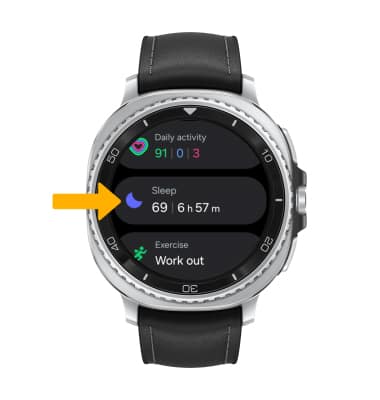
Open the Samsung Health app on your phone. Navigate to the sleep section. Turn on the sleep tracking feature to allow your watch to monitor sleep patterns. Wear your Gear S3 to bed for accurate results.
Using Gear S3 For Sleep Monitoring
Using your Samsung Gear S3 to monitor sleep can transform how you understand your nightly rest. The device offers both manual and automatic options to track your sleep patterns, making it flexible for different needs. Getting accurate data starts with a few simple steps you can easily follow.
Wearing The Watch Correctly
The accuracy of sleep tracking depends heavily on how you wear your Gear S3. Make sure the watch fits snugly but comfortably on your wrist, about one finger’s width above your wrist bone. This position allows the sensors to maintain good contact with your skin throughout the night.
If your watch is too loose, it might slip and miss vital data. Too tight, and it could affect blood flow, skewing the readings. Have you checked your watch’s fit before going to bed tonight?
Starting Sleep Tracking Manually
If you prefer more control, you can start sleep tracking manually. On your Gear S3, open the Samsung Health app and select the sleep tracking option. Tap “Start” right before you go to bed to begin recording your sleep session.
This method is useful if you want to track naps or unusual sleep patterns. Remember to stop the tracking when you wake up to get precise data. Have you ever tried manually logging your sleep to see how it differs from automatic tracking?
Automatic Sleep Detection
Your Gear S3 can detect when you fall asleep without any input from you. It uses motion sensors and heart rate data to recognize sleep phases automatically. This feature works best when you wear the watch consistently and have it properly positioned.
Automatic detection is great for those who forget to start tracking manually. However, it may sometimes miss short naps or restless nights. How reliable do you find automatic tracking compared to your personal sleep observations?
Interpreting Sleep Data
Tracking sleep with the Samsung Gear S3 helps you see patterns and quality of your rest. The device records movements and heart rate to give clear sleep reports. Understanding this data can improve your sleep habits and overall health.
Understanding how to interpret sleep data from your Samsung Gear S3 can enhance your sleep quality. The device offers detailed insights into your sleep patterns, providing valuable information to help you rest better. But how do you make sense of all this data?Reviewing Sleep Stages
The Samsung Gear S3 categorizes your sleep into stages: Light, Deep, and REM. Each stage plays a crucial role in your overall sleep health. Light sleep is when your body starts to relax, deep sleep is essential for physical recovery, and REM sleep is vital for cognitive functions. Check your sleep stage durations. Are you spending enough time in deep sleep? If not, consider changes in your bedtime routine or sleep environment to improve this.Understanding Sleep Scores
Your sleep score is a quick way to gauge your sleep quality. It combines factors like sleep duration and stages to give you a comprehensive overview. A higher score means better sleep, but don’t worry if it’s not perfect every night. Focus on trends over time rather than a single night. Is your score gradually improving? If yes, you’re on the right track. If not, identify areas you can tweak.Identifying Sleep Patterns
Patterns in your sleep data can reveal a lot about your habits. Consistent bedtimes, wake times, and routines often lead to better sleep. Look for irregularities in your sleep patterns. Are weekends throwing off your schedule? Try maintaining a consistent sleep routine even on weekends to improve your overall sleep quality. By understanding these insights, you can take actionable steps towards better sleep. What small change can you make today to improve your sleep tomorrow?Improving Sleep With Gear S3 Insights
The Samsung Gear S3 offers valuable insights that help improve your sleep quality. It tracks your sleep patterns and provides data you can use to make better choices. By using its features, you can set goals, create reminders, and relax before bedtime. These steps help build a healthy sleep routine.
Setting Sleep Goals
Setting clear sleep goals helps you aim for a consistent rest time. The Gear S3 lets you set target hours for sleep each night. This helps you stay aware of your progress and motivates you to improve. You can adjust your goals based on your lifestyle and needs.
Creating Bedtime Reminders
Bedtime reminders on the Gear S3 prompt you to prepare for sleep. These alerts help you wind down and avoid late-night distractions. Setting a regular bedtime supports your body’s natural rhythm. The watch gently nudges you to start your nighttime routine on time.
Using Relaxation Features
The Gear S3 includes relaxation tools like guided breathing exercises. These features help reduce stress before sleep. Using them calms your mind and body for better rest. Spending a few minutes on relaxation can improve sleep quality significantly.
Troubleshooting Sleep Tracking Issues
Troubleshooting sleep tracking on your Samsung Gear S3 can sometimes feel frustrating, especially when the data doesn’t seem right or your device isn’t syncing properly. But don’t worry—most issues have simple fixes that can get your sleep tracking back on track quickly. Understanding common problems will help you identify what’s going wrong and how to solve it effectively.
Sync Problems With Samsung Health
One of the most common issues is syncing errors between the Gear S3 and the Samsung Health app. If your sleep data isn’t showing up, first check if your watch and phone are connected via Bluetooth. A quick toggle of Bluetooth off and on often resolves minor glitches.
Also, ensure both your Gear S3 and Samsung Health app are updated to the latest versions. Outdated software can block smooth syncing. If you still face issues, try restarting both devices and then manually syncing through the app settings.
Inaccurate Sleep Data
Noticing strange sleep patterns or missing sleep stages? This might be due to how you wear the watch during sleep. The Gear S3 needs to be snug but comfortable on your wrist to accurately detect movement and heart rate.
Try wearing the watch on your non-dominant hand and avoid loose straps. Additionally, environmental factors like excessive movement or sleeping in a very restless position can affect accuracy. If the problem persists, calibrate the sensors by restarting the watch and resetting the sleep tracking data.
Battery And Performance Tips
Sleep tracking requires continuous sensor use, which can drain your Gear S3’s battery overnight. To avoid the watch dying mid-sleep, make sure it’s fully charged before you go to bed.
Adjust your settings to turn off unnecessary features like always-on display or background apps that consume power. If your watch feels sluggish or the battery drains too fast, consider clearing cache or performing a soft reset to boost performance.
Credit: www.sammobile.com

Credit: www.lavalite.org
Frequently Asked Questions
How Do I Enable Sleep Tracking On Samsung Gear S3?
To enable sleep tracking, open the Samsung Health app on your Gear S3. Navigate to the sleep section and activate sleep tracking. Wear your Gear S3 to bed, and it will automatically monitor your sleep patterns.
Can Samsung Gear S3 Track Sleep Stages Accurately?
Yes, the Gear S3 tracks light, deep, and REM sleep stages. It uses built-in sensors to monitor movement and heart rate. The data helps analyze your sleep quality effectively for better health insights.
How Do I View Sleep Data On Samsung Gear S3?
Open the Samsung Health app on your Gear S3 or paired smartphone. Access the sleep section to see detailed sleep duration, stages, and quality summaries. You can track trends over days, weeks, or months.
Is Continuous Heart Rate Monitoring Needed For Sleep Tracking?
Continuous heart rate monitoring improves sleep stage accuracy on Gear S3. Enable this feature in the settings to get detailed insights into your heart rate during sleep. It helps provide more precise sleep analysis.
Conclusion
Tracking your sleep with the Samsung Gear S3 helps you see your rest patterns. It shows how long and well you sleep every night. This can help you improve your sleep habits. Just wear your watch to bed and check the app in the morning.
Small changes can make a big difference in your energy and health. Keep using the Gear S3 to stay aware of your sleep. Good sleep means a better day ahead. Simple steps lead to better rest.

