Are you curious about how well you really sleep each night? Your Samsung Gear S3 can help you unlock that mystery with its built-in sleep time tracking feature.
Imagine waking up every morning with clear insights into your sleep patterns—knowing exactly when you fell asleep, how long you stayed in deep sleep, and when you woke up. This information can transform your sleep habits and boost your energy levels.
In this guide, you’ll discover simple steps to set up and use your Gear S3 for accurate sleep tracking. Get ready to take control of your rest and feel more refreshed every day!
Credit: www.att.com
Samsung Gear S3 Sleep Tracking Features
The Samsung Gear S3 offers sleep tracking features that can help you understand your sleep patterns better. These features use advanced technology to monitor your rest without interrupting your comfort. If you want to improve your sleep quality, knowing what your device tracks is the first step.
Sensors And Technology
The Gear S3 uses several sensors to gather sleep data. Its built-in accelerometer detects your movements during sleep, helping to identify when you’re awake or in deep rest. The heart rate sensor tracks your pulse continuously, giving insight into different sleep stages.
These sensors work together to create a detailed sleep profile. You don’t have to wear extra devices or manually log your sleep; the watch does the hard work silently. This means you can focus on waking up refreshed, rather than worrying about the data collection.
Types Of Sleep Data Collected
The Gear S3 collects various types of sleep data to paint a full picture of your night’s rest. It tracks total sleep duration, showing how many hours you spend asleep each night. It also breaks down your sleep into light, deep, and REM stages.
Besides duration and stages, the watch records interruptions and restlessness, which may explain why you don’t feel rested. You can view trends over time in the Samsung Health app, allowing you to spot patterns or issues. Have you noticed how small changes in your routine affect your sleep quality? The Gear S3’s data can help you find answers.
Setting Up Sleep Tracking On Gear S3
Setting up sleep tracking on your Samsung Gear S3 can transform how you understand your nightly rest. The process is straightforward but requires attention to a few key details to ensure accuracy. Once configured, you’ll gain valuable insights that can help improve your sleep quality.
Installing Necessary Apps
Before your Gear S3 can track sleep, make sure you have the Samsung Health app installed on your paired smartphone. This app collects and analyzes your sleep data, providing detailed reports and trends over time.
To install it, open the Galaxy Store or Google Play Store on your phone and search for “Samsung Health.” Download and install the app, then sync it with your Gear S3. Without this app, your watch won’t be able to store or display detailed sleep metrics.
Configuring Sleep Mode Settings
Once the app is ready, you need to configure the sleep mode on your Gear S3 for accurate tracking. Open the Samsung Health app on your watch, find the sleep tracking feature, and enable it.
You can customize your sleep goals and set a specific bedtime. This helps the watch understand when to start monitoring your sleep phases. Don’t forget to activate “Do Not Disturb” mode during your sleep hours to avoid interruptions that might skew the data.
Have you noticed how small adjustments, like setting a consistent bedtime in the app, can improve the accuracy of your sleep data? Try tweaking these settings for a few nights and compare the results to see what works best for you.
Using Gear S3 For Accurate Sleep Tracking
Samsung Gear S3 tracks your sleep by monitoring movement and heart rate during the night. Simply wear the watch while sleeping, and check the Samsung Health app for detailed sleep patterns. This helps understand sleep quality and duration easily.
Using Gear S3 for Accurate Sleep Tracking The Samsung Gear S3 can be a helpful tool for sleep tracking. It provides insights into your sleep patterns. To get the most accurate results, use the device properly. Here are some tips to enhance your sleep tracking experience.Wearing The Device Correctly
Make sure the Gear S3 fits snugly on your wrist. It should not be too tight or too loose. The sensors need close contact with your skin. This ensures accurate data collection during sleep. Keep the device clean and dry. Dirty or wet sensors can affect performance.Activating Sleep Tracking Manually Vs Automatically
The Gear S3 offers both manual and automatic sleep tracking. Automatic tracking begins when the device detects sleep-like conditions. This is convenient for users who forget to activate it. Ensure your settings allow for automatic detection. For manual tracking, start the sleep mode before bed. This ensures the device knows you are going to sleep. Manual activation may provide more precise results. Choose the method that fits your routine best.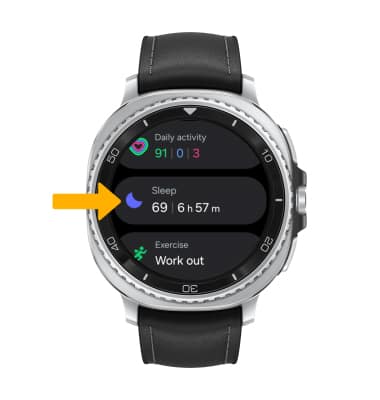
Credit: www.att.com
Interpreting Sleep Data On Gear S3
Understanding the sleep data your Samsung Gear S3 provides can help you make smarter choices about your rest. The watch breaks down your sleep into understandable parts, allowing you to see not just how long you slept but how well your body recovered. Learning to interpret this information can lead to better sleep habits and improved overall health.
Sleep Stages And Duration
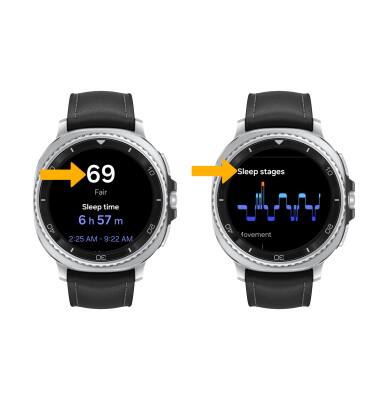
Your Gear S3 tracks different stages of sleep, including light, deep, and REM sleep. Each stage plays a unique role in how refreshed you feel. Light sleep helps with memory and learning, deep sleep supports physical recovery, and REM sleep is crucial for emotional health.
When you check your sleep data, you’ll see how many hours you spent in each stage. If you notice very little deep or REM sleep, it might explain why you still feel tired in the morning. Have you ever wondered why some nights feel more restful than others? This breakdown can give you clues.
Sleep Quality Scores
The Gear S3 also gives you a sleep quality score, which sums up how well you slept during the night. This score considers factors like how long you slept, how often you woke up, and the balance between sleep stages. It’s a quick way to gauge your sleep health at a glance.
If your score is consistently low, you may want to adjust your bedtime routine or look into lifestyle changes. For example, cutting down on screen time before bed or reducing caffeine intake might improve your numbers. What small change could you try tonight to see a difference tomorrow?
Improving Sleep With Gear S3 Insights
Improving your sleep quality is easier when you understand the data your Samsung Gear S3 provides. The watch tracks your sleep cycles and offers insights that help you make informed changes. Using these insights, you can create better bedtime routines that suit your unique patterns.
Identifying Sleep Patterns
The Gear S3 monitors your sleep stages, including light, deep, and REM sleep. By reviewing this data, you can spot trends like frequent awakenings or insufficient deep sleep. Have you noticed certain habits causing restless nights? The watch’s detailed reports help you connect the dots between your daily activities and sleep quality.
For example, if you see reduced REM sleep on nights after heavy screen time, you might decide to limit device use before bed. The Gear S3 also highlights your total sleep time and interruptions, making it easier to understand where your sleep needs improvement.
Setting Sleep Goals
Once you understand your sleep patterns, setting realistic goals is the next step. Use the Samsung Health app paired with your Gear S3 to set targets like going to bed earlier or increasing deep sleep duration. These goals keep you accountable and motivate you to stick to healthier habits.
Try starting with small changes, such as aiming for 7 hours of sleep or reducing wake times during the night. The watch will track your progress and give you feedback, turning your sleep journey into clear, measurable steps. What specific sleep goal could improve your daily energy?
Troubleshooting Common Issues
Troubleshooting common issues with Samsung Gear S3 sleep tracking helps improve accuracy and usability. Problems may arise due to device settings or syncing errors. Fixing these ensures reliable sleep data and a better experience.
Inaccurate Sleep Data
Inaccurate sleep tracking can happen if the watch does not fit well. Wear the Gear S3 snugly on your wrist. Too loose or too tight can affect sensor readings.
Make sure the device software is up to date. Updates often include fixes for sleep tracking bugs. Restart the watch after updating to refresh the system.
Remove any dirt or sweat from the sensors. Clean the back of the watch with a soft cloth. Dirty sensors may cause false data.
Check if sleep detection is enabled in the settings. Disable and enable it again to reset the feature.
Syncing Problems With Samsung Health
Syncing issues prevent sleep data from showing in Samsung Health. Ensure Bluetooth is turned on for both the watch and phone.
Keep the Samsung Health app updated. Old versions may not sync properly with the Gear S3.
Close and reopen the Samsung Health app to refresh the connection. Restart the phone if the problem continues.
Clear the app cache to remove corrupted data. Go to phone settings > Apps > Samsung Health > Storage > Clear Cache.
Check internet connection. A stable connection helps syncing work smoothly.
Additional Tips For Better Sleep Tracking
Tracking your sleep with the Samsung Gear S3 helps improve your rest. Better tracking gives clearer insights into your sleep patterns. Use these tips to get the most accurate and consistent data.
Optimizing Device Battery Life
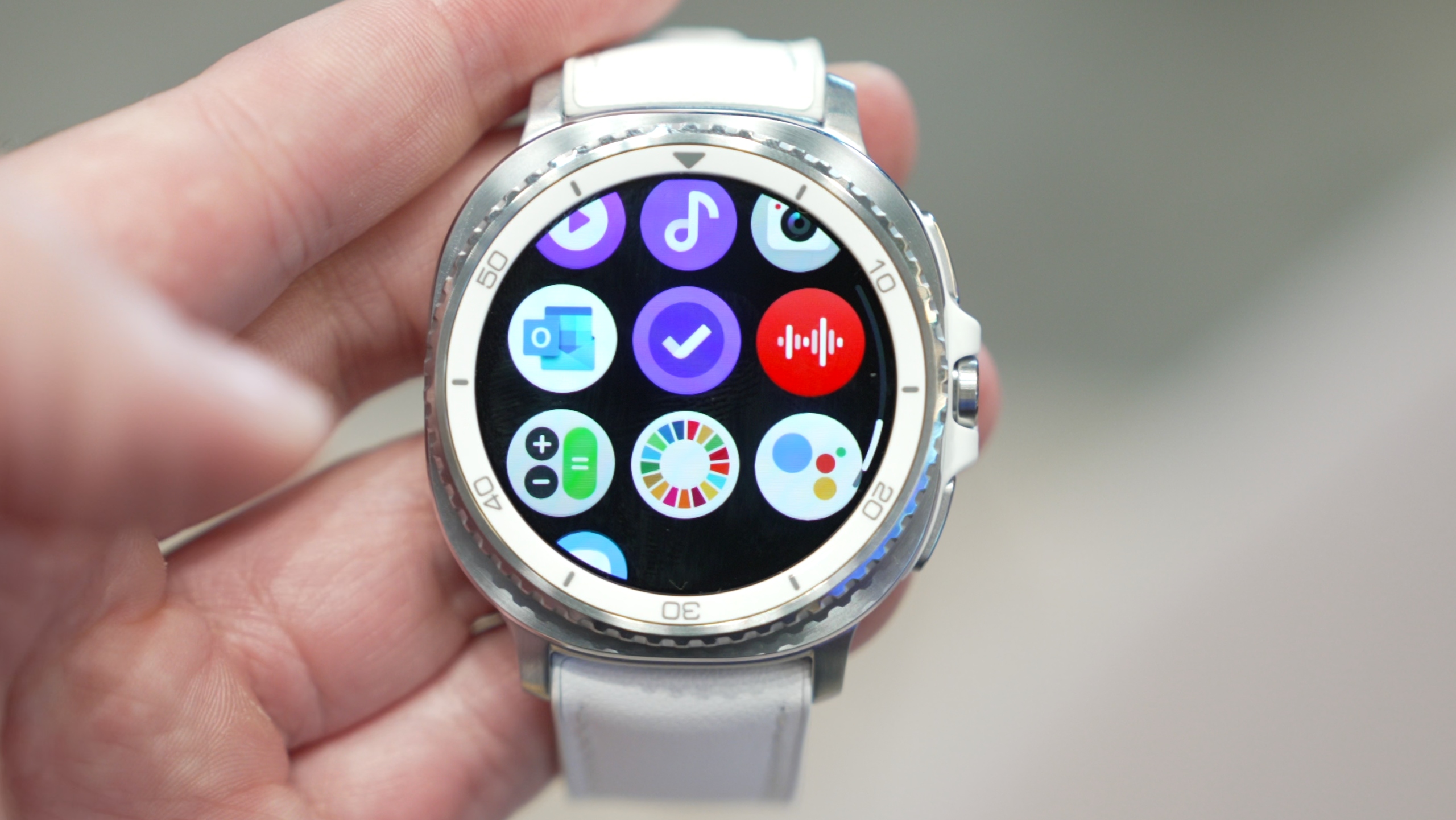
Battery life affects how long the Gear S3 can track your sleep. Charge your watch fully before bedtime to avoid interruptions. Turn off unnecessary features like GPS or always-on display at night. Lower screen brightness to save power. Use power-saving mode if available. These steps help the device last through the night without dying.
Updating Firmware And Apps
Keep your Gear S3 firmware updated for better sleep tracking accuracy. Updates fix bugs and improve sensor performance. Check the Galaxy Wearable app for the latest software versions. Also, update the Samsung Health app regularly. Updated apps provide smoother data syncing and new features. This keeps your sleep data reliable and your device running well.
Credit: www.sammobile.com
Frequently Asked Questions
How Do I Enable Sleep Tracking On Samsung Gear S3?
To enable sleep tracking, open the Samsung Health app on your Gear S3. Navigate to the Sleep section and toggle on sleep tracking. Wear your watch while sleeping for accurate data. The watch will automatically detect and record your sleep time.
Can Samsung Gear S3 Track Different Sleep Stages?
Yes, the Gear S3 tracks light, deep, and REM sleep stages. It uses built-in sensors to monitor your movements and heart rate. The data helps you understand your sleep quality and patterns for better rest.
How Accurate Is Samsung Gear S3 Sleep Tracking?
Samsung Gear S3 offers reasonably accurate sleep tracking using motion and heart rate sensors. While not medical-grade, it provides reliable insights into your sleep duration and quality. For best results, wear the watch snugly and keep software updated.
How Can I View My Sleep Data On Samsung Gear S3?
Sleep data is accessible via the Samsung Health app on your watch or phone. Open the Sleep section to see detailed graphs and summaries. You can track trends and improve your sleep habits based on this information.
Conclusion
Tracking your sleep with the Samsung Gear S3 helps improve your rest. The watch gives clear data about your sleep patterns. You can see when you sleep well or wake up often. This helps you make better choices for healthy sleep.
Just wear the watch to bed and check the app in the morning. Small changes can lead to better energy and mood. Start using sleep tracking today and feel the difference tomorrow. Sleep well, live well.