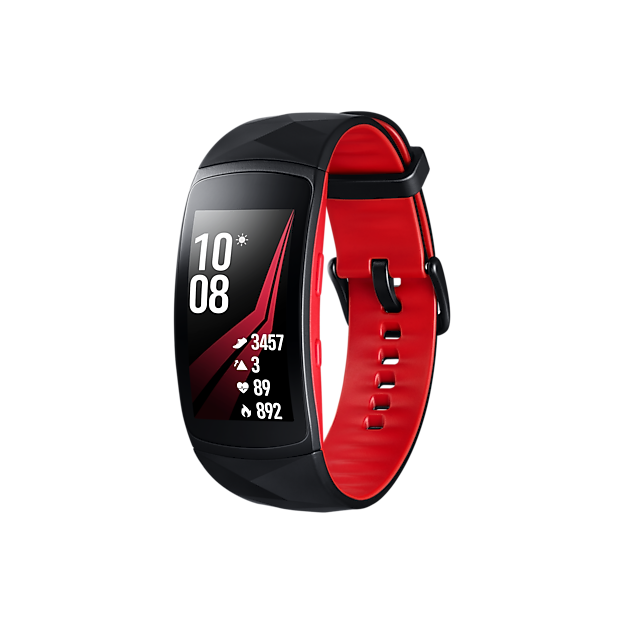
Are you ready to unlock better sleep with your Gear Fit 2? Setting up the sleep monitor on your device is easier than you think, and it can give you valuable insights into your sleep patterns.
Imagine waking up refreshed, knowing exactly how well you slept and what you can do to improve it. In this guide, you’ll learn step-by-step how to set up the sleep monitor, so you can start tracking your rest right away.
Keep reading to discover simple tips that will help you take control of your sleep health tonight.
Gear Fit 2 Sleep Monitoring Features
The Gear Fit 2 offers a range of sleep monitoring features designed to help you understand your sleep patterns better. Its tracking capabilities go beyond just recording sleep duration. It provides detailed insights into the quality of your rest, making it a handy tool for anyone looking to improve their sleep habits.
Key Benefits Of Sleep Tracking
Tracking your sleep with the Gear Fit 2 reveals patterns you might not notice otherwise. It shows how long you spend in light, deep, and REM sleep stages, which is vital for assessing sleep quality.
Knowing your sleep stages helps you identify issues like frequent awakenings or insufficient deep sleep. This data can guide changes in your routine to enhance rest and recovery.
Regular sleep tracking can also help you spot correlations between your daily habits and sleep quality. Have you ever wondered if that late-night snack or screen time affects your sleep? The Gear Fit 2 can provide clues to answer that.
Sensors And Technology Used
The Gear Fit 2 uses a combination of sensors to monitor your sleep accurately. It primarily relies on an accelerometer to detect movement and inactivity, which helps determine when you’re asleep or awake.
Additionally, the device uses heart rate sensors to track your pulse throughout the night. Changes in heart rate patterns help classify different sleep stages, giving a clearer picture of your sleep cycles.
This blend of motion and heart rate data makes the Gear Fit 2’s sleep tracking more reliable than devices that use just one sensor. Have you noticed how your heart rate tends to drop during deep sleep? The Gear Fit 2 picks up on these subtle shifts to map your sleep phases.
Preparing Your Gear Fit 2
Getting your Gear Fit 2 ready for sleep monitoring is a straightforward process that ensures accurate and reliable tracking. Before you start, it’s important to make sure the device is fully charged and up to date. This prevents interruptions and enhances the overall performance of the sleep monitor feature.
Charging And Firmware Updates
Charge your Gear Fit 2 fully before using it for sleep tracking. A low battery can cause the device to shut down during the night, resulting in incomplete data.
Connect the Gear Fit 2 to its charger using the provided cable. While charging, check for firmware updates in the Samsung Gear app on your smartphone.
- Open the Samsung Gear app.
- Tap on “About Gear.”
- Select “Update Gear Software” to see if an update is available.
- Download and install any updates to improve device functionality.
Keeping your firmware updated can fix bugs and optimize sleep tracking features, making your data more reliable.
Setting Up The Device For Sleep Tracking
Once your Gear Fit 2 is charged and updated, you need to configure it for sleep monitoring. Wear the device snugly on your wrist before going to bed, as a loose fit can affect sensor accuracy.
Open the Samsung Health app to enable sleep tracking. You may need to grant permissions to allow the Gear Fit 2 to monitor your movements and heart rate throughout the night.
- Go to Samsung Health > Sleep.
- Turn on “Track Sleep with Gear.”
- Adjust any preferences, such as sleep goal times or notifications.
Have you noticed how small adjustments like wearing the device firmly can drastically improve your sleep data? Experiment with placement and settings to find what works best for you.
Configuring Sleep Monitor Settings
Configuring the sleep monitor settings on your Gear Fit 2 is essential to get accurate and meaningful sleep data. Tailoring these settings helps the device track your sleep patterns in a way that fits your lifestyle. Let’s walk through how you can adjust these options to make your sleep tracking more effective and personalized.
Accessing Sleep Tracking Options
First, you need to find the sleep tracking options on your Gear Fit 2. Open the Samsung Health app on your paired smartphone, then scroll to the sleep section.
Tap on the sleep tracking settings to view and customize features such as automatic sleep detection and manual sleep logging. This is where you decide if the device should track your sleep automatically or if you prefer to input your sleep times yourself.
Have you noticed your sleep data sometimes feels off? Adjusting these options can fix that by matching tracking to your actual habits.
Adjusting Sleep Goals And Preferences
Next, set your sleep goals to match how much rest you want each night. You can choose your ideal number of sleep hours, which helps the Gear Fit 2 provide tailored feedback.
Additionally, customize preferences like sleep reminders or vibration alerts to improve your bedtime routine. These small tweaks can make a big difference in helping you stick to your sleep schedule.
Think about the quality of your sleep, not just the quantity. Adjusting these settings lets your Gear Fit 2 focus on what matters most to you—whether it’s deep sleep, light sleep, or waking less during the night.
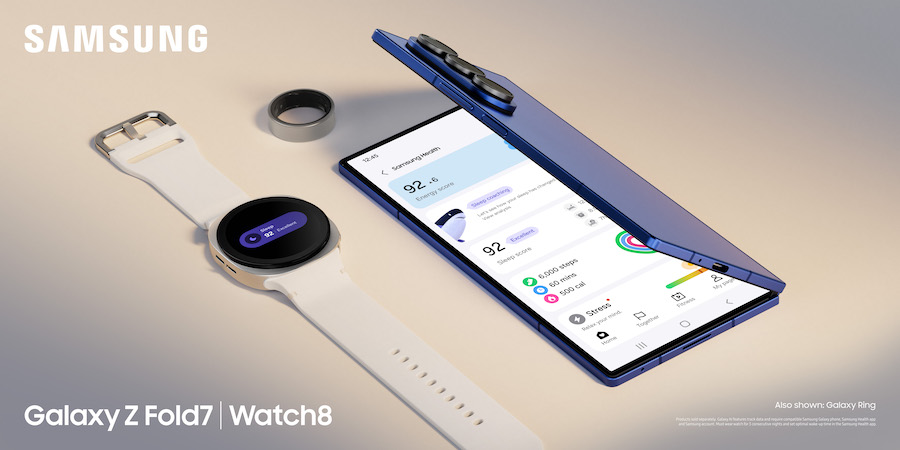
Credit: insights.samsung.com
Wearing Gear Fit 2 For Accurate Tracking
Wearing the Gear Fit 2 correctly is key for accurate sleep tracking. The device needs to sense your movements and heart rate clearly. A poor fit can cause wrong data or missed sleep phases. Comfort matters too, since you wear it all night. Follow these tips to get the best fit and keep the battery ready for overnight use.
Proper Fit And Placement Tips
- Wear the Gear Fit 2 snugly on your wrist, not too tight or loose.
- Place it just above your wrist bone for better sensor contact.
- Keep the sensor area clean and against your skin.
- Adjust the strap to avoid slipping during sleep.
- Try to wear it on your non-dominant hand for less movement interference.
Battery Life Considerations During Sleep
- Charge the Gear Fit 2 fully before going to bed.
- Turn off unnecessary notifications to save power.
- Use power-saving mode if available for longer battery life.
- Check battery status in the evening to avoid interruptions.
- Avoid using apps that drain battery during sleep hours.
Using Samsung Health App With Gear Fit 2
The Samsung Health App offers a smart way to track sleep. Pairing it with the Gear Fit 2 enhances this experience. It records sleep patterns and provides insights. This combination helps improve sleep quality over time. Users can easily sync and analyze their sleep data.
Syncing Sleep Data
Open the Samsung Health App on your phone. Ensure Bluetooth is enabled. Connect your Gear Fit 2 to your phone. The app will automatically sync sleep data. This process is quick and easy. You can view your sleep details in the app.
Analyzing Sleep Reports And Trends
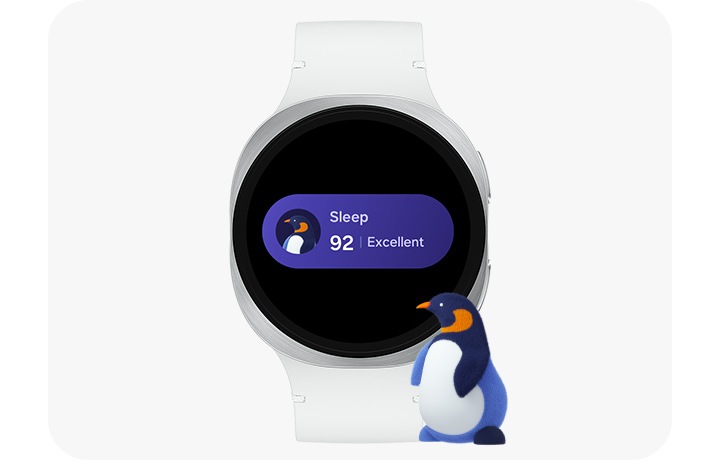
Once synced, check the ‘Sleep’ section in the app. Here, you can see detailed sleep reports. The app breaks down sleep stages and total sleep time. It displays trends over days and weeks. This helps you understand your sleep patterns better.
Credit: www.samsung.com
Troubleshooting Common Issues
Setting up your Gear Fit 2 to monitor sleep can sometimes hit a few bumps. Troubleshooting these common issues helps you get accurate sleep data without frustration. Let’s dive into practical fixes that worked for many users, including myself.
Sleep Data Not Recording
If your Gear Fit 2 isn’t recording sleep data, start by checking the fit of the band. A loose strap can cause inaccurate readings or no data at all. Make sure the device sits snugly on your wrist, especially during sleep.
Also, confirm that the sleep tracking feature is enabled in the Gear Fit 2 settings. Sometimes, updates or resets can turn off tracking without you noticing.
- Restart your Gear Fit 2 to refresh the system.
- Ensure the firmware is up to date—older versions can have bugs affecting sleep tracking.
- Try wearing the device on your non-dominant wrist, as it may improve accuracy.
Have you noticed your device working better after a quick restart? Sometimes, a simple reboot solves the problem more than expected.
Sync Problems With Samsung Health
Sync issues between Gear Fit 2 and Samsung Health can prevent your sleep data from showing up correctly. First, check your Bluetooth connection. If it’s unstable, syncing will fail.
Make sure both the Gear Fit 2 app and Samsung Health app have the necessary permissions to access data. Sometimes, restrictions in app permissions block syncing.
- Clear cache and data for both apps to remove any corrupted files.
- Log out and log back into your Samsung account to refresh the connection.
- Manually sync by opening the Samsung Health app and forcing a sync in the settings.
Have you tried turning Bluetooth off and on again? It might sound basic, but it often fixes syncing glitches instantly.
Maximizing Sleep Quality With Gear Fit 2
Maximizing your sleep quality with the Gear Fit 2 goes beyond just tracking hours. It’s about understanding your sleep patterns and making small changes that lead to better rest. This device gives you data that, when used wisely, can transform your nights and improve your days.
Tips For Better Sleep Habits
Start by setting a consistent bedtime and wake-up time, even on weekends. Your body thrives on routine, and the Gear Fit 2 can help remind you of your schedule.
Reduce screen time at least 30 minutes before bed. The blue light from phones and computers can interfere with your natural sleep signals.
- Try gentle stretching or deep breathing exercises to relax before sleep.
- Keep your bedroom cool and dark; your Gear Fit 2 will track how room conditions affect your sleep phases.
- Avoid caffeine and heavy meals late in the day to reduce nighttime restlessness.
Have you noticed how your energy changes when you skip these steps? Using the Gear Fit 2 to monitor your sleep can highlight the impact of these habits.
Interpreting Sleep Data For Improvement
The Gear Fit 2 breaks down your sleep into light, deep, and REM stages. Look at your data each morning to see which stages dominate your night.
If you find your deep sleep is consistently low, consider creating a more calming pre-sleep routine. Sometimes small changes can increase the quality of deep sleep, which is crucial for recovery.
| Sleep Stage | Importance | What Gear Fit 2 Shows |
|---|---|---|
| Light Sleep | Prepares body for deep sleep | Duration and interruptions |
| Deep Sleep | Physical recovery and memory consolidation | Amount and consistency |
| REM Sleep | Emotional health and brain function | Duration and pattern |
Ask yourself what activities or stresses might be affecting these stages. By tracking trends over time, your Gear Fit 2 becomes a tool for discovering what helps or hinders your rest.

Credit: www.tunet.cult.cu
Frequently Asked Questions
How Do I Activate Sleep Monitoring On Gear Fit 2?
To activate sleep monitoring, open the Samsung Health app on your Gear Fit 2. Go to “Sleep” and enable automatic tracking. Wear the device while sleeping to record your sleep patterns accurately.
Can Gear Fit 2 Track Different Sleep Stages?
Yes, Gear Fit 2 tracks light, deep, and REM sleep stages. It analyzes your movements and heart rate to provide detailed sleep insights each night.
How To View Sleep Data On Gear Fit 2?
Sleep data is viewable in the Samsung Health app on your phone. Open the app, select “Sleep,” and review your sleep duration, quality, and stages.
Does Gear Fit 2 Require Manual Sleep Logging?
No, Gear Fit 2 automatically detects and logs your sleep when worn overnight. Manual logging is optional but not necessary for accurate tracking.
Conclusion
Setting up the sleep monitor on your Gear Fit 2 is simple and quick. This tool helps track your sleep patterns every night. You can see how long and well you sleep. Knowing this can help you improve your rest.
Just follow the steps carefully, and your device will do the rest. Good sleep means better health and energy. Start using the sleep monitor today to feel your best tomorrow.