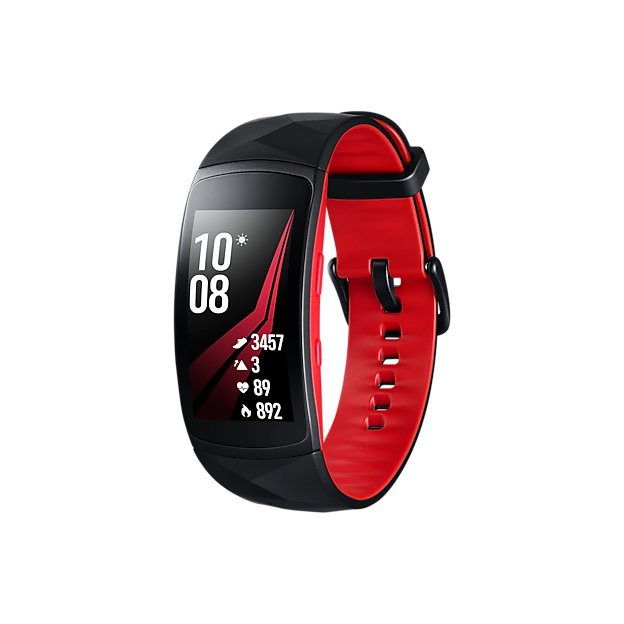
Are you struggling to get a good night’s sleep? What if your Gear S3 could help you understand your sleep patterns better?
Tracking your sleep with your Gear S3 is easier than you think. Imagine waking up feeling refreshed because you know exactly how well you’ve slept. You’ll discover simple steps to use your Gear S3 to monitor your sleep. By the end, you’ll have the tools to improve your rest and boost your energy every day.
Keep reading to unlock the secret to better sleep with your Gear S3.
Credit: www.att.com
Gear S3 Sleep Tracking Features
The Gear S3 offers useful sleep tracking features that help improve rest quality. It uses advanced sensors and technology to monitor sleep patterns. This smartwatch collects detailed data on your sleep stages and movements.
Understanding the sleep metrics it tracks can guide better sleep habits. The device provides clear insights into how well you sleep each night. This makes it easier to identify issues and adjust your routine accordingly.
Sensors And Technology
The Gear S3 uses a mix of sensors to track sleep accurately. It has an accelerometer that detects your movements during the night. This sensor helps know when you fall asleep and when you wake up.
A heart rate monitor measures your pulse throughout the night. It records changes that show different sleep stages. The device also uses algorithms to analyze this data and give sleep reports.
The watch can work automatically, sensing when you sleep without manual input. It stores sleep data on the device and syncs with the phone app. This setup helps you review your sleep trends over time.
Sleep Metrics Monitored
The Gear S3 tracks several key sleep metrics to give a full picture. These include:
- Total Sleep Time:The amount of time spent sleeping each night.
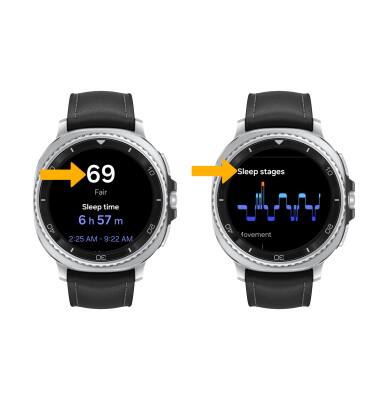
- Sleep Stages:Time spent in light, deep, and REM sleep phases.
- Awakenings:How often you wake up during sleep.
- Sleep Efficiency:The percentage of time spent asleep while in bed.
- Heart Rate:Your pulse rate changes during different sleep stages.
These metrics help understand your sleep quality and patterns. You can use this information to improve rest and feel more refreshed.
Credit: www.att.com
Setting Up Sleep Tracking On Gear S3
Setting up sleep tracking on your Gear S3 is a simple process. It helps you monitor your sleep patterns and improve rest quality. Follow easy steps to get your device ready for sleep tracking.
Installing Required Apps
Start by installing Samsung Health on your smartphone. This app connects with Gear S3 and records your sleep data. Visit the Google Play Store or Galaxy Store to download it. Open the app and sign in with your Samsung account. Make sure your Gear S3 is paired with the phone. This syncs the sleep data between the devices automatically.
Configuring Sleep Mode
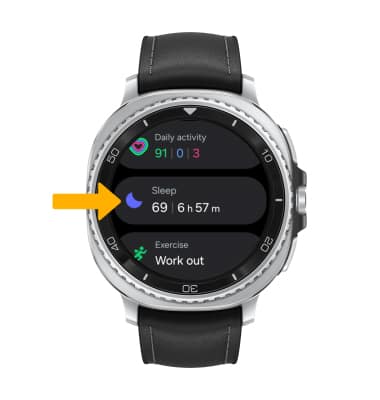
Enable Sleep Mode on your Gear S3 to track sleep effectively. Open the Samsung Health app on the watch. Find the Sleep section and set your usual sleep and wake times. Adjust the settings for Do Not Disturb to avoid interruptions. The watch will monitor your movements and heart rate during sleep. It also limits notifications to help you rest better.
Wearing Gear S3 For Accurate Tracking
Wearing the Gear S3 snugly on your wrist helps collect precise sleep data. This ensures accurate tracking of your sleep patterns throughout the night. Comfortable fit is key for reliable results.
Wearing the Gear S3 correctly ensures accurate sleep tracking. This smartwatch offers many features for monitoring sleep patterns. But getting precise data requires proper usage. Let’s explore key factors to consider.Proper Fit And Placement
For accurate tracking, wear the Gear S3 snugly on your wrist. It should be comfortable, not too tight or loose. This ensures the sensors can measure your movements effectively. Place it on your non-dominant hand. This minimizes disturbances from daily activities. Adjust the strap to avoid any gaps between the watch and your skin. A proper fit ensures consistent data collection.Battery Considerations
Ensure your Gear S3 is charged before sleep. A low battery might stop tracking during the night. Consider enabling power-saving mode. This helps extend battery life while you sleep. Keep your charging routine consistent. This guarantees the device is ready each night. Regular charging prevents interruptions in sleep tracking.Interpreting Sleep Data
Interpreting the sleep data from your Gear S3 can give you valuable insights into your nightly rest. This data helps you see not just how long you sleep but how well you sleep. Understanding what your device reports can guide you to better habits and improved sleep quality.
Understanding Sleep Stages
Your Gear S3 breaks down your sleep into stages like light sleep, deep sleep, and REM sleep. Each stage plays a different role in your body’s recovery and mental health.
Light sleep is where your body starts to relax, but you can still wake up easily. Deep sleep is the most restorative phase, helping your muscles and immune system recover. REM sleep is when dreaming happens, which supports memory and mood.
Look at the balance between these stages. If you notice very little deep or REM sleep, it might explain feelings of tiredness even after a full night. Have you ever felt like you slept enough but still wake up exhausted? Your sleep stages data could hold the answer.
Identifying Sleep Patterns
Tracking your sleep over days and weeks reveals patterns that might surprise you. Your Gear S3 shows trends such as consistent bedtimes, total sleep duration, and interruptions.
Watch for repeated wake-ups or short sleep duration. These patterns might hint at stress, caffeine intake, or room conditions affecting your sleep. I once noticed my sleep was fragmented on nights I drank coffee late; seeing this pattern made me cut down after 3 PM.
Use the data to ask yourself: Are you sleeping the same amount on weekdays and weekends? Are naps helping or hurting your overall rest? Answering these questions helps you adjust your routine for better sleep health.
Improving Sleep Quality With Insights
Improving your sleep quality becomes easier when you have clear insights from your Gear S3. This smartwatch doesn’t just track your sleep; it helps you understand patterns and pinpoint disruptions. With this information, you can make smarter choices that lead to better rest and more energy during the day.
Setting Sleep Goals
Start by using the Gear S3 to set realistic sleep goals tailored to your lifestyle. The watch lets you define how many hours of sleep you want each night and tracks your progress. Seeing your sleep data daily helps you stay motivated and focused on reaching these goals.
Think about what works best for you: Do you feel refreshed after 7 hours, or do you need closer to 8? Adjust your goal until it fits your personal needs. The Gear S3’s gentle reminders can nudge you to head to bed on time, making consistency easier to maintain.
Adjusting Habits Based On Data
Use the sleep insights to identify habits that either help or hurt your rest. For example, if the data shows frequent wake-ups after midnight, ask yourself what might be causing them. Is it late caffeine, screen time, or stress?
Once you spot a pattern, try small changes like cutting off caffeine earlier or turning off devices an hour before bed. Track these adjustments with your Gear S3 and compare the results over a week. This trial and error approach lets you find what truly improves your sleep quality.
How often do you review your sleep patterns? Regularly checking your data can reveal subtle shifts that affect your rest. Your Gear S3 gives you the tools to take control and create a bedtime routine that actually works for you.
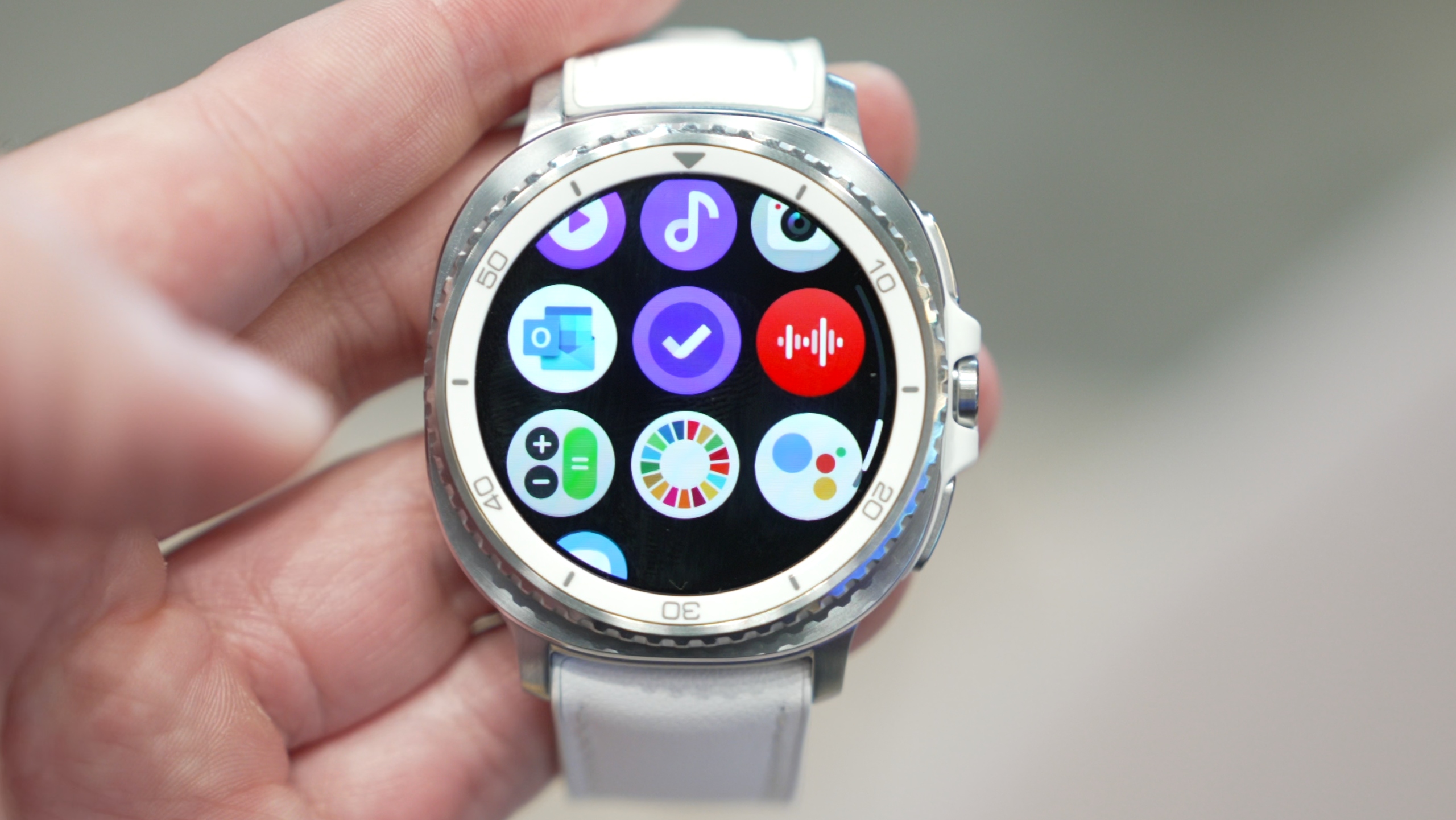
Credit: www.sammobile.com
Troubleshooting Common Issues
Tracking your sleep with the Gear S3 can provide useful insights. Sometimes, it might not work perfectly. Troubleshooting common issues can help you get accurate and reliable data. This section covers common problems and easy fixes.
Sync Problems
Syncing data between your Gear S3 and phone may fail. This stops sleep data from updating properly. Check these points to fix sync problems:
- Ensure Bluetooth is turned on for both devices.
- Keep the devices close to each other during syncing.
- Restart your Gear S3 and smartphone to refresh connections.
- Update the Gear S3 software and the companion app.
- Clear the app cache if syncing still does not work.
Following these steps often restores smooth data transfer.
Inaccurate Data
Sometimes, sleep tracking data looks wrong or incomplete. Causes include poor sensor contact or wrong settings. Try these tips to improve data accuracy:
- Wear the Gear S3 snugly on your wrist while sleeping.
- Keep the sensors clean and free from dirt or sweat.
- Set the correct sleep time manually if automatic detection fails.
- Use the latest software version for better tracking algorithms.
- Avoid moving too much before sleep to reduce false readings.
Accurate data helps you understand your sleep patterns better.
Comparing Gear S3 With Other Sleep Trackers
Tracking sleep is essential for better health. Many devices help monitor sleep patterns. The Gear S3 stands out among popular sleep trackers. It offers unique features and some challenges. Comparing it with others reveals its strengths and weaknesses. This helps choose the best tracker for your needs.
Advantages
- Comfortable to wear with a classic watch design.
- Tracks sleep stages like deep, light, and REM sleep.
- Integrates with Samsung Health for detailed reports.
- Long battery life lasts several days on one charge.
- Provides vibration alerts without disturbing partners.
- Water-resistant, safe to wear overnight in various conditions.
Limitations
- Sleep tracking is less detailed than specialized sleep devices.
- May miss subtle movements compared to dedicated sensors.
- Data accuracy can vary depending on wrist placement.
- Limited third-party app support for advanced sleep analysis.
- Occasional syncing delays with the smartphone app.
- Heavier than some lightweight sleep bands, affecting comfort.
Frequently Asked Questions
How Do I Enable Sleep Tracking On Gear S3?
To enable sleep tracking, open the Samsung Health app on your Gear S3. Navigate to the Sleep section and turn on sleep tracking. Wear your Gear S3 while sleeping to allow accurate monitoring of your sleep patterns and quality.
Can Gear S3 Track Different Sleep Stages?
Yes, Gear S3 tracks light, deep, and REM sleep stages. It uses sensors to monitor movement and heart rate. This data helps analyze your sleep quality and provides insights for better rest.
How Accurate Is Gear S3 Sleep Tracking?
Gear S3 offers reliable sleep tracking using heart rate and motion sensors. While not medical-grade, it provides useful trends and insights. Accuracy improves when the watch fits snugly on your wrist during sleep.
Can I View Sleep Data On My Phone?
Yes, sync your Gear S3 with the Samsung Health app on your phone. The app displays detailed sleep reports, trends, and tips. This helps you understand and improve your sleep habits effectively.
Conclusion
Tracking your sleep with the Gear S3 helps you understand your rest better. The watch gives clear data on your sleep patterns each night. Use this information to improve your sleep habits step by step. Consistent tracking can show changes over time.
Better sleep means better health and more energy daily. Start using your Gear S3 tonight. See how small changes make a big difference soon. Simple tools, smart tracking, healthier you.