Are you wondering if you can create multiple Acronis Survival Kits on a single hard drive? If you rely on Acronis to protect your data, knowing how to manage your Survival Kits effectively is crucial.
Imagine having all your recovery tools neatly organized on one device, ready whenever you need them. You’ll discover the simple truth about creating multiple Survival Kits on one HDD—and how to do it without risking your backups. Keep reading to make your data protection smarter and more efficient.
Credit: us.informatiweb.net
Acronis Survival Kit Basics
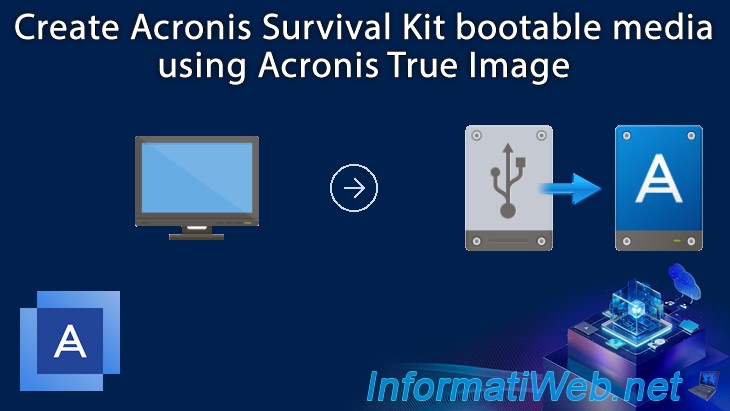
The Acronis Survival Kit is a handy tool for protecting your computer. It combines all necessary files for recovery on one external drive. This kit includes your system image, Acronis bootable media, and necessary drivers. It helps restore your system quickly after a crash or failure.
Understanding the basics of the Survival Kit is important before creating it. Knowing what files it holds and how it works will help manage backups better. It also clarifies whether multiple kits can exist on one hard drive.
What Is An Acronis Survival Kit?
The Survival Kit is a complete backup package. It allows you to boot and restore your system if Windows fails. It contains the Acronis bootable media and a copy of your backup image. This kit can save time during recovery.
Components Of The Survival Kit
- Bootable media to start your system
- Backup image of your entire system
- Drivers needed for your hardware
- Configuration files for recovery settings
Why Use A Survival Kit?
The kit ensures you do not need separate tools during recovery. It reduces the risk of missing files when restoring. The kit is easy to carry and use on any compatible PC. It helps avoid complicated recovery processes.
Storage Requirements For The Kit
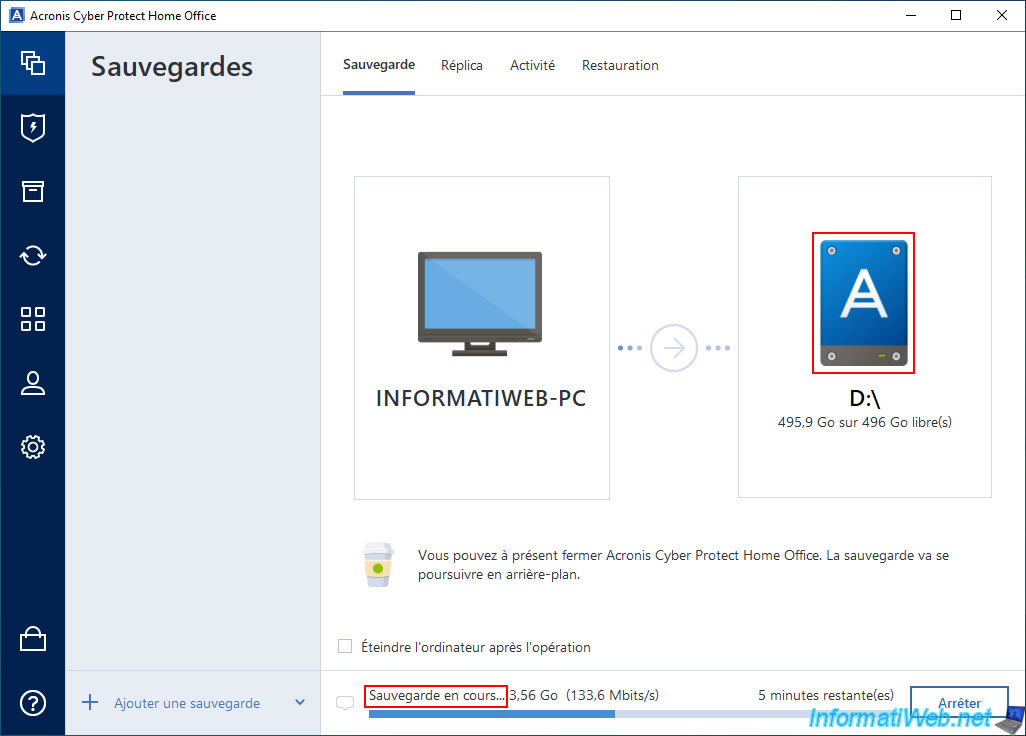
The Survival Kit needs enough space for boot files and backups. The external hard drive should be formatted properly before use. The size depends on your system image and additional files. Ensuring enough free space is critical.
Credit: us.informatiweb.net
Benefits Of Acronis Survival Kits
Acronis Survival Kits offer a reliable way to safeguard your system and data in case of emergencies. They combine your backup files with the necessary tools to restore your system quickly and easily. Understanding their benefits can help you decide how to best protect your digital life.
Easy And Complete System Recovery
With an Acronis Survival Kit, you get everything you need to restore your system on one drive. This means no searching through multiple devices or files when time is critical. Your recovery process becomes straightforward, saving you from stressful delays.
Portability And Convenience
Having a Survival Kit on a single external HDD makes it highly portable. You can carry it anywhere, allowing you to recover your system even if you’re away from your usual workspace. This convenience ensures you’re prepared for unexpected hardware failures or cyberattacks wherever you are.
Reduced Risk Of Data Loss
By combining backups with recovery tools, the Survival Kit minimizes the chance of incomplete restoration. This integration means you don’t have to worry about missing files or necessary software components during recovery. It’s a complete safety net for your important data.
Time-saving In Critical Situations
Imagine your system crashes and you need to get back online fast. Having a ready-to-go Survival Kit means you skip the setup steps and jump straight into recovery. This can save hours, or even days, especially when your work depends on quick access to your files and programs.
Can You Create Multiple Kits On One Hdd?
Considering these benefits, you might wonder if you can create multiple Survival Kits on a single external HDD. This approach could help you manage backups for different systems or keep multiple recovery options handy. But does Acronis support this, and is it practical for your needs?
Hardware Requirements
Understanding the hardware requirements is crucial when creating multiple Acronis Survival Kits on a single hard drive. Your hardware setup directly impacts the efficiency and reliability of these kits. Are you sure your current hard drive can handle multiple survival kits without compromising performance?
Storage Capacity
Each Acronis Survival Kit needs enough space to store the recovery environment and backup data. The size varies depending on your system and the number of backups you want to include.
Make sure your hard drive has ample free space to accommodate all kits. Running out of space can cause failed backups and incomplete survival kits.
Drive Speed And Performance
A fast hard drive improves the creation and restoration speed of survival kits. SSDs are generally better than traditional HDDs for this task.
If you plan to store multiple kits, consider how drive speed might affect access times and backup creation. Slow drives can delay your recovery process when you need it most.
Partitioning And File System
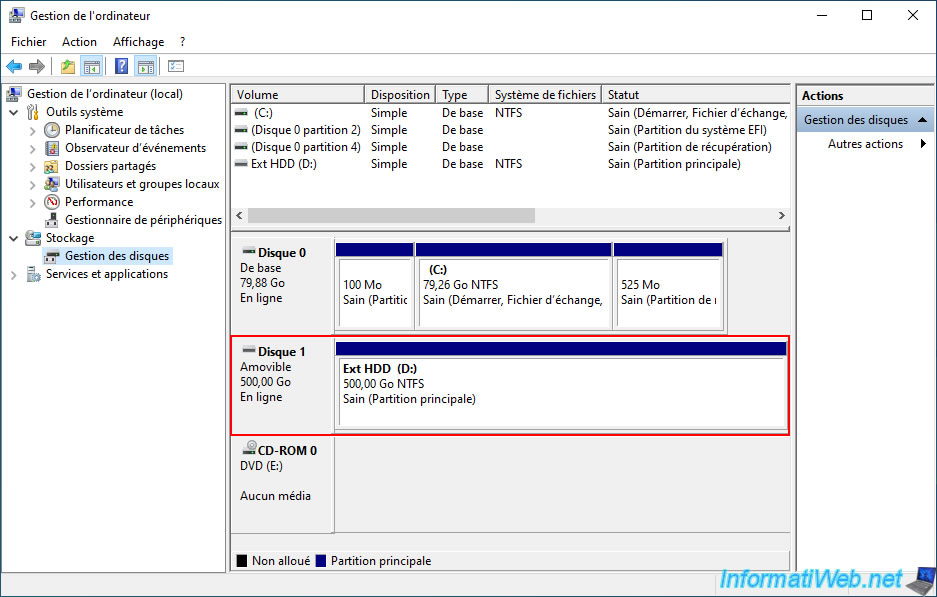
Properly partitioning your hard drive helps organize multiple survival kits effectively. Each kit can reside in a separate partition, preventing data overlap.
Also, verify that your file system supports the size and format needed by Acronis. NTFS is commonly recommended for Windows users.
Connectivity And Compatibility
Ensure your hard drive connects reliably to your system during both backup creation and recovery. USB 3.0 or higher interfaces provide faster and more stable connections.
Compatibility with your hardware and Acronis software version is essential. Check for firmware updates or driver support before creating multiple kits.
Creating Multiple Kits On One Hdd
Creating multiple Acronis Survival Kits on a single HDD allows you to have several recovery tools on one device. This setup can save space and offer backups for different systems or configurations. It also ensures you have a ready-to-use kit for various recovery needs without needing multiple drives.
You can organize each kit in separate partitions or folders on the HDD. Managing space carefully is crucial to avoid overwriting important data. Each kit functions independently, giving flexibility in recovery options.
Step-by-step Process
- Prepare your HDD by backing up any important data.
- Create separate partitions or folders for each Survival Kit.
- Run the Acronis software and choose the option to create a Survival Kit.
- Select the specific partition or folder on the HDD for each kit.
- Follow on-screen instructions to complete the kit creation.
- Repeat the process for additional kits on different partitions or folders.
- Verify each kit’s files are saved correctly and accessible.
Potential Challenges
- Limited HDD space may restrict the number of kits you can create.
- Incorrect partitioning can cause data loss or kit corruption.
- Mixing kits in one folder may lead to confusion or overwriting files.
- Booting from multiple kits on one drive can be complex without proper setup.
- Each kit must be updated separately to maintain effectiveness.
Managing Disk Space
Managing disk space is crucial when creating multiple Acronis Survival Kits on a single hard drive. Each kit requires enough storage to hold backup images and essential recovery files. Without proper space management, the drive can fill up quickly, causing backup failures or corrupted data. Efficient space use ensures reliability and smooth operation of your survival kits.
Planning and monitoring disk space helps avoid interruptions. Prioritize which backups are essential and remove old or unnecessary files. Keeping track of free space prevents unexpected errors during backup creation or recovery processes.
Best Practices
- Allocate enough space for each survival kit based on backup size.
- Keep some free space on the drive for system operations.
- Regularly delete outdated or duplicate survival kits.
- Use separate folders to organize each survival kit clearly.
- Check backup sizes before starting new survival kits.
Tools For Monitoring Space
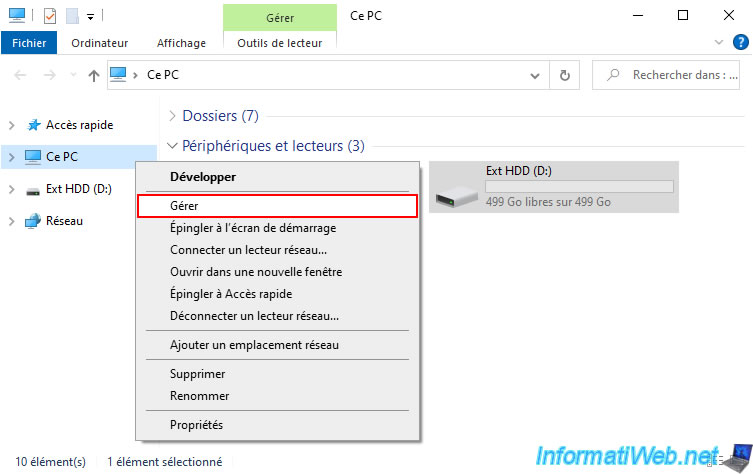
- Windows Disk Management shows free and used space visually.
- Third-party tools like WinDirStat display detailed disk usage.
- Acronis software provides status updates during backup processes.
- System alerts can notify when disk space runs low.
- Regular manual checks help maintain control over disk space.
Security Considerations
Security is a key factor when creating multiple Acronis Survival Kits on one HDD. These kits hold backup data that protects your system. Guarding this data against unauthorized access is crucial. Failure to secure survival kits could lead to data theft or loss. Understanding security risks helps protect your backups effectively.
Protecting Your Kits
Store survival kits in a safe, secure location. Avoid places exposed to physical damage or theft. Use durable, encrypted drives to enhance protection. Encryption scrambles data, making it unreadable without a key. Regularly update your Acronis software to fix security holes. Create backups of your survival kits in separate locations for extra safety.
Access Control Measures
Limit access to the HDD containing survival kits. Use strong passwords to prevent unauthorized entry. Enable multi-factor authentication when available. Set user permissions to restrict who can view or modify kits. Monitor access logs to detect suspicious activities. Disconnect the HDD from the internet to reduce hacking risks.
Troubleshooting Common Issues
Troubleshooting common issues with creating multiple Acronis Survival Kits on one HDD helps ensure smooth backup operations. Problems may arise due to software limits or hardware conflicts. Knowing how to identify and fix these issues saves time and protects your data.
Error Messages
Error messages often point to what went wrong during the kit creation. Common errors include:
- Insufficient disk space warnings
- File system incompatibility alerts
- Access denied or permission errors
Check disk space before starting. Ensure the HDD is formatted in a compatible file system like NTFS. Running Acronis with administrator rights avoids permission problems. Restart the software if errors persist.
Performance Problems
Slow response or freezing can disrupt creating multiple kits. Causes include:
- Overloaded HDD due to many files
- Fragmented disk slowing read/write speeds
- Background programs consuming system resources
Close unnecessary applications during backup. Use disk defragmentation tools regularly. Consider splitting kits across different drives to reduce load. Monitor system performance for smooth operation.
Credit: us.informatiweb.net
Alternatives To Acronis Kits
If you’re looking to create multiple survival kits or want more flexibility than what Acronis offers, exploring other backup tools can be a smart move. Each tool has unique strengths that might better suit your specific needs or hardware setup. Let’s look at some alternatives and see how they stack up against Acronis kits.
Other Backup Solutions
There are several reliable backup solutions that allow you to create multiple bootable recovery kits on a single hard drive. Tools like Macrium Reflect, EaseUS Todo Backup, and Paragon Backup & Recovery come to mind. These programs often support creating multiple backup environments or partitions on one HDD, letting you organize your recovery options more efficiently.
For instance, Macrium Reflect lets you build multiple rescue media versions, which can be saved to different folders or partitions on the same drive. This feature helped me keep separate environments for different computers I manage, saving space and avoiding confusion.
- Macrium Reflect:Supports multiple rescue media, incremental backups, and flexible partitioning.
- EaseUS Todo Backup:User-friendly interface, multiple backup types, and supports creating bootable media on one drive.
- Paragon Backup & Recovery:Offers advanced partitioning options and multiple recovery environments.
Comparison Of Features
| Feature | Acronis Survival Kit | Macrium Reflect | EaseUS Todo Backup | Paragon Backup & Recovery |
|---|---|---|---|---|
| Create Multiple Kits on One HDD | Limited support | Yes | Yes | Yes |
| Bootable Rescue Media | Yes | Yes | Yes | Yes |
| Incremental Backup Support | Yes | Yes | Yes | Partial |
| Ease of Use | Moderate | Moderate | High | Moderate |
| Cost | Higher | Varies (Free & Paid) | Free & Paid Versions | Paid |
Would having multiple rescue environments on one HDD help you manage backups more efficiently? If your setup involves multiple machines or frequent changes, some of these alternatives might offer the flexibility you need. Think about your backup goals and hardware before settling on one tool.
Frequently Asked Questions
Can I Store Multiple Acronis Survival Kits On One Hdd?
Yes, you can create multiple Acronis Survival Kits on a single HDD. Each kit requires enough space to store recovery tools and backups separately. Organizing kits in distinct folders helps avoid confusion and ensures easy access during system recovery.
Does Multiple Survival Kits Affect Hdd Performance?
Creating multiple Acronis Survival Kits on one HDD has minimal impact on performance. The HDD handles data storage efficiently, but ensure sufficient free space to avoid slowdowns. Regular maintenance and defragmentation improve overall HDD speed and reliability.
How To Manage Space For Multiple Survival Kits?
Manage HDD space by allocating separate folders for each Survival Kit. Monitor disk usage regularly and delete outdated kits to free up space. Use an external drive if internal HDD space is limited for better storage management.
Are Multiple Survival Kits Necessary For Backup Security?
Multiple Acronis Survival Kits enhance backup security by providing redundancy. They offer alternative recovery options if one kit is corrupted or unavailable. This practice ensures higher data protection and quicker system restoration during emergencies.
Conclusion
Creating multiple Acronis Survival Kits on one HDD is possible but has limits. Each kit needs enough free space to work properly. Overloading the HDD can cause errors or data loss. Organize your kits by labeling and separating them clearly.
Regularly check your HDD health to avoid surprises. This approach helps keep backups safe and easy to find. Remember to update kits often for the best protection. Simple steps like these make your data recovery smoother and more reliable.