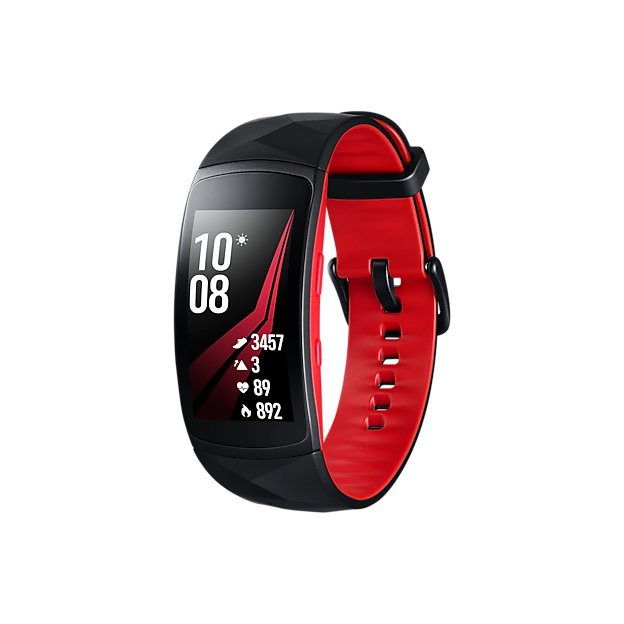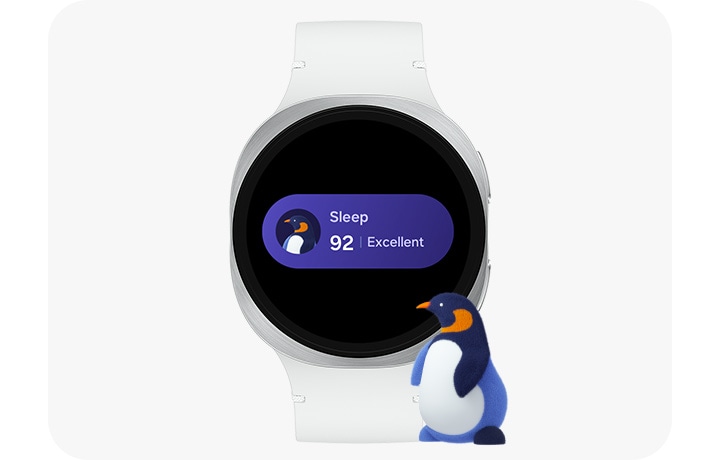
Are you curious about how well you sleep each night? Using the sleep tracker on your Gear Fit 2 can give you clear insights into your sleep patterns and help you improve your rest.
Imagine waking up feeling refreshed and energized every day. In this guide, you’ll learn exactly how to set up and use the sleep tracker on your Gear Fit 2, so you can take control of your sleep health. Keep reading to discover simple steps that will unlock better sleep and a better you.

Credit: harubina.co.jp
Getting Started With Gear Fit 2
Getting started with the Gear Fit 2 is straightforward, even if you are new to fitness trackers. This device not only monitors your daily activities but also provides detailed insights into your sleep patterns. Setting up your Gear Fit 2 correctly is essential to make sure you get accurate sleep tracking data.
Setting Up Your Device
First, charge your Gear Fit 2 fully before use. This ensures the device won’t shut down during initial setup. Power it on by pressing the home button until the Samsung logo appears.
Next, follow the on-screen instructions to select your preferred language and connect the device to your smartphone via Bluetooth. Make sure Bluetooth is enabled on your phone and that your phone is nearby.
During setup, you’ll be asked to enter basic details such as age, weight, and height. These details help the tracker calculate more accurate data about your sleep and activity levels.
Installing The Samsung Health App
The Samsung Health app is crucial for syncing and reviewing your sleep data. Download the app from the Google Play Store or Apple App Store depending on your phone’s operating system.
After installation, open the app and sign in with your Samsung account. If you don’t have one, creating an account only takes a minute.
Once signed in, pair your Gear Fit 2 with the app by following the pairing prompts. This connection allows your sleep data to transfer automatically, giving you detailed reports and trends over time.
Have you ever wondered how your sleep quality changes after stressful days? Regularly checking your sleep stats in Samsung Health can help you notice patterns and make better lifestyle choices.
Activating Sleep Tracking
Activating sleep tracking on your Gear Fit 2 is a key step to understanding and improving your sleep quality. Knowing how to turn on this feature correctly helps you get accurate data without extra hassle. Let’s look at how to manage sleep tracking both manually and automatically, and how to enable sleep mode for the best experience.
Manual Vs Automatic Tracking
You can choose between manual and automatic sleep tracking on your Gear Fit 2. Manual tracking requires you to start and stop the sleep mode yourself. This works well if you have a consistent bedtime and want precise control.
Automatic tracking lets the device detect when you fall asleep and wake up without any input from you. It’s convenient but sometimes less accurate, especially if you move a lot at night. Try both methods to see which matches your sleep pattern better.
- Manual Tracking:Press and hold the home button before you go to bed and again when you wake up.
- Automatic Tracking:Enable the feature in the settings; the device will track your sleep based on movement and heart rate.
Enabling Sleep Mode
Sleep mode helps Gear Fit 2 reduce notifications and screen brightness while you rest. Activating it ensures you won’t be disturbed by alerts and the tracker focuses on collecting sleep data.
To enable sleep mode:
- Swipe down on the home screen to access quick settings.
- Tap the “Sleep Mode” icon to turn it on.
You can also set a schedule for sleep mode so it turns on and off automatically. This makes tracking effortless, especially if your sleep times don’t vary much.
Have you noticed how much uninterrupted sleep improves when you avoid screen light and notifications? Activating sleep mode might be the simple change that makes a big difference in how rested you feel.
Interpreting Sleep Data
Interpreting sleep data on your Gear Fit 2 can enhance your rest. Understanding your sleep patterns helps improve your overall health. Dive into the data and learn more about your nightly routines.
Sleep Stages Explained
Your sleep cycle has different stages. Light sleep is a transition phase. Your body starts to relax. Deep sleep is crucial for physical recovery. It helps with muscle growth and repair. REM sleep is when dreams occur. It boosts memory and learning.
Tracking Sleep Duration
Track how long you sleep each night. Aim for 7-9 hours of sleep. This is the recommended amount for adults. Check your sleep logs regularly. They show patterns in your sleeping habits.
Understanding Sleep Quality Scores
Your Gear Fit 2 gives you a sleep quality score. This score reflects your overall sleep health. It considers the duration and stages of your sleep. A higher score means better rest. Use this score to adjust your habits. Improve your bedtime routine for better sleep.
Improving Sleep With Gear Fit 2
Improving sleep quality is easier with the Gear Fit 2’s sleep tracker. This tool helps you understand your sleep patterns. It collects data on how long and how well you sleep. Using this data, you can make small changes that lead to better rest. The following tips show how to use the Gear Fit 2 to improve your sleep.
Setting Sleep Goals
Start by setting clear sleep goals in the Gear Fit 2 app. Choose the number of hours you want to sleep each night. The device will remind you to stick to these goals. This helps create a regular sleep schedule. Consistency is key for better sleep quality.
Using Sleep Insights
The Gear Fit 2 provides sleep insights based on your tracked data. It shows your deep, light, and REM sleep phases. Review this information daily or weekly. Notice trends or patterns that affect your rest. These insights highlight areas to improve.
Adjusting Habits Based On Data
Use the sleep data to change your daily habits. For example, avoid caffeine late in the day. Try to reduce screen time before bed. Create a relaxing bedtime routine. Small changes can improve your sleep stages and overall rest.
Troubleshooting Common Issues
Using the sleep tracker on your Gear Fit 2 can give valuable insights into your sleep patterns. However, you might face some hiccups that affect the accuracy or functionality. Troubleshooting these issues quickly helps you get back to tracking restful nights without frustration.
Syncing Problems
Syncing issues between your Gear Fit 2 and the Samsung Health app are common. If your sleep data isn’t updating, first check that Bluetooth is enabled on both devices. Sometimes, simply toggling Bluetooth off and on resolves the problem.
Make sure your Gear Fit 2 is within a close range of your phone during syncing. If syncing still fails, try restarting both devices. You can also clear the cache of the Samsung Health app to remove any temporary glitches.
Inaccurate Sleep Data
Have you noticed your sleep tracker showing odd sleep times or missing sleep stages? This usually happens if the band isn’t worn snugly on your wrist. A loose fit can cause the sensors to pick up incorrect readings.
Try wearing your Gear Fit 2 a bit tighter during sleep but not so tight that it’s uncomfortable. Also, avoid moving your wrist a lot before bedtime to reduce false awakenings in the data. If you sleep in unusual positions, the tracker might misinterpret those movements.
Battery Life Tips
Battery drain can interfere with continuous sleep tracking. To extend your Gear Fit 2’s battery life, turn off features you don’t need at night, like continuous heart rate monitoring or notifications.
Lowering the screen brightness and using power-saving mode can also help. Remember to charge your device fully before bed to avoid interruptions in tracking. Have you tried these simple tweaks to keep your tracker running all night?
.png)
Credit: www.independent.co.uk
Advanced Features For Sleep Tracking
Advanced features in the Gear Fit 2’s sleep tracker offer more than just basic sleep duration. They provide insights that can help you understand how well you rest and identify areas to improve your nightly routine. Using these tools effectively can make a noticeable difference in how refreshed you feel each morning.
Heart Rate Monitoring During Sleep
Your Gear Fit 2 tracks your heart rate continuously while you sleep, giving you a detailed look at your sleep quality. By analyzing your heart rate patterns, the device can detect different sleep stages like light, deep, and REM sleep. This data helps you see if your heart rate stays within a healthy range and if interruptions affect your rest.
Have you noticed nights when your heart rate spikes unexpectedly? This could indicate stress or other issues impacting your sleep. Monitoring these changes allows you to adjust habits or consult a healthcare professional if needed.
Smart Alarms
The smart alarm feature on the Gear Fit 2 wakes you up gently during your lightest sleep phase within a set time window. This approach reduces grogginess and helps you start your day feeling more alert. Instead of a sudden jolt, the alarm uses vibration to ease you out of sleep naturally.
Setting a smart alarm can be a game-changer if you struggle with morning fatigue. Have you tried waking up at the wrong sleep stage and felt disoriented? Smart alarms help avoid that by timing your wake-up to your body’s rhythm.
Using Third-party Apps
While the Gear Fit 2’s built-in sleep tracker is powerful, pairing it with third-party apps can enhance your experience. Apps like Sleep as Android or Fitbit can provide deeper analysis and additional features like sleep coaching. These apps sync your sleep data and offer personalized tips based on your patterns.
Using third-party apps can also help if you want to track other health metrics alongside sleep. How much more could you improve your rest by combining detailed sleep data with lifestyle insights? Experimenting with these tools might reveal surprising connections.

Credit: www.reddit.com
Frequently Asked Questions
How Do I Activate Sleep Tracking On Gear Fit 2?
To activate sleep tracking, open the Samsung Health app on your Gear Fit 2. Navigate to the sleep section and enable automatic sleep detection. Wear your Gear Fit 2 while sleeping, and it will start tracking your sleep patterns automatically.
Can Gear Fit 2 Track Sleep Stages Accurately?
Yes, Gear Fit 2 tracks sleep stages including light, deep, and REM sleep. It uses heart rate and motion sensors to monitor your sleep quality. This data helps you understand your sleep cycle and improve your overall rest.
How Can I View My Sleep Data On Gear Fit 2?
You can view sleep data directly on your Gear Fit 2 or in the Samsung Health app on your phone. The app provides detailed graphs and summaries of your sleep duration and quality for easy analysis.
Does Gear Fit 2 Offer Sleep Improvement Tips?
Yes, Gear Fit 2 provides personalized sleep insights and tips based on your sleep patterns. These suggestions help you create better sleep habits and improve your overall sleep quality over time.
Conclusion
Using the sleep tracker on Gear Fit 2 helps you understand your sleep better. It shows your sleep patterns clearly and simply. You can see how long and well you sleep each night. This information helps you make small changes for better rest.
Good sleep improves your health and energy. Keep checking your sleep data regularly to see progress. The Gear Fit 2 makes tracking easy and helpful. Sleep well, feel better every day.